Editing of Multi Format Information (Transfer Information)
This topic explains how to register, modify, and delete a record of the Multi Format Information (or the multi format data for the file to be sent).
When you specify 'MULTIFORMAT' for the Transfer Type and click the [List] on the right of the Format/Multi Format ID in the Sending Side Settings Information of the Transfer definition frame, the Select Multi Format Information Record screen appears.
Procedure for Displaying Register Multi Format Information/Modify Multi Format Information Record Screen
-
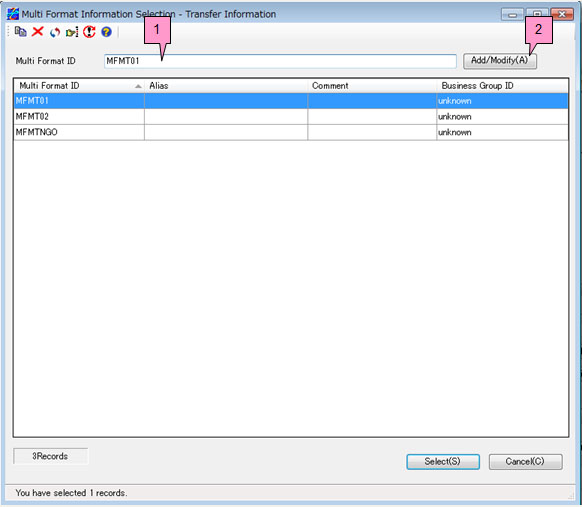
When you add a new record, enter a new multi format ID in the Multi Format ID on the Select Multi Format Information Record screen and click the [Add/Modify].
When you modify a record, enter the multi format ID of the record for the Multi Format ID on the Select Multi Format Information Record screen or select the relevant ID in the list, and then click the [Add/Modify] (marked as 1 and 2, respectively, on the screen below).
-
The Register Multi Format Information screen appears when you add a record.
The Modify Multi Format Information Record screen appears when you modify a record.
Fields of Register Multi Format Information/Modify Multi Format Information Record Screen
The setting fields are the same between the Register Multi Format Information screen and the Modify Multi Format Information Record screen. The following explanation is based on the Modify Multi Format Information Record screen.
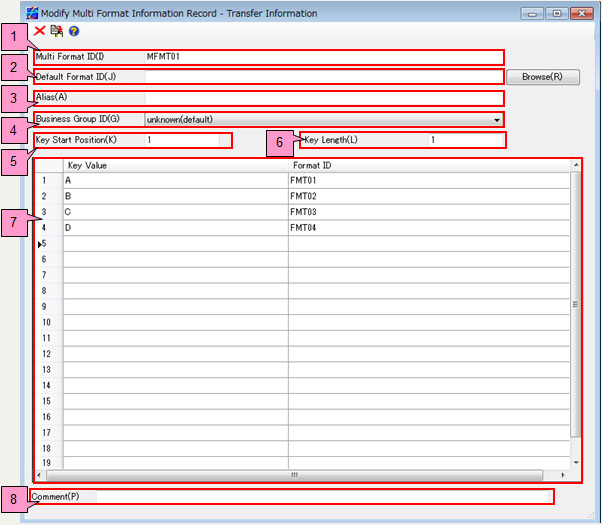
<Table> Fields of Register Multi Format Information/Modify Multi Format Information Record Screen
| No. | Field | Description |
|---|---|---|
|
1 |
Multi Format ID | This field specifies the ID that identifies the Multi Format Information record. |
|
2 |
Default Format ID | This field specifies the default format ID when the keys in the data do not match any of the keys that are registered in the Multi Format Information. |
|
3 |
Alias | This field specifies the alias for the multi format ID. |
|
4 |
Business Group ID *1 | Select a Business Group ID from the pulldown list. |
|
5 |
Key Start Position | This field specifies the start position for the key that is set for each record. |
|
6 |
Key Length | This field specifies the length of the key that is set for each record. |
|
7 |
Multi Format List | This list shows the records of the Multi Format Information. |
|
8 |
Comment | This field specifies the comment for the multi format. |
*1: The display method varies depending on the setting of the ID Indication in the Environment Settings of HULFT-HUB Manager.
The pop-up menu of the Multi Format List consists of the following submenus.
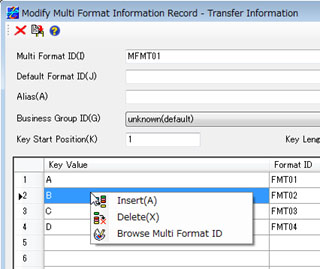
| Insert | Select this submenu to insert a row in the Multi Format List. |
| Delete | Select this submenu to delete a row from the Multi Format List. |
| Search Format ID | Select this submenu to open the Select Format Information Record screen. |
Editing of Multi Format Information
The settings of the fields vary depending on the host type and the version of HULFT. For details of each field, refer to the following topics in "HULFT-HUB Management Information Reference":
| Host Type | HULFT7 | HULFT8 | HULFT10 |
|---|---|---|---|
| Mainframe | Multi Format Information | Multi Format Information | Multi Format Information |
| Linux/AIX | Multi Format Information | Multi Format Information | Multi Format Information |
| Windows | Multi Format Information | Multi Format Information | Multi Format Information |
| IBMi | Multi Format Information | Multi Format Information | Multi Format Information |
After you configure the settings, click  .
.
If you want to delete a registered job ID, click  .
.
| [Note] | When you modify an ID on the Modify Multi Format Information Record screen, if the same ID as the modified ID does not exist, the information record for the ID is added, and if the same ID already exists, the existing information record for the ID is overwritten. |
Procedure for Inserting Row in Multi Format List
- Select a row in the Multi Format List.
-
Click the Insert on the pop-up menu.
A blank row is inserted above the selected row.
Procedure for Deleting Row from Multi Format List
- Select the row that you want to delete from the Multi Format List.
-
Click the Delete on the pop-up menu.
The selected row is deleted.
Procedure for Entering Format ID
- Select a row in which you want to enter a format ID.
-
Click the Browse Multi Format ID on the pop-up menu to display the Select Format Information Record screen.
Select the format ID that you want to enter.
| [Remarks] | You can modify the records of the Format Information on the Select Format Information Record screen. For details on the operation, refer to Editing of Format Information. |
Procedure for Moving Row to Another Row in Multi Format List
-
Select the number of the row that you want to move, and drag it to your desired destination.
While you are dragging it, a thick line appears at the cursor position.
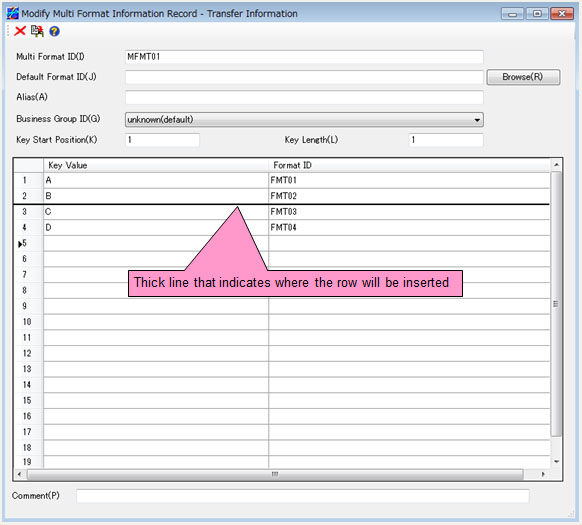
-
Release the mouse button to insert the dragged row to the position of the thick line.
Each row between the original row and the destination row shifts one row.