Editing of Format Information (Transfer Information)
This topic explains how to register, modify, and delete a record of the Format Information (or the format data for the file to be sent).
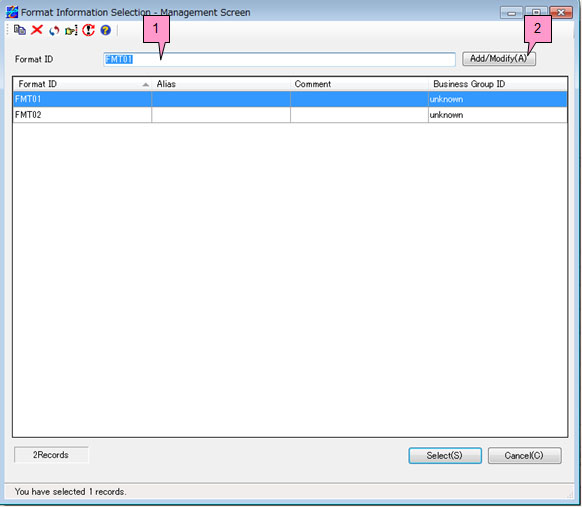
When you specify 'FORMAT' for the Transfer Type and click the [List] on the right of the Format/Multi Format ID in the Sending Side Settings Information of the Transfer definition frame, the Select Format Information Record screen appears.
Procedure for Displaying Register Format Information/Modify Format Information Record Screen
-
When you add a new record, enter a new format ID in the Format ID on the Select Format Information Record screen and click the [Add/Modify].
When you modify a record, enter the format ID of the record in the Format ID on the Select Format Information Record screen or select the relevant ID in the list, and then click the [Add/Modify] (marked as 1 and 2, respectively, on the screen below).
-
The Register Format Information screen appears when you add a record.
The Modify Format Information Record screen appears when you modify a record.
Fields of Register Format Information/Modify Format Information Record Screen
The setting fields are the same between the Register Format Information screen and the Modify Format Information Record screen. The following explanation is based on the Modify Format Information Record screen.
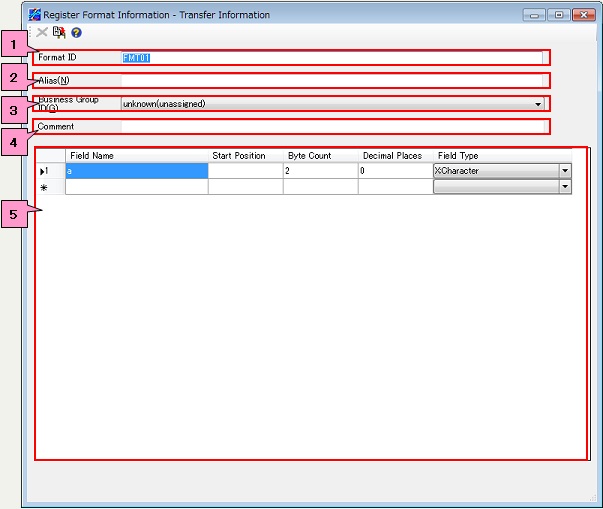
<Table> Fields of Register Format Information/Modify Format Information Record Screen
| No. | Field | Description |
|---|---|---|
| 1 | Format ID | This field specifies the ID that identifies the Format Information record. |
| 2 | Alias | This field specifies the alias for the format ID. |
| 3 | Business Group ID *1 | Select a Business Group ID from the pulldown list. |
| 4 | Comment | This field specifies the comment for the format. |
| 5 | Format List | This list shows the records of the Format Information. |
*1: The display method varies depending on the setting of the ID Indication in the Environment Settings of HULFT-HUB Manager.
The pop-up menu of the Format List consists of the following submenu items.
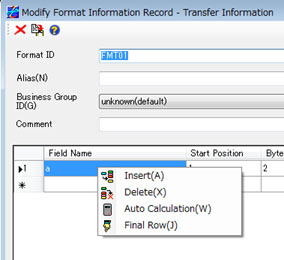
| Insert | Select this submenu item to insert a row in the Format List. |
| Delete | Select this submenu item to delete a row from the Format List. |
| Auto Calculation | Select this submenu item to automatically calculate the start positions in the Format List. |
| Final Row | Select this submenu item to move to the final row in the Format List. |
Editing of Format Information
The settings of the fields vary depending on the host type and the version of HULFT. For details of each field, refer to the following topics in "HULFT-HUB Management Information Reference":
| Host Type | HULFT7 | HULFT8 | HULFT10 |
|---|---|---|---|
| Mainframe | Format Information | Format Information | Format Information |
| Linux/AIX | Format Information | Format Information | Format Information |
| Windows | Format Information | Format Information | Format Information |
| IBMi | Format Information | Format Information | Format Information |
After you configure the settings, click  .
.
If you want to delete a registered job ID, click  .
.
| [Note] | When you modify an ID on the Modify Format Information Record screen, if the same ID as the modified ID does not exist, the information record for the ID is added, and if the same ID already exists, the existing information record for the ID is overwritten. |
Procedure for Inserting Row in Format List
-
Select a row in the Format List.
-
Click the Insert on the pop-up menu.
A blank row is inserted above the selected row.
Procedure for Deleting Row from Format List
- Select the row that you want to delete from the Format List.
-
Click the Delete on the pop-up menu.
The selected row is deleted.
Auto Calculation of Start Positions
- Select the start position that you want to calculate automatically.
-
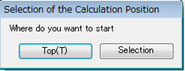
Click the Auto Calculation on the pop-up menu to display the Selection of the Calculation Position dialog box.
When you want to calculate automatically from the top, click the [Top].
When you want to calculate automatically from the selected row, click the [Selection Position].
-
The start positions that are automatically calculated appear with a red background.
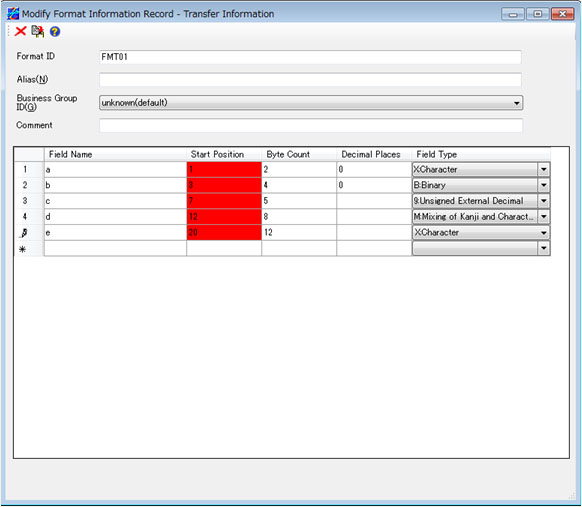
| [Note] | When you modify an ID on the Modify Format Information Record screen, if the same ID as the modified ID does not exist, the information record for the ID is added, and if the same ID already exists, the existing information record for the ID is overwritten. |
| - | If the selected start position is in the first row, the Selection of the Calculation Position dialog box does not appear. |
| - | If you want to calculate automatically from the selected row, you must specify a value for the selected start position in advance. |
| - | After the auto calculation, to reflect the modification, you must click all of the values with a red background to restore the original background color. |
| - | The Auto Calculation on the pop-up menu is a function used for checking start positions. Even if you do not click the Auto Calculation, the processing is not affected. |
Procedure for Moving to Final Row in Format List
- Click the Final Row on the pop-up menu.
- The cursor moves to the row after the current final row.
Procedure for Moving Row to Another Row in Format List
-
Select the number of the row that you want to move, and drag it to your desired destination.
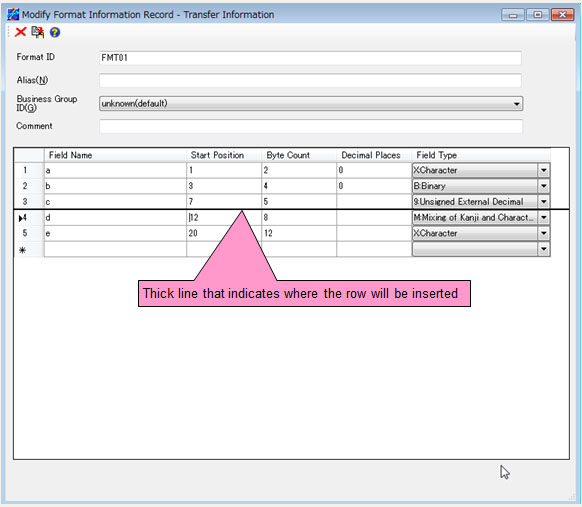
While you are dragging it, a thick line appears at the cursor position.
-
Release the mouse button to insert the dragged row to the position of the thick line.
Each row between the original row and the destination row shifts one row.