Configuring Multifactor Authentication Settings
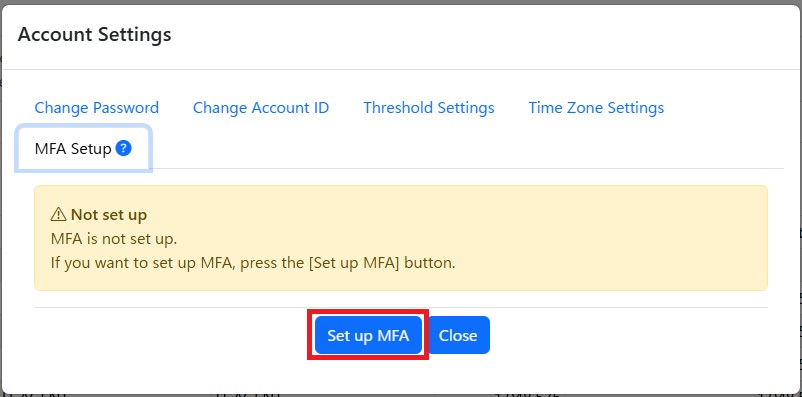
1. Select the 'MFA Setup' tab on the Account Settings screen on Management Console.
2. Select the [Set up MFA] button.
3. After the screen transitions, start the authentication application on your device and scan the QR code that is displayed.
If you cannot scan the QR code, click the [Enter code manually] link and enter the displayed information into the authentication application.
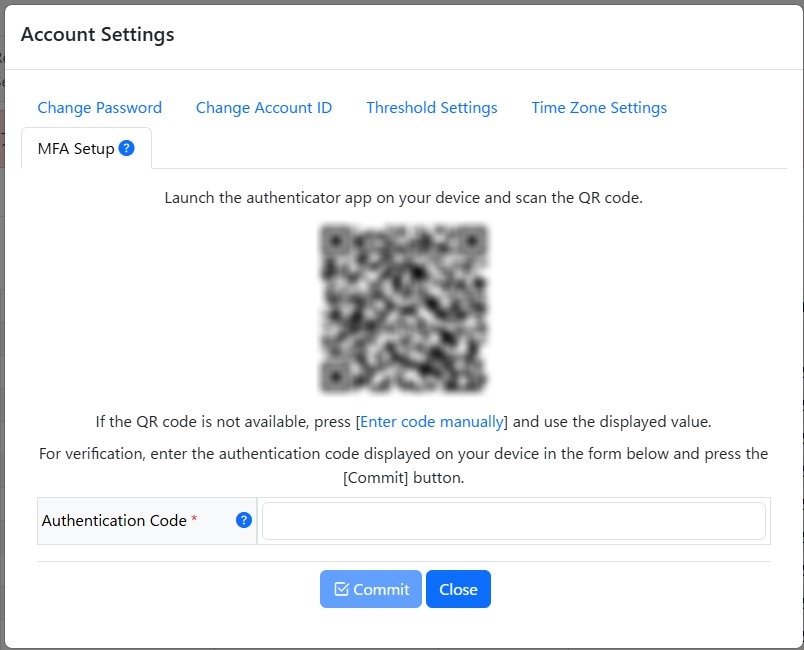
4. Enter the 6-digit number that is displayed on your authentication application into the text box and click the [Commit] button.
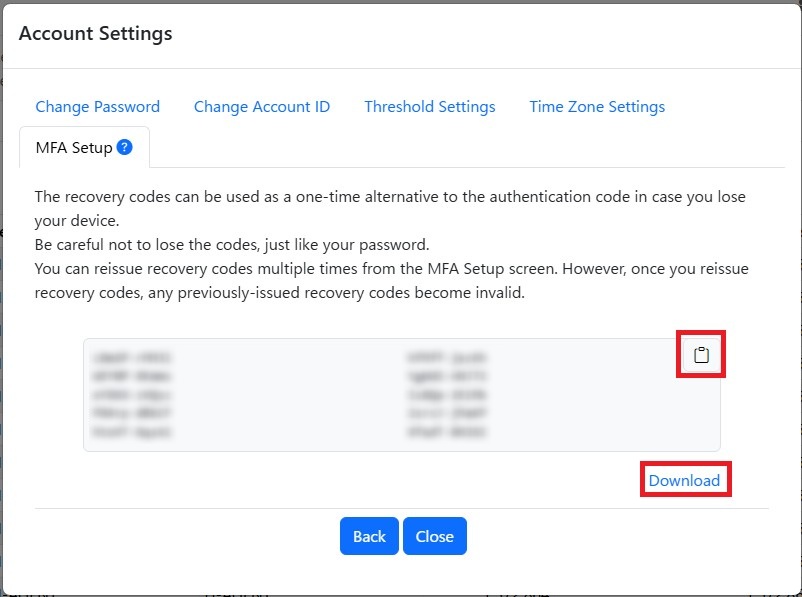
5. The message 'MFA setup complete' is displayed along with the recovery code list.
Save the recovery codes by copying them with the clipboard icon or downloading a text file of them by clicking [Download]. Be careful not to lose the codes.
Hereafter, you will be prompted to enter a multifactor authentication code to log in.
If you need to reset multifactor authentication settings, such as when migrating to a new device, delete the settings in place and configure settings again.
For details on how to delete settings, refer to Deleting Multifactor Authentication Settings.
In situations like when a device has been lost, the recovery codes are necessary in order to log in, so be careful not to lose them.
Once you use a recovery code, it cannot be used again, so if you get low on remaining viable codes, issue new codes by clicking the [Reissue recovery codes] button.
If you reissue the codes, you can no longer use the codes issued prior to doing so.