Login to HULFT-WebConnect Data Transfer Site
Browser Transfer can be performed when you log in to Data Transfer Site. This chapter explains how to log in to Data Transfer Site.
1. Access the following URL via a browser:
https://service-ap.tokyo.webconnect.hulft.com/site/
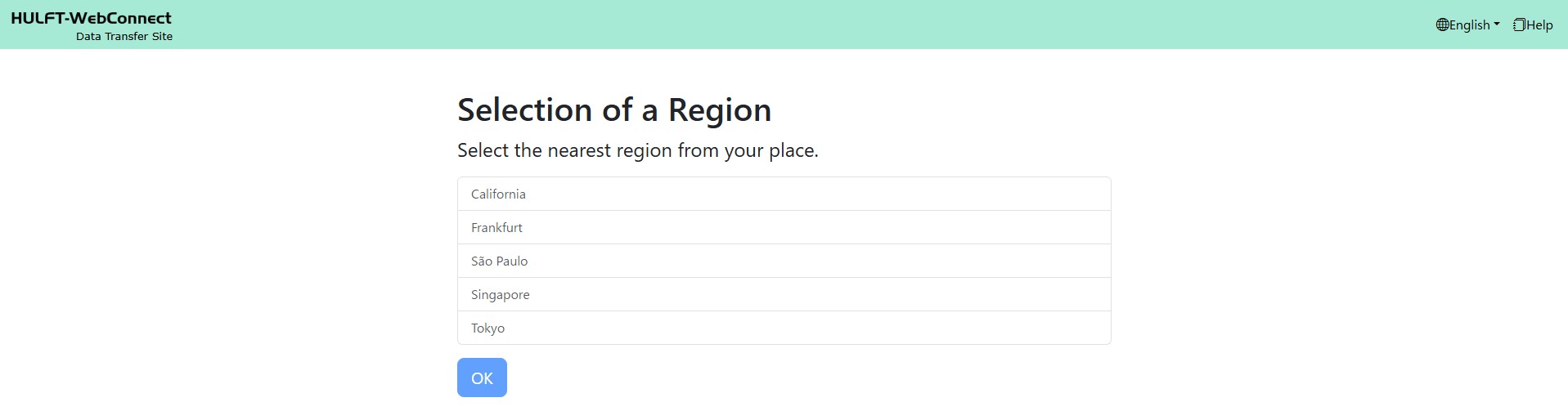
The Selection of a Region screen is displayed.
2. Select the nearest region from your place, and click the [OK] button.
The login screen is displayed.
3. For 'Email Address', enter the email address that received the account creation email notification, and for 'Password', enter the password that you set in Password Settings.
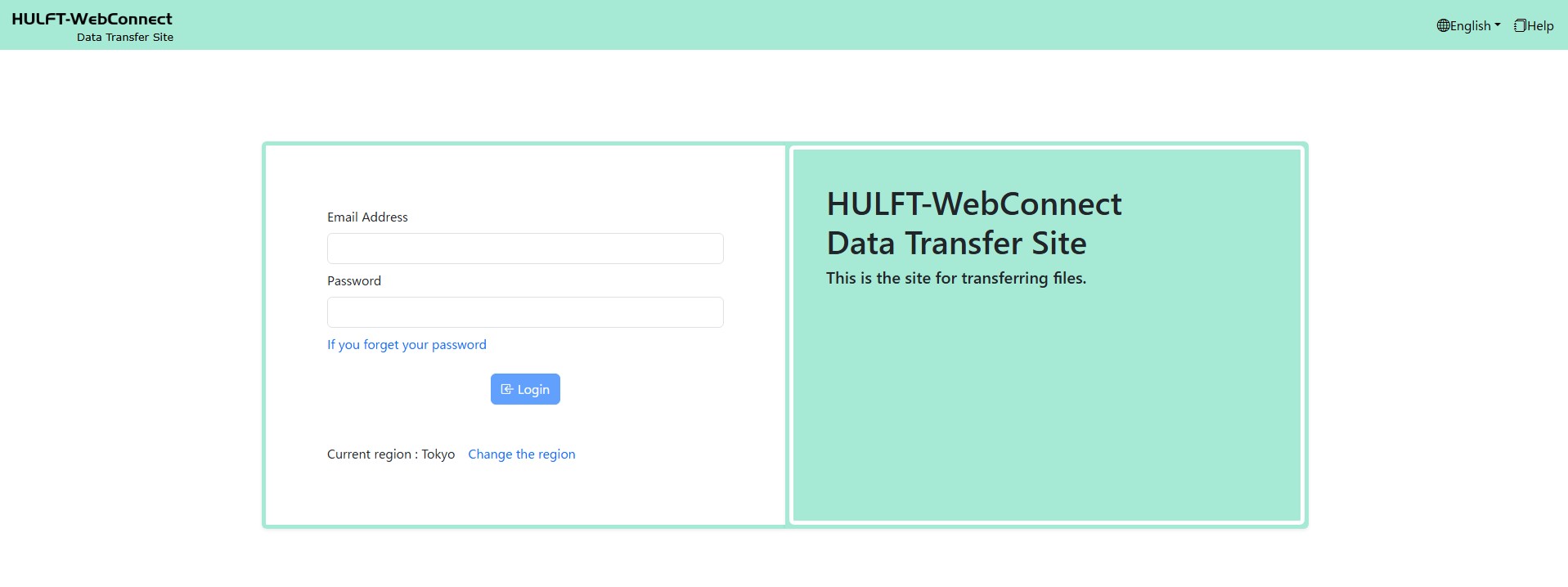
4. Click the [Login] button.
5. If you have multifactor authentication (MFA) activated, the multifactor authentication code entry screen is displayed.
Enter the code that is displayed on your authentication application and click the [Verify] button.
6. If login is successful, the Menu screen is displayed. You can now perform file send and receive operations. Refer to Sending and Receiving of Files.
To use multifactor authentication, you must configure the settings in advance.
For details on multifactor authentication settings, refer to Using Multifactor Authentication.
We recommend configuring multifactor authentication settings to deter malicious access and improve security.