Password Settings
This section explains how to set your password.
1. When an email is delivered with the title 'Set Up Your Login Password', access the URL in the email.
The Password Setup screen is displayed.
2. Input a password and the required fields.
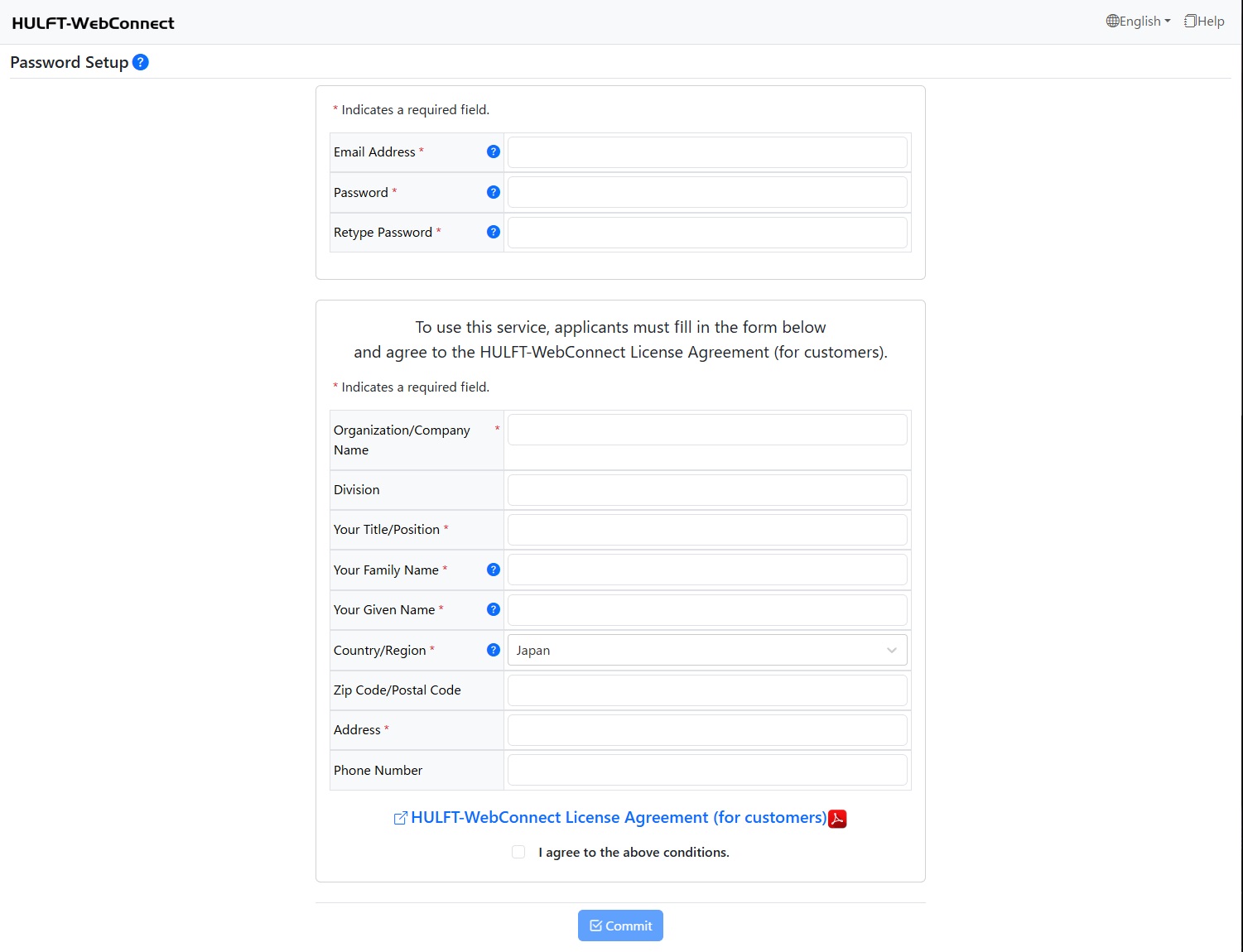
If you click  , the rules for input are displayed, such as the characters you can use.
For 'Email Address', input the email address that the 'Set Up Your Login Password' email was delivered to.
For 'Password', input the password you want to use to log in.
For 'Retype Password', input the same information as 'Password'. Do not use copy and paste to enter your password.
Input the other required fields. Fields with * are required fields.
3. Read the 'HULFT-WebConnect License Agreement (for customers)' and select the check box for 'I agree to the above conditions.' if you agree.
If you do not agree to the 'HULFT-WebConnect License Agreement (for customers)', you cannot continue operation.
4. Click the [Commit] button.
The password setup is complete, and an email with the title 'Login Password Changed' is delivered.