OData Connection
Create a connection to an OData service. The connection resource that you create here will be used for the SAP OData connectors.
The key points about creating and configuring OData connections are explained in this section.
Points for settings
To create a new OData connection, select Add on the OData Connection page and enter resource information.
To set OData connections, either one of the following permissions is required:
-
ODataConnectionFullAccess
-
ODataConnectionEditAccess
This section explains the screen transitions from the OData Connection page and the operations for setting OData connections.
For the names and functions of the basic UI elements and other items of HULFT Square, refer to the following topic:
OData Connection
To open this page, select  > SAP S/4HANA ODATA > OData Connection in the navigation menu.
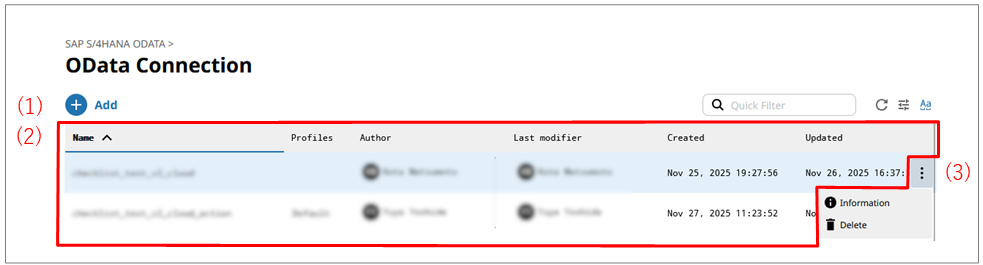
- (1) Add
-
Select this icon to create a new OData connection.
For the screen displayed after selecting this icon, refer to OData Connection> Add.
- (2) List of settings
-
OData connections that have already been created are displayed in tabular form.
- (3) Action menu
-
Select this icon to perform operations for OData connections that have been created.
Selecting
 shows the menu of operations below.
- Information
-
Displays detailed information about the selected OData connection.
For the screen displayed after selecting this menu item, refer to OData Connection> OData connection name.
- Delete
-
Deletes the selected OData connection.
On the OData Connection page, select Add to open this page.
To create a new OData connection, set resource information for the OData connection by following the wizard-style pages step by step.
Step General
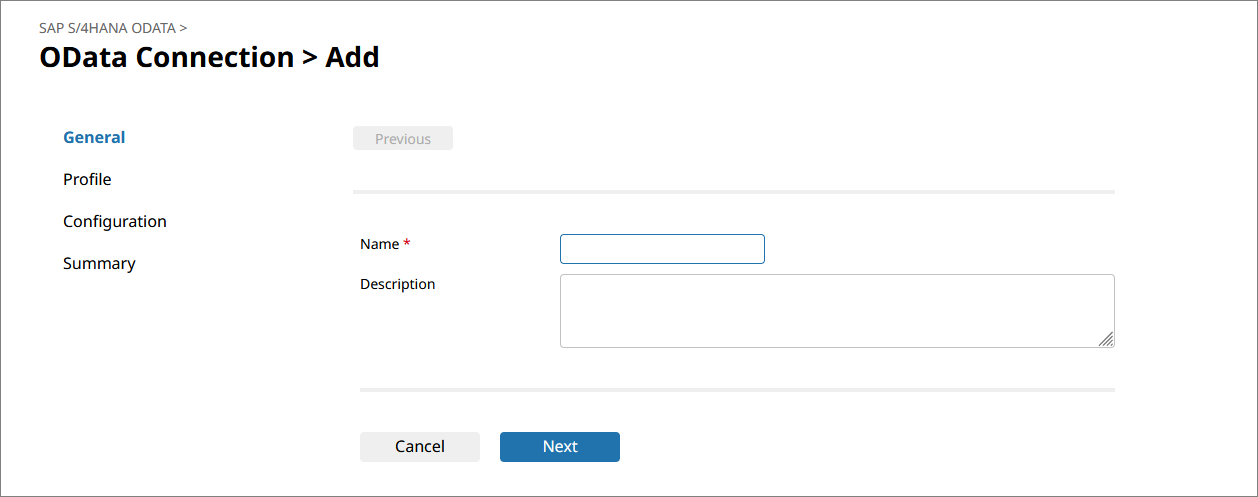
- Name
-
Specify the name of the OData connection.
- Description
-
Specify comments to explain the OData connection that you want to set.
- Next
-
Displays the next page.
Step Profile
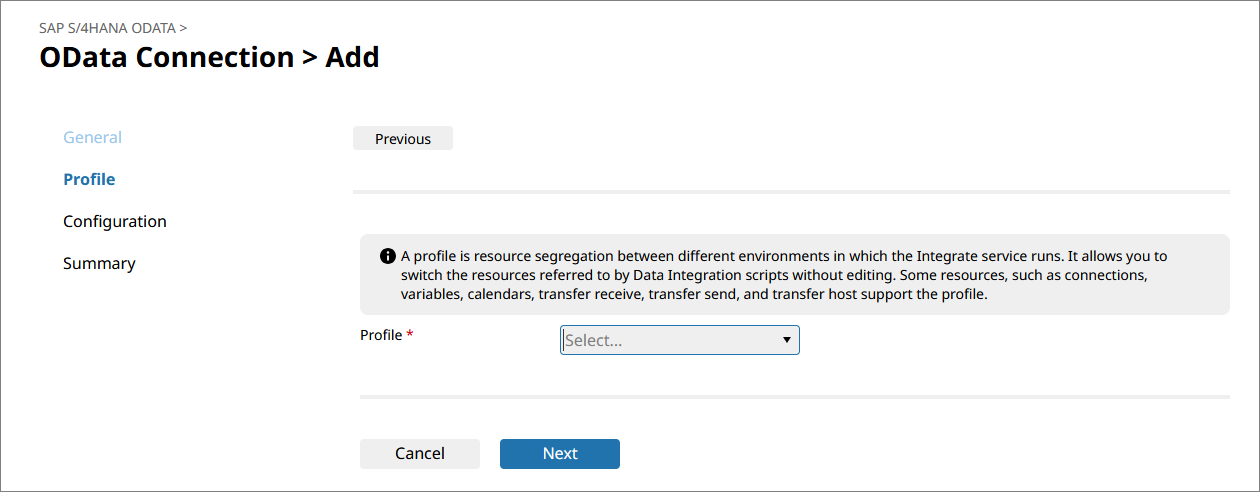
- Profile
-
Select a profile to link with the OData connection.
- Next
-
Displays the next page.
Step Configuration
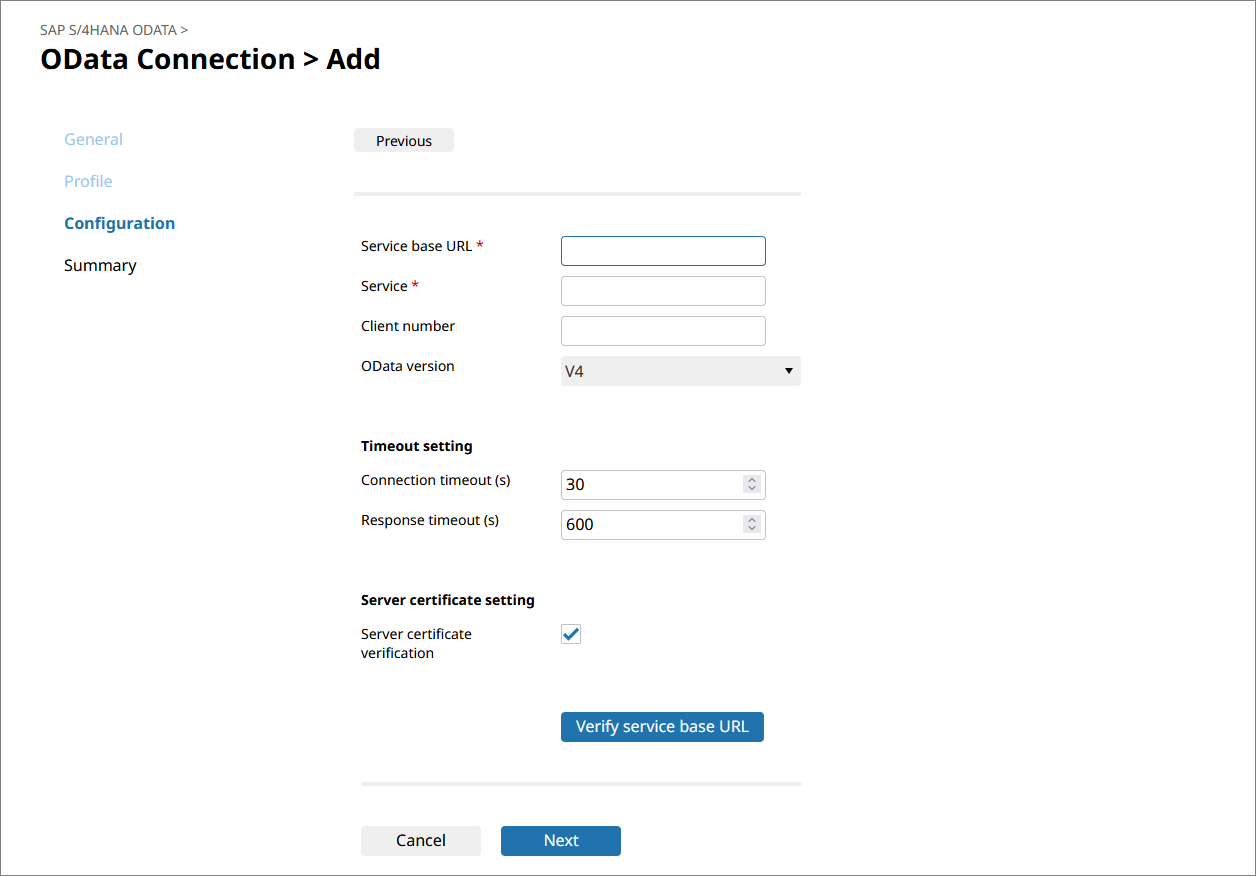
- Service base URL
-
Enter the base URL (up to and including the host name section) of the OData service to connect to.
Example: https://{host}:{port}
- Service
-
Enter the path of the OData service to connect to.
- Client number
-
Enter the client number defined on the destination SAP.
- OData version
-
Select V2 or V4 as the OData version.
- Connection timeout (s)
-
Specify the connection timeout in seconds.
- Response timeout (s)
-
Specify the response timeout in seconds.
- Server certificate verification
-
To verify the server certificate, select the checkbox.
- Verify service base URL
-
Verify the service base URL.
- Next
-
Displays the next page.
OData Connection> OData connection name
On the OData Connection page, select Information from the action menu in the list of settings to open this page.
You can view detailed information about the selected OData connection.
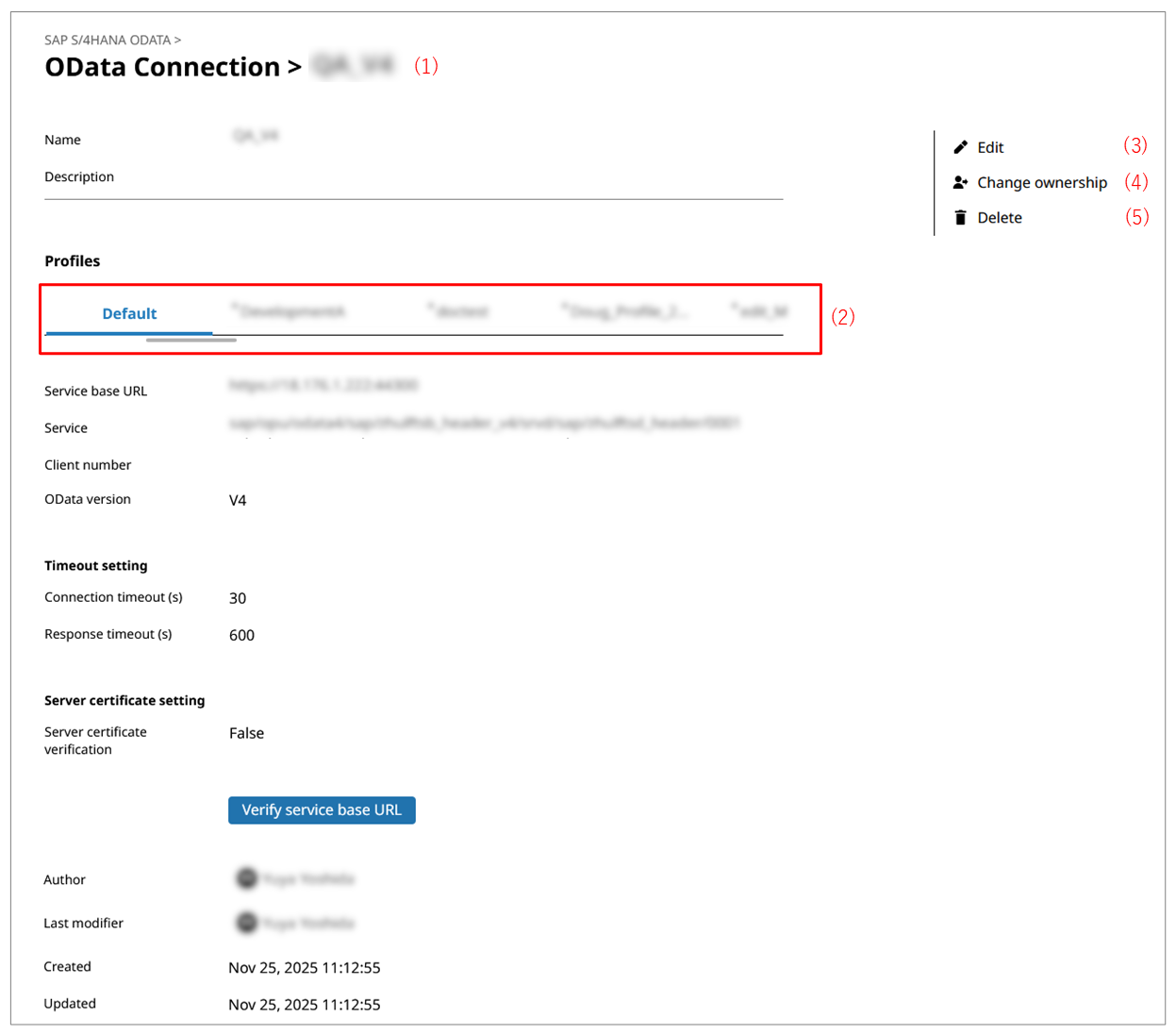
- (1) Application name
-
In Application name, the name of the application is displayed.
- (2) Profiles
-
Profiles for which you have the access permission are displayed in a list.
You can set the OData connection for each profile.
- (3) Edit
-
You can edit the OData connection.
- (4) Change ownership
-
Changes the ownership of the selected OData connection to another member. When you change the owner, the value of Author changes.
In order to change the ownership, in addition to permission to view the OData connection, you need the permission ChangeOwnership.
- (5) Delete
-
Deletes all the settings of the OData connection.