Update Installation
This subsection explains the procedure for performing an update installation of HULFT-HUB Server for Windows-L.
If you are performing an update installation while the existing environment is inherited, see Update Installation Method (Windows).
Selection of installation method
After you enter the product key and serial number in Start of the installer, click Next.
When the window below is displayed, select Update Installation. After you have made the selection, click Next to display the window for entering the installation directories.
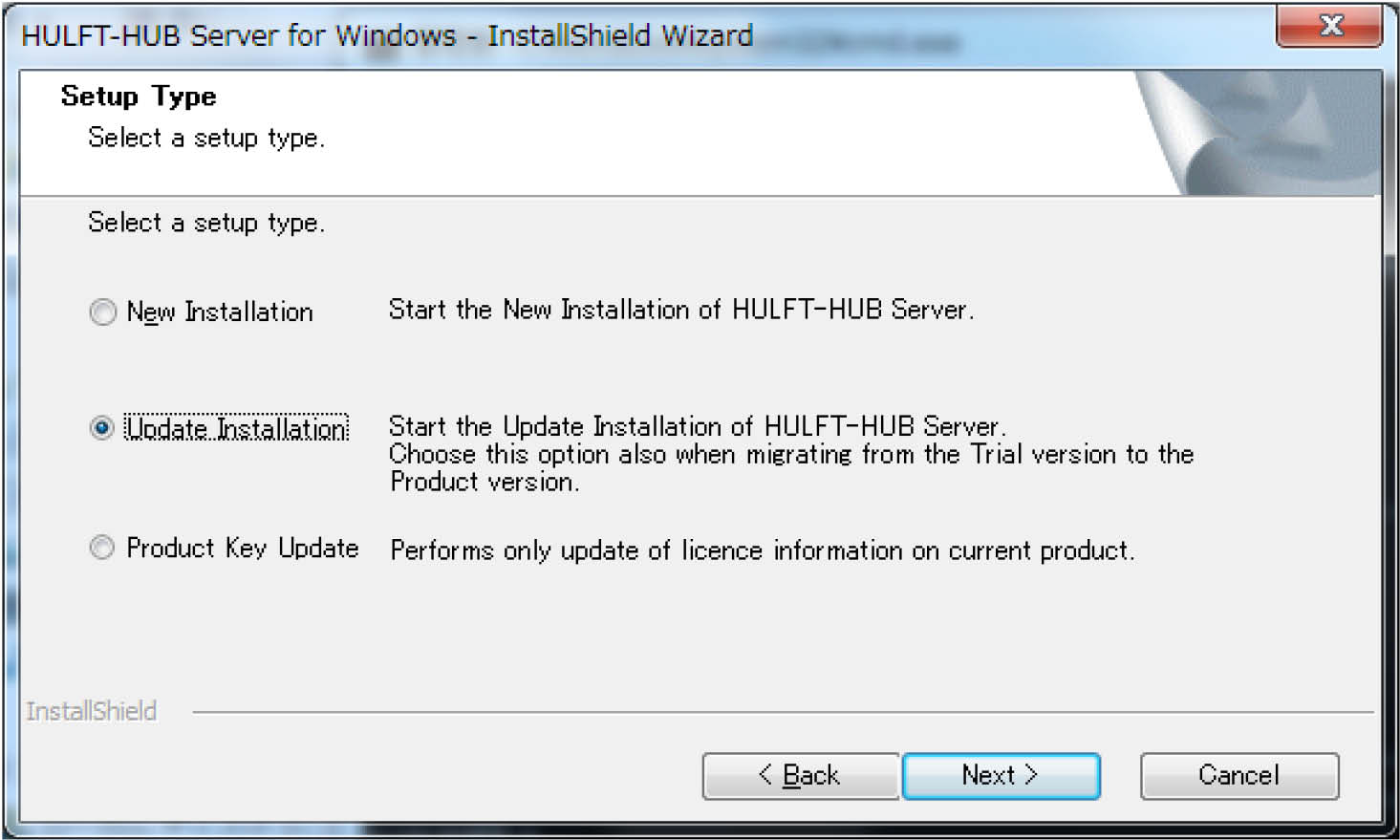
Figure 3.11 Selection of installation method
Entry of installation directories
Referring to Table 3.1 List of installation directories, enter the name of the directory in which the product is to be installed. You can change a displayed directory by clicking Browse and selecting a directory.
After you have entered the installation directory, click Next to display the window for confirming the installation conditions.
Enter the following item by using alphanumeric characters:
-
Execution module storage directory
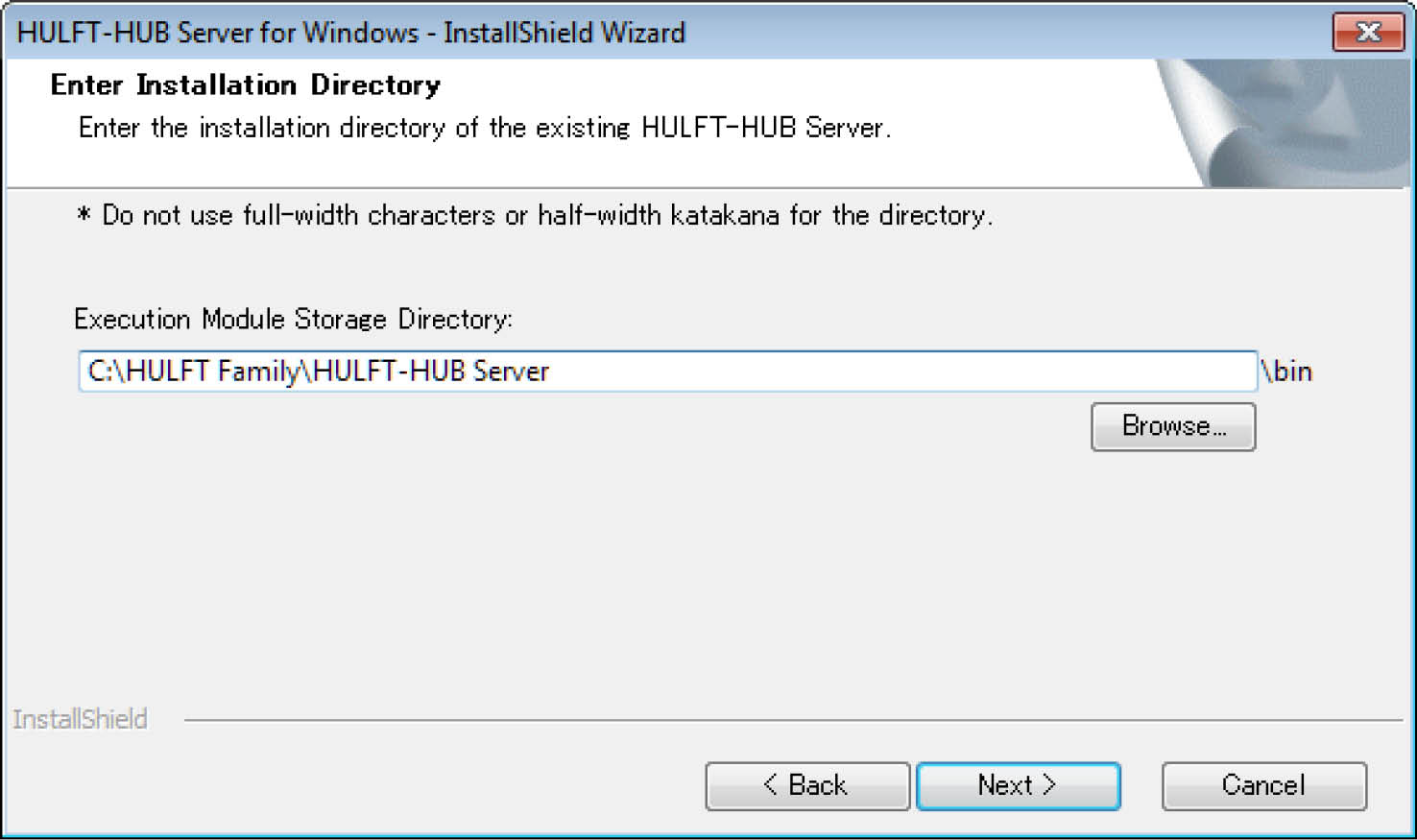
Figure 3.12 Entry of installation directories
As the initial value, the input field for Environment Settings File Storage Directory displays '%SystemDrive%:
In the case of an update installation, Environment Settings File Storage Directory is detected automatically.
Confirmation of installation conditions
Confirm the following conditions for installing the product:
-
Installation method
-
Information about the existing product
-
Information about the product to be installed
-
Directory information
-
Serial number and product key
Click Next. The installation process starts.
If you want to change any conditions, click Back to display the installation conditions in the applicable previous window.
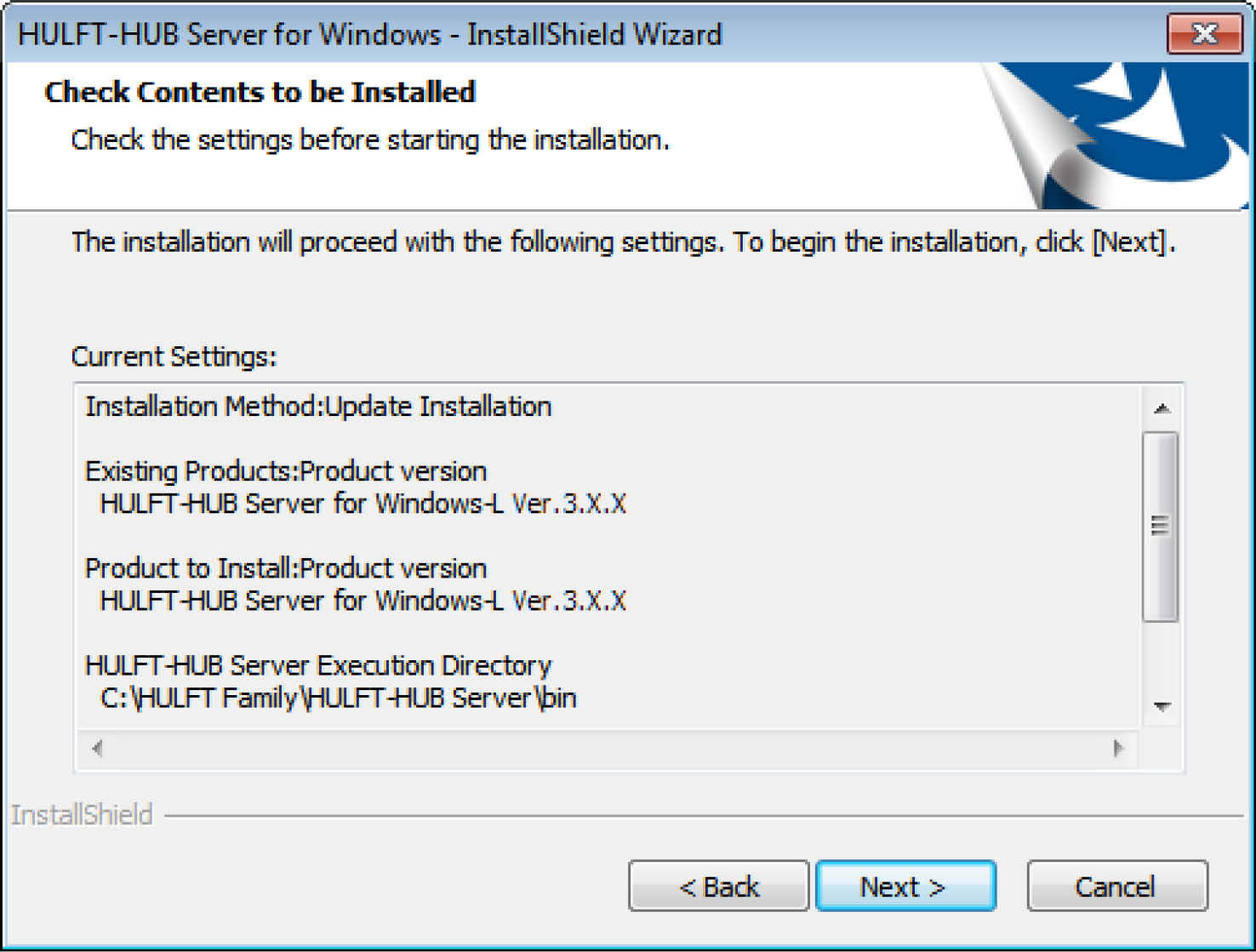
Figure 3.13 Confirmation of installation conditions
Go to Start of installation, and then End of installation.