Start of the installer
Use the setup program to install HULFT-HUB Server. When you run 'Setup.exe' on the provided medium, the "Selection of language" window is displayed.
Selection of language (common to all cases)
The window shown below is displayed when the setup program starts.
Select the language to use, and then click Next.
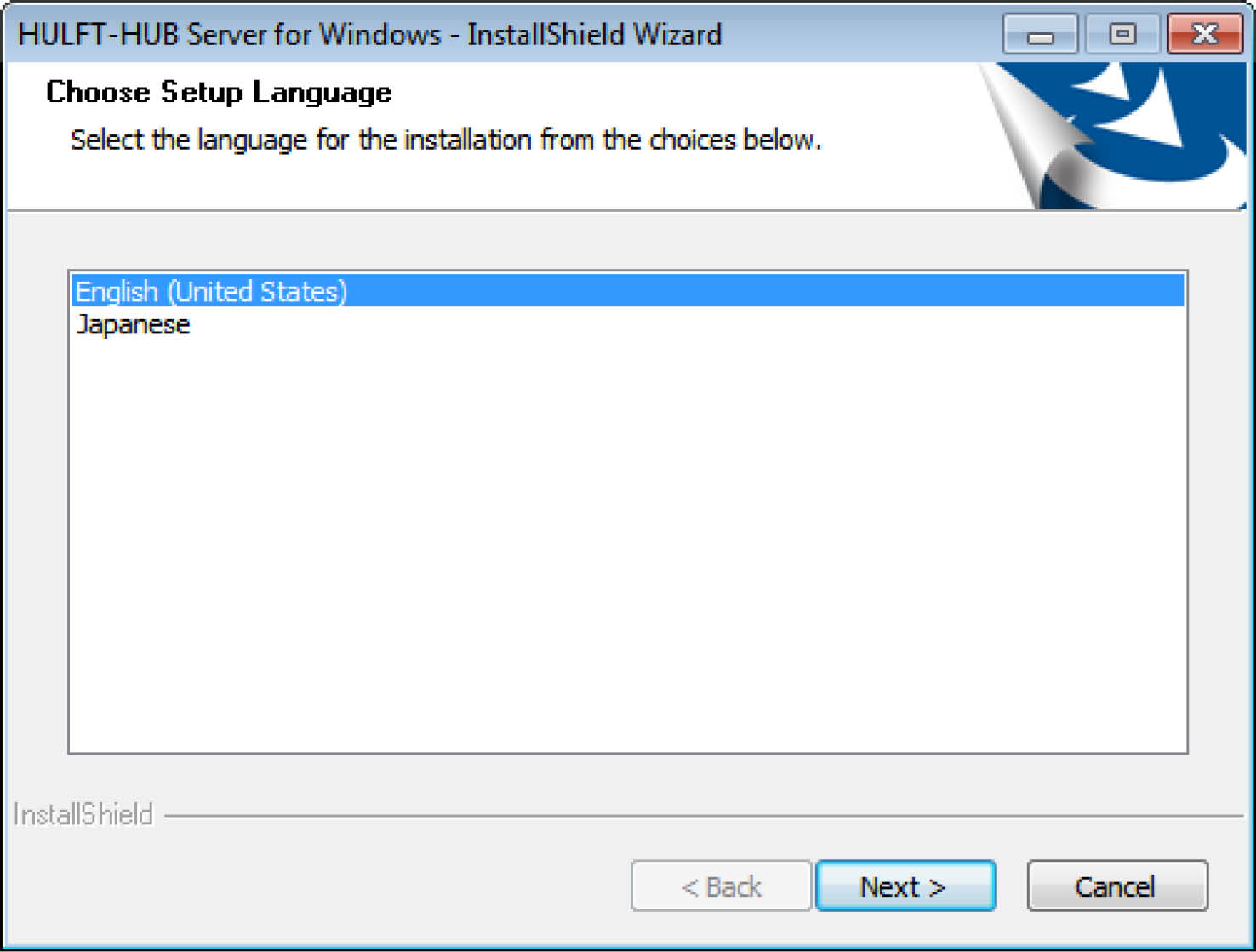
Figure 3.2 Selection of language
The language specified here affects the following:
-
Language used for character strings displayed in the installation window
In the case of a new installation, the following are also affected:
-
The language used for the explanations of tags and the value of Alias (DispName) that are output to the system environment settings files
-
The HUB operation language (HubLang) value in the system environment settings
Checking the product to be installed (common to all cases)
The window shown below is displayed. Click Next.
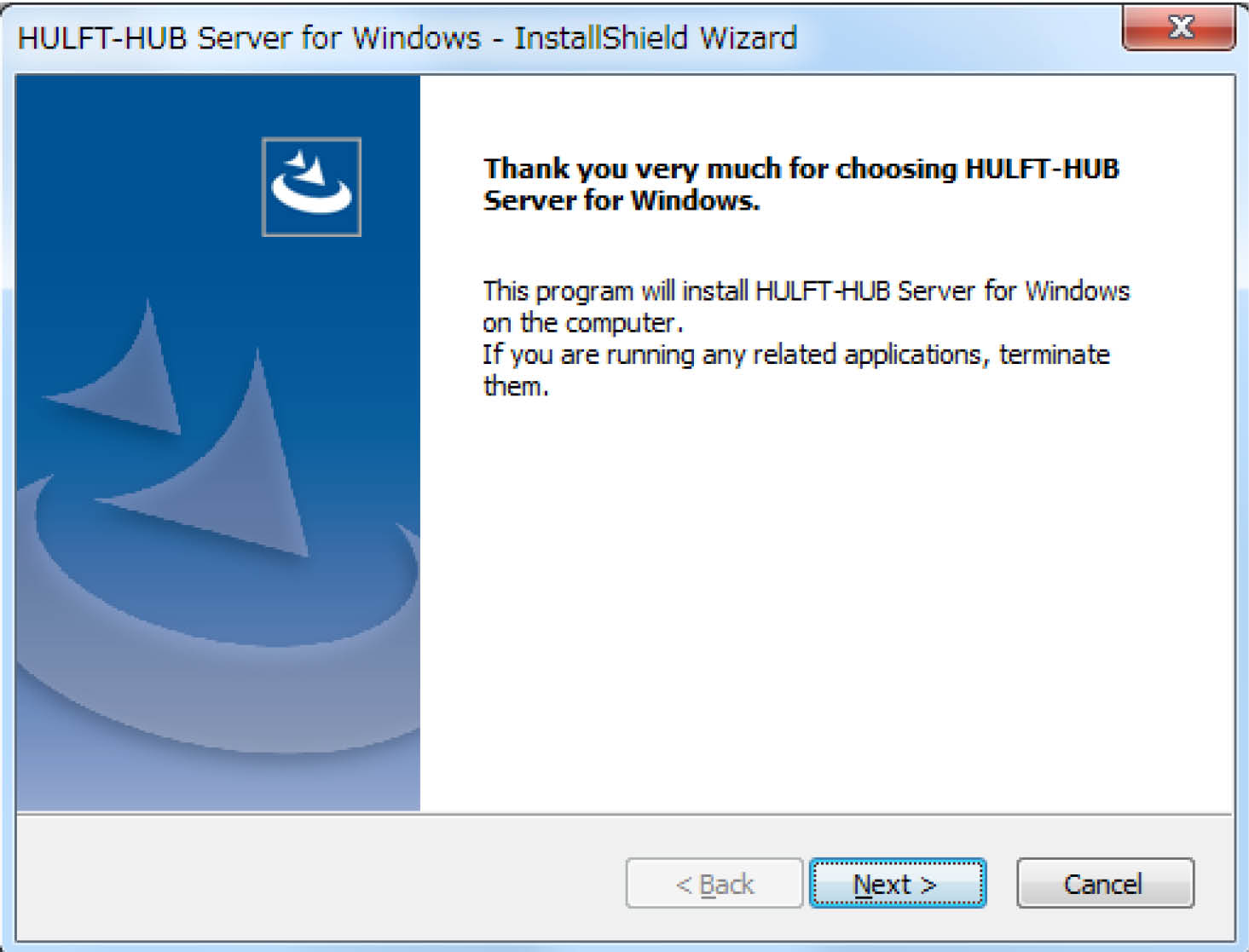
Figure 3.3 Checking the product to be installed
Entry of serial number and product key (common to all cases)
Obtain the product key by following the instructions on the specified site.
Make entries in the Serial No and Product Key fields, and click Next.
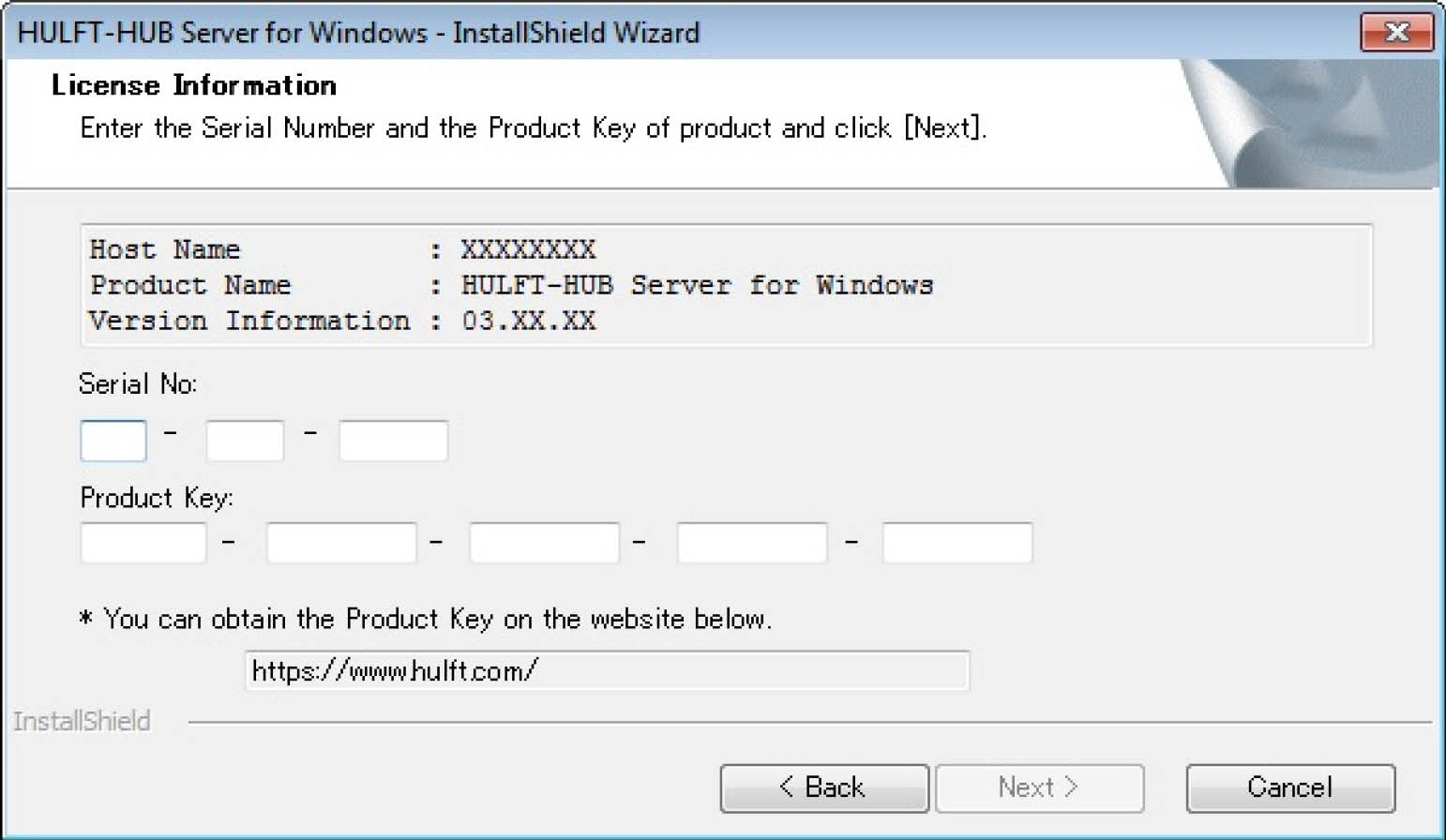
Figure 3.4 Entry of product key and serial number
-
You can obtain the Product Key from the URL displayed in the screen.
-
HULFT-HUB Server installer automatically displays the Host Name. You can obtain the Host Name using the 'hostname' command as well.
-
If you have changed the host name, you must obtain a new product key and perform setup again. If you have to perform the setup again, select Product Key Update as the installation method.
-
The product key will be different for each host that is subject to installation. If you install the product on another host, obtain a new product key.
-
Installation will fail if you enter an incorrect serial number or product key. An error message will be displayed if the entered product key is for another product.