Explanation of Structure Diagram
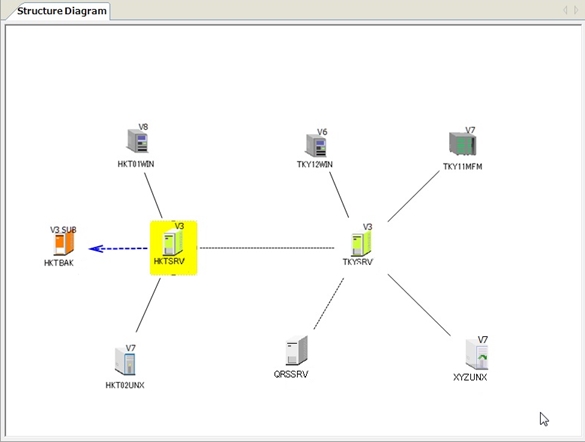
The Structure Diagram is linked with the Structure List and graphically displays the network structure. The icon of a left-facing computer represents a server. The icon of a right-facing computer represents a client.
| [Remarks] | |
| - | The string that appears under an icon is the host name of the server or client. The display method of the host name depends on the setting of the Host Display Name on Structure Diagram in the Environment Settings of HULFT-HUB Manager. |
| - | If the entire server name cannot be displayed, you can check it in the server's System Environment Settings. |
| - | If the entire client name cannot be displayed, you can check it in the Registered Client settings. |
HULFT-HUB Server Icons
When the screen is refreshed automatically or manually, HULFT-HUB Manager acquires the status of the servers and updates the corresponding icon to reflect the status of the server.
<Table> Statuses and Types of Servers
| HULFT-HUB Server Ver.2 | HULFT-HUB Server Ver.3 | Server Status | Description |
|---|---|---|---|

|

|
Operating (without error) |
These icons represent servers that are currently connected from HULFT-HUB Manager. *1 When there is no error in transfer via the server, the icon for the server appears in yellow. |

|
with no information acquired yet |
This server icon represents the server you have registered to the structure diagram of HULFT-HUB Manager just now. When you log into the corresponding servers from HULFT-HUB Manager successfully, the version notation is added to each of this icon. |
|

|

|
Not operating |
If the operating status of a server is unknown due to any of the following reasons, the icon for the server appears in gray: - The server stopped. *2 - The connection to HULFT-HUB Manager has been lost. *2 - Login by using the same user ID and the same password as the login server has failed. *3 |

|

|
Operating (with error) |
These icons represent servers that are currently connected from HULFT-HUB Manager. *1 When there is an error in transfer via the server, the icon for the server appears in red. |

|

|
Alternative server |
The icon for an alternative server appears in orange. For details, refer to Alternative Server Settings. |

|
Outside of control |
This icon represents a server that is outside of the control of HULFT-HUB system. You cannot view the management information or log records for servers that are outside of control. However, you can relay transfers to servers that are outside of control. |
|
| *1: | The statuses of the servers are for the login server that is connected from HULFT-HUB Manager, and the servers that are connected indirectly from the login server. |
| *2: | If you right-click the icon and select the Reconnect on the pop-up menu, the icon may change to an Operating icon. For details, refer to the explanation of Reconnection. |
| *3: | If the user ID is the same and the password is different, a login dialog box appears when you click the Reconnect on the pop-up menu, and if you enter the correct password on the dialog box, a connection to the server will be established. |
Correction of Transfer Error Display
There are the following two ways to return an Operating (with error) icon back to an Operating (without error) icon:
- After correcting the error, select the Operating (with error) icon, and then click the [Acknowledge Error] on the [View] menu. The icon changes to Operating (without error).
-
If you set the Transfer Status Watch Error Correction Display as 'Yes' in the Environment Settings of HULFT-HUB Manager when using HULFT-HUB Server Ver.3.0.0 or higher, the icon will return to an Operating (without error) icon when the screen is automatically or manually refreshed after the transfer error has been corrected.
For details on how to determine whether the transfer error has been corrected, refer to the Transfer Error Resolution Determination Condition (TrnErrorRecoveryCheckType) in the server's System Environment Settings.
Client Icons
HULFT-HUB Manager monitors the statuses of the clients and notifies the user of the statuses by changing the colors of the corresponding icons on the Structure Diagram.
| [Remarks] | You can disable the function for monitoring client statuses by setting 'Do Not refresh' for the Management Screen Refreshing in the Environment Settings of HULFT-HUB Manager. |
Types of Clients
There are two types of clients: Clients under Control and Clients outside of Control.
You must select the type of client when you register the client. You cannot change the type once you register the client.
| Type | Description | |
|---|---|---|
| Client under Control | HULFT-HUB system manages the management information of this type of client. | |
| Client outside of Control | HULFT-HUB system does not manage the management information of this type of client. | |
| Client outside of Control (with Relay) | Among Clients outside of Control, this type of client carries out both transfer via HUB and Direct Transfer. | |
| Client outside of Control (without Relay) | This type of Client outside of Control does not carry out transfer via HUB, and carries out only Direct Transfer. | |
| [Note] | You can register Clients outside of Control only when the login server is HULFT-HUB Server Ver.3 or higher. |
| If the login server is HULFT-HUB Server lower than Ver.3, you cannot register Clients outside of Control. |
HULFT Ver.10 Client
HULFT-HUB Manager determines whether HULFT Ver.10 client is operating or not by checking the status of the Request Acknowledge process of the client. If the Request Acknowledge process is running, an Operating icon appears in color. If the Request Acknowledge process is not running, a Stopped icon appears in black. For a Client outside of Control, an icon appears in gray.
<Table> Statuses of HULFT Ver.10 Client
| Host Type Name | Status | |||
|---|---|---|---|---|
| Controlled | Outside of Control | |||
| Operating | Stopped | With Relay | Without Relay | |
|
HULFT10 for zOS |

|

|

|

|
|
HULFT10 for Linux/AIX |

|

|

|

|
| HULFT10 for Windows |

|

|

|

|
| HULFT10 for IBMi |

|

|

|

|
HULFT Ver.8 Client
HULFT-HUB Manager determines whether HULFT Ver.8 client is operating or not by checking the status of the Request Acknowledge process of the client. If the Request Acknowledge process is running, an Operating icon appears in color. If the Request Acknowledge process is not running, a Stopped icon appears in black. For a Client outside of Control, an icon appears in gray.
<Table> Statuses of HULFT Ver.8 Client
| Host Type Name | Status | |||
|---|---|---|---|---|
| Controlled | Outside of Control | |||
| Operating | Stopped | With Relay | Without Relay | |
|
HULFT8 for zOS HULFT8 for MSP HULFT8 for XSP |

|

|

|

|
| HULFT8 for UNIX/Linux |

|

|

|

|
| HULFT8 for Windows |

|

|

|

|
| HULFT8 for IBMi |

|

|

|

|
HULFT Ver.7 Client
HULFT-HUB Manager determines whether HULFT Ver.7 client is operating or not by checking the status of the Request Acknowledge process of the client. If the Request Acknowledge process is running, an Operating icon appears in color. If the Request Acknowledge process is not running, a Stopped icon appears in black. For a Client outside of Control, an icon appears in gray.
<Table> Statuses of HULFT Ver.7 Client
| Host Type Name | Status | |||
|---|---|---|---|---|
| Controlled | Outside of Control | |||
| Operating | Stopped | With Relay | Without Relay | |
|
HULFT7 for zOS HULFT7 for MSP HULFT7 for XSP |

|

|

|

|
| HULFT7 for UNIX/Linux |

|

|

|

|
| HULFT7 for Windows |

|

|

|

|
| HULFT7 for i5OS |

|

|

|

|
Other Icons
<Table> Other Icons
| Icon | Description |
|---|---|

|
If you click the [Collapse] on the [View] menu, this icon appears, which represents the set of clients that are registered to the server. A numeric value that indicates the number of registered clients appears at the lower right corner of the icon. |

|
This icon represents a client whose location is currently unknown. This icon appears if HULFT-HUB Manager cannot acquire the information of a client after you register the client on the Structure Diagram. |
Background Color of Icon
Operation Target
When you click an operation target on the Structure Diagram, the background color of the icon changes as it is shown in the following figure.
| [Remarks] | After you carry out this operation, some menus become available. For example, if you click a client, the [Issue Request] menu becomes available. |

Host that belongs to a host group
When you click a host group in the Structure List, the background color of the icons of hosts that belong to the host group changes to blue.

Suspension of Clients
If you suspend a client, an icon with  appears for the client.
The following table shows the examples of icons for HULFT7 for Windows. Similar icons appear also for other host types.
| Status | Normal | Suspended |
|---|---|---|
| Operating |
|

|
| Stopped |
|

|
| Outside of Control (with Relay) |
|

|
Lines
<Table> Lines
| Line | Name | Description |
|---|---|---|

|
Connection Line *1 | This line represents the relationship between a server and a client or between two servers that HULFT-HUB Server controls. |

|
This line indicates that the Neighboring Server Information has been registered or updated on only one of the two servers that this line connects. Or, this line indicates that the two servers cannot log in to each other, even though the Neighboring Server Information exists on both servers. *2 | |

|
Route Line | This line appears if you select the [Show] for the [Routing Information] on the [View] menu. The line represents the Communication Routing that is configured between servers. For details on routing settings, refer to Connection between Networks. |

|
This line appears if you select the [Show] for the [Routing Information] on the [View] menu. This line represents the Communication Routing that is configured between servers. The dashed line indicates that the Neighboring Server Information has been registered or updated on only one of the two servers. *2 | |

|
Alternative Connection Line | This line indicates the relationship between an active server and an alternative server. The arrow of the blue dashed line (alternative connection line) points from the active server to the alternative server. For details, refer to Alternative Server Settings. |
| *1: | A connection line represents the state of adjacency between machines, and does not indicate that communication is actually established between them. |
| *2: | For details on the Neighboring Server Information, refer to Management Information Reference. |