Editing of Mail Interface Information (Transfer Information)
This topic explains how to register, modify, and delete a record of the Mail Interface Information.
When you click the [List] for the Mail Interface ID in the Sending Side Settings Information or the Receiving Side Settings Information of the Transfer definition frame, the Select Mail Interface Information Record screen appears.
| [Note] | The mail interface function is available only in HULFT for Windows. |
Procedure for Displaying Register Mail Interface Information/Modify Mail Interface Information Record Screen
-
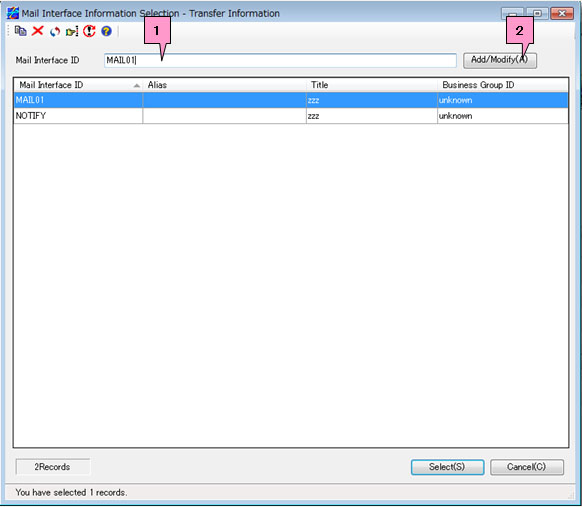
When you add a new record, enter a new mail interface ID in the Mail Interface ID on the Select Mail Interface Information Record screen and click the [Add/Modify].
When you modify a record, enter the mail interface ID of the record in the Mail Interface ID on the Select Mail Interface Information Record screen or select the relevant ID in the list, and then click the [Add/Modify] (marked as 1 and 2, respectively, on the screen below).
-
The Register Mail Interface Information screen appears when you add a record.
The Modify Mail Interface Information Record screen appears when you modify a record.
Fields of Register Mail Interface Information/Modify Mail Interface Information Record Screen
The setting fields are the same between the Register Mail Interface Information screen and the Modify Mail Interface Information Record screen. The following explanation is based on the Modify Mail Interface Information Record screen.
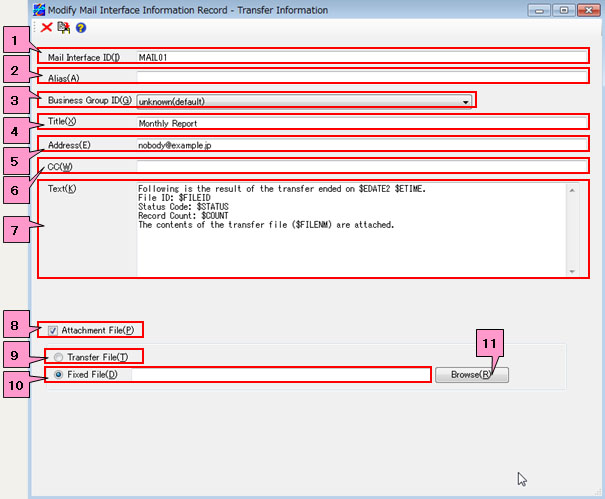
<Table> Fields of Register Mail Interface Information/Modify Mail Interface Information Record Screen
| No. | Field | Description |
|---|---|---|
|
1 |
Mail Interface ID | This field specifies the ID that identifies the Mail Interface Information record. |
|
2 |
Alias | This field specifies the alias for the mail interface ID. |
|
3 |
Business Group ID *1 | Select a Business Group ID from the pulldown list. |
|
4 |
Title | This field specifies the title of the mail. |
|
5 |
Address | This field specifies the address to which the mail is sent. |
|
6 |
CC | This field specifies other addresses to which the mail is sent at the same time. |
|
7 |
Text | This field specifies the text of the mail. |
|
8 |
Attachment File | Use this check box to specify whether or not to attach files. |
|
9 |
Transfer File | Select this radio button when you attach Send files or Receive files. |
|
10 |
Fixed File | Select this radio button when you attach a fixed file. You can specify the file name within 256 bytes. |
|
11 |
[Browse] | Click this button to specify an attachment file on the File Reference screen. |
*1: The display method varies depending on the setting of the ID Indication in the Environment Settings of HULFT-HUB Manager.
Editing of Mail Interface Information
The settings of the fields vary depending on the version of HULFT. For details of each field, refer to the following topics in "HULFT-HUB Management Information Reference":
| Host Type | HULFT7 | HULFT8 | HULFT10 |
|---|---|---|---|
| Windows | Mail Interface Information | Mail Interface Information | Mail Interface Information |
After you configure the settings, click  .
.
If you want to delete a registered mail interface ID, click  .
.
| [Note] | When you modify an ID on the Modify Mail Interface Information Record screen, if the same ID as the modified ID does not exist, the information record for the ID is added, and if the same ID already exists, the existing information record for the ID is overwritten. |