Common Operations
This topic explains common operations common to the following types of the management information:
- Job Information
- Host Information
- Transfer Group Information
- Format Information
- Multi Format Information
- Mail Interface Information
- Schedule Information
- File Trigger Information
Procedure for Displaying List of Management Information Records
- Log in to HULFT-HUB Manager as a user who has permission to modify management information. Check that the Request Acknowledge program is running on the client.
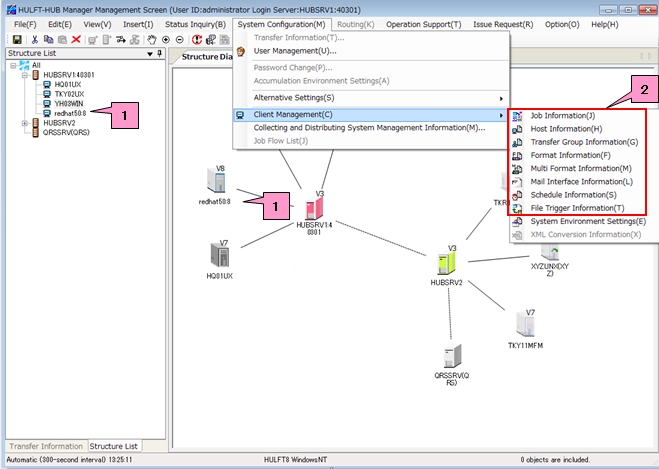
- In the structure list or on the Structure Diagram, select the client whose management information you want to view (marked as 1 on the screen below).
-
From the [System Configuration] menu, select the [Client Management] to click the management information that you want to list the records of the management information (marked as 2 on the screen below).
-
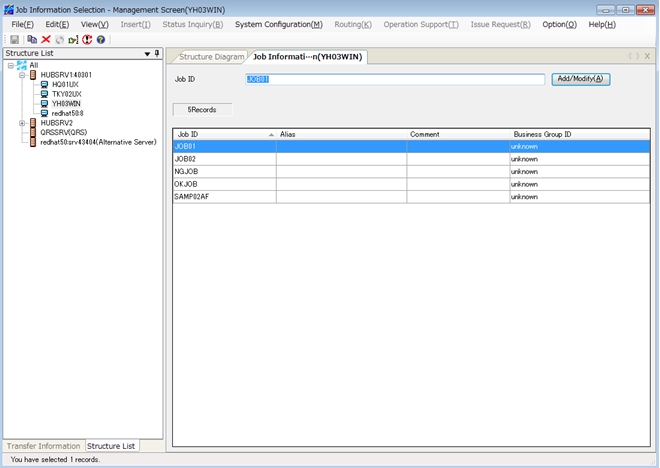
A list of the records of the relevant management information appears.
Procedure for Registering/Modifying Management Information Record
- Display a list of management information records by referring to Procedure for Displaying List of Management Information Records.
-
Enter an ID directly in the ID input area or select an ID from the list, and then click the [Add/Modify] (marked as 1 on the screen below).
[Remarks] Specify an ID that is not in the list to register a new record. Specify an ID that is in the list to modify an existing management information record. -
Configure the settings of the management information record.
For details, refer to Setting of Job Information, Setting of Host Information, Setting of Transfer Group Information, Setting of Format Information, Setting of Multi Format Information, Setting of Mail Interface Information, Setting of Schedule Information, Setting of File Trigger Information, or Management Information Reference.
-
Click
 on the toolbar to save the modified record (marked as 2 on the screen below).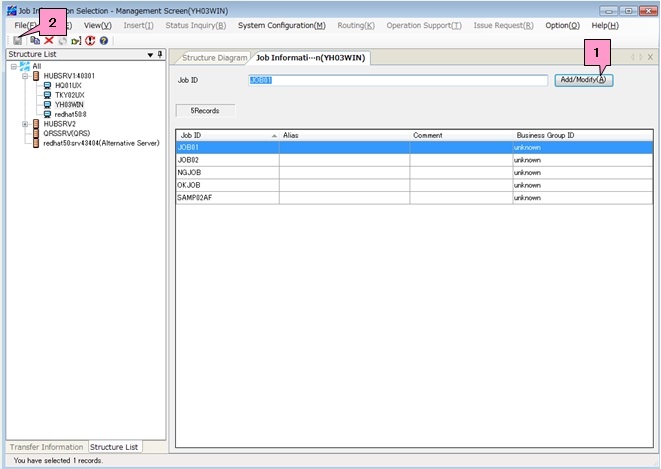
- Repeat the operations of steps 2 through 4 as needed.
Procedure for Copying Management Information Record
- Display a list of management information records by referring to Procedure for Displaying List of Management Information Records.
-
Select the ID of the management information record that you want to copy from the list.
In order to filter the records in the list, click
 on the toolbar. For details, refer to "Procedure for Filtering Management Information Records in List."
 -
Click
 on the toolbar to display the dialog box for specifying the ID of the management information record to copy.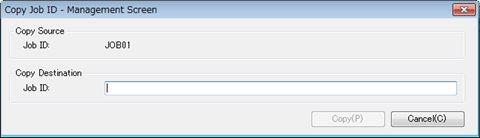
- Enter the ID of the copy destination record and click the [Copy] to copy the management information record.
- Repeat the operations of steps 2 through 4 as needed.
Procedure for Deleting Management Information Record
- Display a list of management information records by referring to Procedure for Displaying List of Management Information Records.
-
Select the ID of the management information record that you want to delete from the list.
In order to filter the records in the list, click
on the toolbar. For details, refer to "Procedure for Filtering Management Information Records in List." - Click
 on the toolbar. A deletion confirmation dialog box appears.
 -
Click the [Yes] on the deletion confirmation dialog box to delete the selected management information record.
[Note] If you select 'Do Not Display' for the Deletion Confirmation Message in the Environment Settings of HULFT-HUB Manager, HULFT-HUB Manager does not display the confirmation dialog box before deletion. - Repeat the operations of steps 2 through 4 as needed.
Procedure for Filtering Management Information Records in List
- Display a list of management information records by referring to Procedure for Displaying List of Management Information Records.
-
Click
on the toolbar.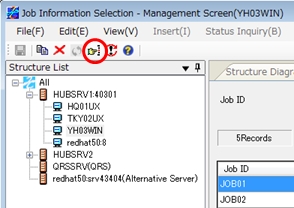
-
The Search Condition Settings dialog box appears.
Specify a condition and click the [Set].
For details on search conditions, refer to Search Condition Settings.
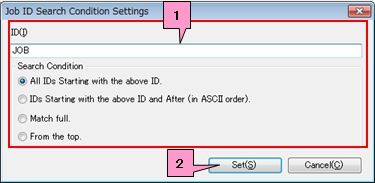
- HULFT-HUB Manager applies the specified condition to filter the management information records in the list.
Setting of Columns to Be Displayed
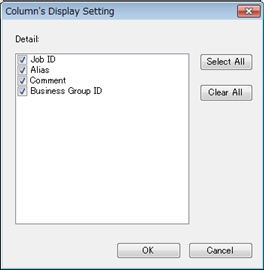
Select the Column's Display Setting on the pop-up menu of the list. The Column's Display Setting dialog box appears.
Filtering of Data
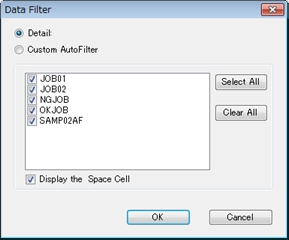
Select Data Filter on the pop-up menu of the list. The Data Filter dialog box appears.