Check and Update of Client Settings
-
When you double-click a client on the Structure Diagram or in the structure list, the Registered Client Settings appear.
Modify the settings as needed.
- If you modify the settings, click
 on the toolbar. Click the [Yes] when an update confirmation dialog box appears.
 -
If the information on the client side has been modified, a message stating so appears. In this case, after you click the [OK], you must restart each process on the client side.
[Remarks] If you modify the fields of the Activity Status, HULFT-HUB Manager modifies only the settings file on the server and does not modify the settings file on the client. Thus, if you modify only the fields of Activity Status without modifying the fields of the Basic Settings, you do not need to restart the processes on the client side. [Note] When you run utlkillrcv or utlkillobs to stop the processes of HULFT before you restart a Linux/AIX client, use the -n option with these commands to specify the port number that the client used before modification.
Check and Update of Basic Settings
The Basic Settings are required settings for HULFT-HUB Server to manage the client. Confirm that the information retained on the server is the same as that of the settings on the client.
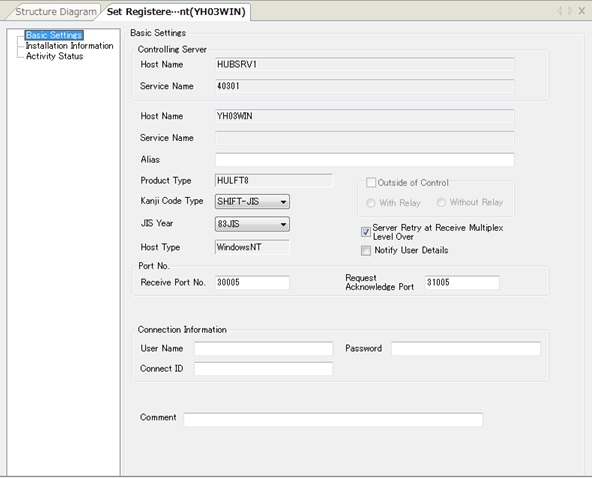
Refer to the following screen to configure the settings as needed.
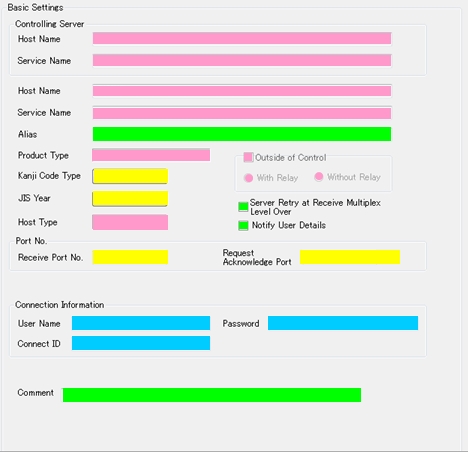
| Fields in pink: | You cannot modify these fields. If you want to modify the settings of these fields, delete the client and register the client again with the desired settings. |
| Fields in green: | If you modify these fields, HULFT-HUB Manager modifies the settings file on the server. HULFT-HUB Manager does not modify the settings file on the client. |
| Fields in yellow: | If you modify these fields, HULFT-HUB Manager also modifies the settings file on the client. To reflect the modification, you must restart the client. |
| Fields in blue: | Specify these fields so that they match the settings on the client. |
| [Note] | |
| - | The Transfer Multiplex Level by Destination appears only for Mainframe. |
| - | When the client is HULFT Ver.8.1 or higher, HULFT displays the Code Set for Transfer and the Standard for Japanese instead of the Kanji Code Type and the JIS Year that are shown in the screen above. |
| - | You can set Forced Strong Key Mode only for Client outside of Control (with Relay). |
| [Remarks] | For details of each field, refer to the explanation in Client Registration (New Registration) Dialog Box. |
Check of Installation Information
The Installation Information contains the information such as the product information or the version information of the products that are installed on the client.
| [Note] | You can check the Installation Information only for Clients under Control. |
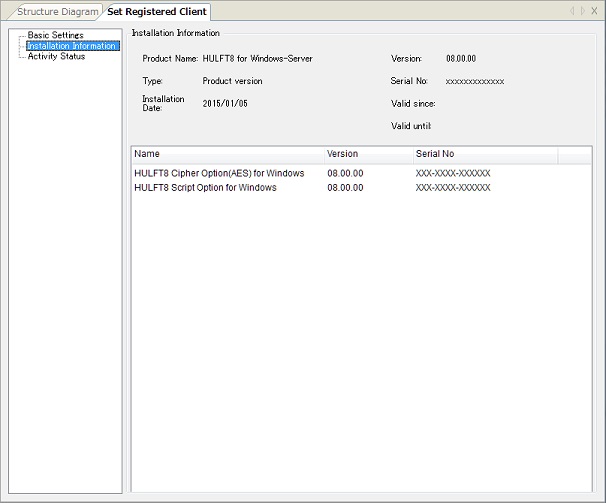
<Table> Explanation of Each Field of Installation Information
| Field Name | Description |
|---|---|
| Product Name *1 | This field shows the name of the installed HULFT. |
| Version *1 | This field shows the version of the installed HULFT. |
| Type *1 | This field shows whether the installed HULFT is a Product version or a Trial version. |
| Serial No *1 | This field shows the Serial Number of the installed HULFT. |
| Installation Date *1 | This field shows the installation date of HULFT. |
| Valid since *1 | This field shows the start date of the usage period if the license of the installed HULFT is the Fixed Term License. |
| Valid until *1 | This field shows the end date of the usage period if the license of the installed HULFT is the Fixed Term License. |
| Name | This field shows the name of the installed product. |
| Version | This field shows the version of the installed HULFT main module. This field does not show the versions of option products. |
| Serial No | This field shows the Serial Number of the installed product. |
*1: These fields appear when the client is HULFT8 or higher.
Check and Update of Activity Status
The Activity Status shows the information on the activity statuses of the Receive process and the Request Acknowledge process on the client.
You can also specify whether or not to check the activity statuses of the client.
| [Note] | You can check and update the Installation Information only for Clients under Control. |
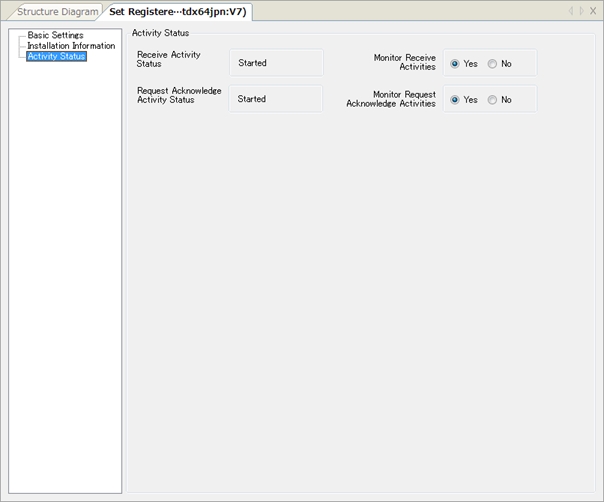
<Table> Explanation of Each Field of Installation Information
| Field Name | Description | Restriction | Specification |
|---|---|---|---|
| Receive Activity Status | This field shows 'Started' or 'Not Started' according to the activity status of the Receive process on the client. | - | - |
| Request Acknowledge Activity Status | This field shows 'Started' or 'Not Started' according to the activity status of Request Acknowledge process on the client. | - | - |
| Monitor Receive Activities | This field specifies whether or not to monitor the activity status of the Receive process. If you specify 'Yes,' HULFT-HUB Server operates according to the setting of the Client Activity Monitoring Interval. If you specify 'No,' the Receive Activity Status is fixed to the string that is displayed at that time. |
Yes, No | Mandatory |
| Monitor Request Acknowledge Activities | This field specifies whether or not to monitor the activity status of the Request Acknowledge process. If you specify 'Yes,' HULFT-HUB Server operates according to the setting of the Client Activity Monitoring Interval. If you specify 'No,' the Request Acknowledge Activity Status is fixed to the string that is displayed at the time. |
Yes, No | Mandatory |
| [Note] | If the Activity Status displays 'Unknown,' refer to Monitor Activities to execute the Monitor Activities function. |