Snowflake
Support for closed network connection for Snowflake
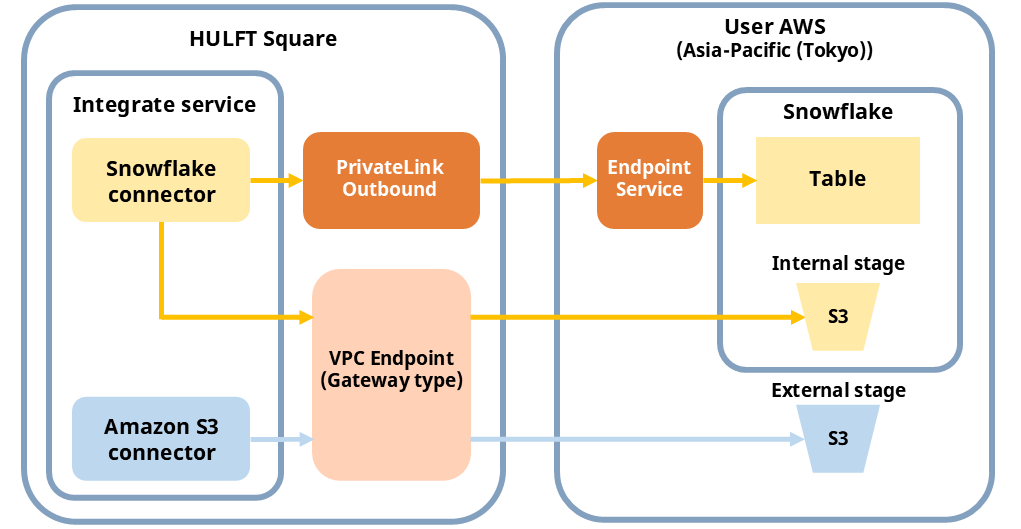
As of the 2025.3 (March 15, 2026) release, Snowflake connector can connect to your Snowflake from HULFT Square without using public internet by using AWS PrivateLink. (Applicable region: AWS Asia-Pacific (Tokyo))
The two constructions for data integration are as follows:
1. Integration method that uses Snowflake connector alone
2. Method loading via Amazon S3 (external stage)
If access to Amazon S3 is needed, the closed network is accessed via the Amazon S3 gateway endpoint on the HULFT Square side.
- 1. To integrate using Snowflake connector alone
-
While a connection to Snowflake is established via PrivateLink, access to Amazon S3 for using the internal stage according to the processing is also made through a closed network via the S3 gateway endpoint.
- 2. To use Amazon S3 as an external stage
-
After uploading files to S3 via the Amazon S3 connector, execute COPY INTO with the Snowflake connector to load the data into the target table.
The gateway endpoint is configured internally in the system when you begin your HULFT Square contract. It can't be configured or viewed on the screen by users.
Connection procedure
(1) Enabling PrivateLink (Snowflake side)
-
To enable PrivateLink, contact Snowflake Inc. support.
For details about enabling PrivateLink, refer to the following document:
Snowflake Documentation (https://docs.snowflake.com/en/user-guide/admin-security-privatelink#enable-aws-privatelink)
(2) Obtaining PrivateLink connection information (Snowflake side)
-
Obtain the PrivateLink connection information.
For the procedure on the Snowflake side, refer to the following document:
Snowflake Documentation (https://docs.snowflake.com/en/user-guide/admin-security-privatelink#create-and-configure-your-aws-vpc-endpoint)
For the exact SQL statement, refer to the following document:
Snowflake Documentation (https://docs.snowflake.com/en/sql-reference/functions/system_get_privatelink_config)
The following information is obtained:-
privatelink-vpce-id
-
privatelink-account-url
-
(3) Outbound (PrivateLink) settings for HULFT Square link Ver.2 (HULFT Square side)
-
Set the fields from
 > NETWORK > PrivateLink as shown below.
Field name
Setting content (example)
Name
(Appropriate value)
Destination connection
Value of privatelink-vpce-id
-
After creating the PrivateLink, add Alias to the setting (value of privatelink-account-url)
(4) Connection settings (HULFT Square side)
-
In the Snowflake connection settings displayed from
 > HULFT INTEGRATE > Connections > Add, set the fields as shown below.
Field name
Setting content (example)
Account Identifier
Enter the value of privatelink-account-url without ".snowflakecomputing.com"
Warehouse name
Enter the Snowflake connection destination settings Database name
Schema name
(5) Connection source restrictions (Snowflake side)
-
Copy the HULFT Square PrivateLink outbound Name you created in "Outbound (PrivateLink) settings for HULFT Square link Ver.2 (HULFT Square side)"
-
In the network policy on the Snowflake side, allow the AWS VPC endpoint ID using the vpce- prefix followed by the first 17 characters. Refer to the following document for details:
Snowflake Documentation (https://docs.snowflake.com/en/user-guide/network-policies#interaction-between-allowed-lists-and-blocked-lists)
Refer to the descriptions on each page from the links below.