Explanation of Transfer Detail Information
The Transfer Detail Information contains details on the transfer conditions or transfer results for the transfers that have been selected on the transfer list on the Transfer Status Watch screen.
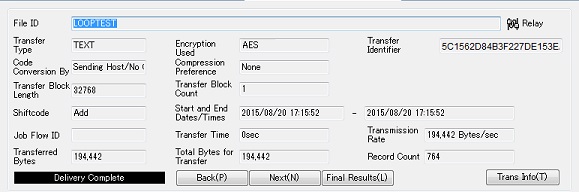
Explanation of Each Field
This field shows the file ID of the transfer that you are viewing as 'File ID (Alias).'
| [Remarks] | If the file ID cannot be determined when the connection between the client on the sending side and the server has failed or when the refusal of a connection from an unregistered client has been interrupted, the File ID appears as '???.' |
This field shows the transfer type of the transfer that you are viewing.
If the host on the receiving side belongs to a host group, the transfer appears as multicasting even if there is only one host registered in the host group.
| Indicators | Description |
|---|---|
 Relay Relay |
This icon indicates that the transfer is relayed on HULFT-HUB Server. |
 HUB Multicasting HUB Multicasting |
This icon indicates that the multicasting is carried out through HULFT-HUB Server. |
 Direct Direct |
This icon indicates the Direct Transfer between clients. |
This field shows the transfer data format of the transferred files.
| [Remarks] | If a Direct Transfer is carried out and the sending side client is a Mainframe, you cannot retrieve the transfer type. |
| Indicators | Description |
|---|---|
| FORMAT | Format data |
| BINARY | Binary data |
| TEXT | Text data |
| MULTI FORMAT | Multi format data |
| M/FORMAT | Format data or multi format data *1 |
*1: This appears only when differentiation is impossible during the transfer operation.
This field shows the type of encryption that was used to encrypt the transfer file.
| Indicators | Description |
|---|---|
| Enabled *1 | Transfer after encrypting |
| - | Transfer without encrypting |
| HULFT *2 | Use HULFT Encryption Scheme for encryption |
| C4S *2 | Use C4S for encryption |
| AES *2 | Use AES for encryption |
| OTHER *2 | Use other encryption scheme for encryption |
| unknown | Unknown if encryption was used |
| *1: | When you view the Transfer Log records that were converted from versions lower than HULFT-HUB Server Ver.3.9, this value is displayed. |
| *2: | Because the log output of the encryption type is officially supported as from HULFT-HUB Server Ver.3.9 onwards, a value different than the encryption type that is actually being used might be displayed for the HULFT-HUB Server versions lower than Ver.3.9. |
This field shows a unique identifier that is issued for each file transfer.
This field appears in HULFT-HUB Server Ver.2.2 or higher.
This field shows the code conversion side of the transfer file.
| Indicators | Description |
|---|---|
| Sending Host/No Conversion | Sending side conversion or no conversion |
| Receiving Host | Receiving side conversion |
| '-' | When the Transfer Type is 'BINARY' |
This field shows the compression mode for the transfer file.
| Indicators | Description |
|---|---|
| None | No compression |
| Horizontal | Compression within each record |
| Vertical | Compression across records |
| DEFLATE | DEFLATE compression |
| Zstandard | Zstandard compression |
| [Note] | On the Transfer Status Watch Details screen, the entire multicasting processing of HUB multicasting appears on a single screen. If both the receiving client that supports DEFLATE and the receiving client that does not support DEFLATE exist, 'DEFLATE' appears in the Compression Preference. |
| However, if all the transfers to the receiving client that supports DEFLATE end in error, and only the transfers to the receiving client that does not support DEFLATE end successfully, 'None' appears in the Compression Preference. | |
| To check the compression preference for each client on the receiving side, check the server trace log. |
This field shows the transfer block length of the transferred files.
It indicates the transfer block length that is specified in the Transfer definition of the Send file.
This field shows the transfer block count of the transferred files.
It indicates the transfer block count that is specified in the Transfer definition of the Send file.
-
When the Kanji Code Type in the Registered Client Information for the sending side client is the ASCII code set
<Table> Display information for ASCII code set
Indicators Description Add Add the shift code Do Not Add Do not add the shift code '-' When the Transfer Type is 'BINARY' -
When the Kanji Code Type in the Registered Client Information for the sending side client is the EBCDIC code set
<Table> Display information for EBCDIC code set
Indicators Description Delete Cut the shift code Replace with Space Replace the shift code with a space '-' When the Transfer Type is 'BINARY'
This field shows the date and time when the file transfer started on the server in 'YYYY/MM/DD hh:mm:ss' format.
It indicates the date and time when the file transfer started on the server that you selected when you opened the Transfer Status Watch screen.
This field shows the date and time when the file transfer ended on the server in 'YYYY/MM/DD hh:mm:ss' format.
It indicates the date and time when the file transfer ended on the server that you selected when you opened the Transfer Status Watch screen.
This field shows the ID of the Job Flow that was executed after accumulation was completed.
| [Remarks] | This field appears in HULFT-HUB Server Ver.3 or higher. |
This field shows the total amount of time that the transfer was in progress for.
It indicates the time that elapsed from the point when the server was connected from the client on the sending side, to the point when the communication with the client on the sending side or on the receiving side ended during the file transfer.
| [Remarks] | The transfer time does not include the time that is required for the processing that takes place after the connection with the server that relayed the file transfer has been released, such as updating of the log record on the client side or execution of the Post-send Job and the Post-receive Job. |
This field shows the amount of transfer data per second (bytes).
This field shows the amount of data that has been transferred.
| [Remarks] | If the sending side client is a Mainframe and a direct transfer is carried out, during the transfer "-" is displayed. |
This field shows the total amount of data that is scheduled for transferring.
| [Remarks] | |
| - | This data quantity also includes the control information that is related to each record in the transferred data. It differs from the data size that appears in the log record on the client side. (The control information is not included in the data size that appears in the log record on the client side.) |
| - | When the transferred data quantity is unknown (for example when a transfer error occurs, or when 0 records of data are transferred), '-' is displayed. |
| - | If the sending side client is a Mainframe and a direct transfer is carried out, during the transfer "0" is displayed. |
This field shows the record count of the transferred files.
This field indicates the progress and status of the transfer on the server that you selected when you opened the Transfer Status Watch screen. The format in which the status appears is 'Transfer Status (progress %).'
<Table> Transfer Status Indicators
| Indicators | Background Color | Description |
|---|---|---|
|
Transferring Delivering Waiting for Availability under Delivery Multiplex Level Waiting to be Delivered Waiting for Reinstatement Job Flow in Execution |
Blue |
The data is being transferred. This indicator is displayed from the time the connection with the connection source host is established until the time the connection is released. |
|
Accumulating Accumulation Complete |
Green | The data is being accumulated or the accumulation processing has ended successfully. |
|
Transfer Complete Delivery Complete Delete Job Flow Ended Successfully |
Black | The transfer has ended successfully. |
|
Transfer Error Accumulation Error Delivery Error Startup of Job Flow Failed Job Flow Ended Unsuccessfully |
Red | The transfer or the accumulation processing has ended unsuccessfully. |
| [Remarks] | Progress is expressed in percentage. In some host types and versions, progress does not appear. |