Receive Management Information
This topic explains how to register the file information for the file to be received.
You can view and modify this information on the following screens:
- Transfer Information screen
- Collecting and Distributing System Management Information screen
You can also import and export this information on the following screen:
- Collecting and Distributing System Management Information screen
List of Fields
1. Receive Management Information
<Table> List of Fields for Receive Management Information
| No. | Field Name | Default Value | Setting Value | Specification | Remarks | Transfer | Distribute |
|---|---|---|---|---|---|---|---|
| A1 | File ID | Uppercase alphanumeric characters | Mandatory | Within 8 bytes | Outside the panel | ✓ | |
| A2 | File Name | Alphanumeric characters | Mandatory | Within 200 bytes | Basic Settings | ✓ | |
| A3 | Registration Mode | New Creation | *1 | Mandatory | Basic Settings | ✓ | |
| A4 | Receive Mode | Single Receive | *1 | Mandatory | Basic Settings | ✓ | |
| A5 | Error Recovery | Delete | *1 | Mandatory | Basic Settings | ✓ | |
| A6 | Generation File | No | *1 | Mandatory | Basic Settings | ✓ | |
| A7 | Generation File Count | 0, from 2 to 9999 | Optional | Basic Settings | ✓ | ||
| A8 | Owner Name | Alphanumeric characters | Mandatory | Within 14 bytes | Basic Settings | ✓ | |
| A9 | Group Name | Alphanumeric characters | Mandatory | Within 14 bytes | Basic Settings | ✓ | |
| A10 | Permission | Permissions granted (*2) | *1 | Optional | Basic Settings | ✓ | |
| A11 | Successful Job ID | Alphanumeric characters | Optional | Within 8 bytes | Basic Settings | ✓ | |
| A12 | Unsuccessful Job ID | Alphanumeric characters | Optional | Within 8 bytes | Basic Settings | ✓ | |
| A13 | Comment | Alphanumeric characters | Optional | Within 60 bytes | Outside the panel | ✓ | |
| A14 | Transfer Group ID | *3 | Alphanumeric characters | Mandatory | Within 8 bytes | Outside the panel | ✓ |
| A15 | EBCDIC Code Set | Kana | *1 | Mandatory | Extension Settings | ✓ | |
| A16 | Notification | Receive Completion | *1 | Mandatory | Extension Settings | ✓ | |
| A17 | Interfacing with Exchanger | No (*4) | *1 | Optional | Extension Settings | ✓ | |
| A18 | Cipher Key | Alphanumeric characters | Optional | From 8 to 20 bytes | Extension Settings | ✓ | |
| A19 | Verify Data | No | *1 | Mandatory | Extension Settings | ✓ |
| *1: | When you configure settings on the screen, select an option from the list that is shown on the screen. |
| *2: | The check box is selected. |
| *3: | When you register a Transfer definition in HULFT-HUB Manager, the field is automatically set. |
| *4: | The check box is not selected. |
2. Additional information other than Receive Management Information
You can view both the Receive Management Information and the following additional information on each screen where you edit Transfer definitions.
<Table> List of Fields for Additional Information other than Receive Management Information
| No. | Field Name | Default Value | Setting Value | Specification | Remarks | Transfer | Distribute |
|---|---|---|---|---|---|---|---|
| B1 | Host Name | Alphanumeric characters | *1 | Outside the panel | - | ||
| B2 | File Alias *2 | Alphanumeric characters | Optional | Within 256 bytes | Outside the panel | ✓ | |
| B3 | Batch Distribution ID | Alphanumeric characters | *1 | - | ✓ | ||
| B4 | Business Group ID | Alphanumeric characters | *3 | - | ✓ |
| *1: | You are allowed only to view this field on the screen. |
| *2: | This information is shown as 'Alias' on the Collecting and Distributing System Management Information screen. |
| *3: | When you configure settings on the screen, select an option from the list that is shown on the screen. |
| [Legend] | |
| Default Value | Value that is set for the field when you create a new management information record on a screen |
| Specification | Whether the specification is mandatory or optional when you update the management information record on a screen |
| Transfer | Transfer Information screen |
| Distribute | Collecting and Distributing System Management Information screen |
| ✓ | Availability of the field |
On the Transfer Information screen, you can register the XML Conversion Information in the Extension Settings.
Explanation of Each Field
The following describes the fields that are configured in the Receive Management Information.
For a field for which you select an option from the list, the following shows both the options that are displayed on the screen and the values that are described in the CSV file to be used for Collecting and Distributing System Management Information.
1. Receive Management Information
This field specifies the ID to identify the file to be received.
This field specifies the file to be received.
Specify the absolute path.
You can specify the name of a file that uses network resources only in HULFT7 for UNIX/Linux-EX.
By specifying '$SNDFILE,' you can use the Send file name on the host on the sending side as the Receive file name. When the host on the sending side runs UNIX or Linux, you can use the path of the sending side as the path of the Receive file by specifying '$SNDPATH.' For details about the naming rules when setting a Send file name to a Receive file name, refer to <Table> File Naming Rules.
When specifying '$SNDFILE,' select 'Single Receive' (S) for the Receive Mode.
This field specifies the registration mode for the file to be received.
<Table> Setting Values for Registration Mode
| On-screen Options |
Values in CSV File |
Description |
|---|---|---|
| New Creation | N | New creation mode |
| Replace | R | Replace mode |
| Append | M | Append mode |
When you select 'Single Receive' (S) for the Receive Mode and 'Append' (M) for the Registration Mode, if an error occurs while a file is being received the receiving data up until the error occurred will be appended.
This field specifies the receive mode for the file to be received.
<Table> Setting Values for Receive Mode
| On-screen Options |
Values in CSV File |
Description |
|---|---|---|
| Single Receive | S | Receive the file from a single host |
| Multiple Receive | M | Receive files from multiple hosts and create a single file |
If you select 'Multiple Receive' (M), specify 'Append' (M) for the Registration Mode and 'Keep' (K) for the Error Recovery.
| [Note] | If you select 'Multiple Receive' (M), please note the following: |
| - | HULFT stores the data that is being received in a temporary file, and then copies this data to the Receive file after the Receive processing is complete. |
This field specifies how to treat the Receive file when receiving fails.
<Table> Setting Values for Error Recovery
| On-screen Options |
Values in CSV File |
Description |
|---|---|---|
| Delete | D | Delete the Receive file |
| Keep | K | Save the Receive file at the point the failure occurs |
| Restore | R | Restore the file before receiving started |
| [Note] | |
| - | Points to be noted when you select 'Delete' (D) |
| When you select 'New Creation' (N) for the Registration Mode, if an error occurs because the Receive file already exists, HULFT will not delete the existing file. | |
| - | Points to be noted when you select 'Keep' (K) |
| When you select 'Multiple Receive' (M) for the Receive Mode, if an error occurs while HULFT is receiving data to temporary files, the receiving data up until the point where the error occurred will not be written to the Receive file. If an error occurs while data in the temporary files is being copied to the Receive file, the receiving data up until the point where the error occurred will be appended. Therefore, there must be a system to check for duplicate data with an application program. | |
| - | Points to be noted when you select 'Restore' (R) |
| When you select 'Append' (M) for the Registration Mode, if an error occurs while a file is being received the receiving data up until the error occurred will be appended. |
This field specifies whether HULFT creates generation files for the Receive file.
<Table> Setting Values for Generation File
| On-screen Options |
Values in CSV File |
Description |
|---|---|---|
| No | N | Generation File Management is not available |
| Yes | Y | Generation File Management is available |
If you select 'Yes' (Y), specify either 'New Creation' (N) or 'Replace' (R) for the Registration Mode and 'Delete' (D) for the Error Recovery.
This field specifies the generation file count for the Receive file.
If you selected 'Yes' (Y) for the Generation File, specify a numeric value from 2 to 9999.
If you selected 'No' (N) for the Generation File, HULFT automatically sets '0.' (You cannot directly enter a value.)
In CSV files for Collecting and Distributing System Management Information, you can omit this setting if you specified 'N' for the Generation File (UX).
This field specifies the owner of the Receive file.
Specify an owner name that is registered in the system.
This field specifies the group name of the Receive file.
Specify a group name that is registered in the system.
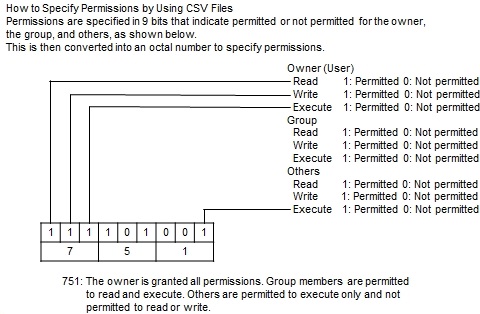
This field specifies the permission mode for reading, writing, and executing files.
<Table> Setting Values for Permission
| On-screen Options |
Values in CSV File |
Description |
|---|---|---|
| Check box not selected | 0 | Permissions not granted |
| Check box selected | 1 | Permissions granted |
This field specifies the ID of the job that HULFT starts when the receiving of the file ends successfully.
For details about the job ID, refer to Job Information (UNIX/Linux).
If you omit this field, HULFT does not start the job.
This field specifies the ID of the job that HULFT starts when the receiving of the file ends unsuccessfully.
For details about the job ID, refer to Job Information (UNIX/Linux).
If you omit this field, HULFT does not start the job.
This field specifies the comment regarding the file to be received.
This field specifies the transfer group ID of the Receive file.
For details about the transfer group ID, refer to Transfer Group Information (UNIX/Linux).
| [Note] | For Transfer definitions that are registered on the Transfer Information screen in HULFT-HUB Manager, HULFT-HUB automatically selects as default values the transfer group IDs (for transfer groups that are registered on the client side) that include the host on the receiving side that is selected in the transfer map. If there is no relevant transfer group ID, HULFT-HUB automatically sets an 8-character transfer group ID that starts with 'HB.' |
This field specifies the EBCDIC code system (encoding code scheme) that is used for conversion from EBCDIC to ASCII.
<Table> Setting Values for EBCDIC Code Set
| On-screen Options |
Values in CSV File |
Description |
|---|---|---|
| Kana | A (default value) | EBCDIC Kana |
| Lower Case | B | EBCDIC Lower Case |
| ASCII | C | EBCDIC ASCII |
| ASPEN | D | EBCDIC ASPEN |
| Standard | E | IBM Standard |
| Standard Extension | F | IBM Standard Extension |
| NEC Kana | G | NEC Kana |
| Kana Extension | H | IBM Kana Extension |
| User Table 1 | V | User Table 1 |
| User Table 2 | W | User Table 2 |
| User Table 3 | X | User Table 3 |
You can use this setting when the Code Conversion for the Send Management Information on the host on the sending side is 'Receiving Host' (R).
| [Note] | You cannot select 'Kana Extension' (H) in versions lower than HULFT Ver.7.3.0. |
This field specifies the Receive Completion Notification to be sent to the host on the sending side.
<Table> Setting Values for Notification
| On-screen Options |
Values in CSV File |
Description |
|---|---|---|
| Receive Completion | T (default value) | Notify after receive completion |
| Successful Job Completion | J | Notify after successful job completion |
(A17) Interfacing with Exchanger
This field specifies the interface between the Receive system and HULFT Exchanger Option.
<Table> Setting Values for Interfacing with Exchanger
| On-screen Options |
Values in CSV File |
Description |
|---|---|---|
| Check box not selected | N | Do not interface with Exchanger |
| Check box selected | Y | Interface with Exchanger |
This is related to interfacing with HULFT Exchanger to carry out the Send processing and the Receive processing. For details about HULFT Exchanger interfacing, refer to the manual for HULFT Exchanger Option.
| [Note] | This field is not supported in HULFT7 or higher. |
This field specifies the key for decrypting data.
Specify this field to decrypt data that has been encrypted. Set the same cipher key that has been set in the Send Management Information on the remote host.
If a cipher key is specified on the host on the receiving side but not specified in the Send Management Information on the host on the sending side, HULFT ignores the cipher key.
This field specifies whether or not to verify data of the file to be received.
<Table> Setting Values for Verify Data
| On-screen Options |
Values in CSV File |
Description |
|---|---|---|
| No | 0 (default value) | Do not verify data |
| Yes | 1 | Verify data |
2. Additional information other than Receive Management Information
This additional information is displayed together with the Receive Management Information on each screen where you edit Transfer definitions. You can view and modify this information on screens in HULFT-HUB Manager.
| [Note] | You cannot view this additional information on the Management screen on the client (HULFT) side. |
This field shows the host name for the client for which the Receive Management Information is registered.
| [Remarks] | You can view this field on the Transfer Information screen (cannot be updated). |
This field specifies the alias for the Receive file.
It is recommended that you assign a unique name in the Receive Management Information so that each file ID that is displayed on screens in HULFT-HUB Manager can be easily identified.
| [Remarks] | This information is shown as 'Alias' on the Collecting and Distributing System Management Information screen. |
This field shows the Batch Distribution Information ID with which the Receive Management Information is registered as distribution data.
| [Remarks] | You can view this field on the Collecting and Distributing System Management Information screen (cannot be modified). |
This field specifies the Business Group ID to which this Receive Management Information belongs.
| [Remarks] | You can view this field on the Collecting and Distributing System Management Information screen. |
Points to be Noted When Configuring Settings
1. Specification of Registration Mode, Receive Mode, and Generation File
The combinations that can be specified in the Receive Management Information are shown below.
<Table> Setting Combinations in Receive Management Information

|
Receive Mode | Single Receive (S) | Multiple Receive (M) | |||
|---|---|---|---|---|---|---|
| Registration Mode |
|
Generation File | Yes (Y) | No (N) | Yes (Y) | No (N) |
| Error Recovery |
|
|||||
| New Creation (N) | Delete (D) | ✓ | ✓ | |||
| Keep (K) | ✓ | |||||
| Restore (R) | ✓ | |||||
| Replace (R) | Delete (D) | ✓ | ✓ | |||
| Keep (K) | ✓ | |||||
| Restore (R) | ✓ | |||||
| Append (M) | Delete (D) | ✓ | ||||
| Keep (K) | ✓ | ✓ | ||||
| Restore (R) | ✓ | |||||
2. Replacement message
You can replace variables with received messages by specifying the variables from '$MSG0' to '$MSG5' in the following fields (Message Transmission function):
| - File Name |
| - Successful Job ID |
| - Transfer Group ID |
| [Note] | |
| - | You can edit the Transfer Group ID only on the Collecting and Distributing System Management Information screen. On the Transfer Information screen, you can select only an ID that has been set automatically by HULFT-HUB Manager or an existing transfer group ID, and therefore you cannot carry out replacement with message. |
| - | For details about the Message Transmission function, refer to Administration Manual for the client. |
The naming rules when you use the Send file name as the Receive file name are shown below.
<Table> File Naming Rules
| Host Type | Send File Name | Receive File Name (UNIX/Linux) | ||
|---|---|---|---|---|
| $SNDPATH$SNDFILE | $SNDFILE | /usr/$SNDFILE | ||
| Mainframe |
Sequential Organization file HULFT.DAT.SND.F01 |
HULFT.DAT.SND.F01 | HULFT.DAT.SND.F01 | /usr/HULFT.DAT.SND.F01 |
|
Partitioned Organization file HULFT.DAT.F02(SND) |
HULFT.DAT.SND.F02 | HULFT.DAT.SND.F02 | /usr/HULFT.DAT.SND.F02 | |
| UNIX/Linux | /hulft/dat/snd.f03 | /hulft/dat/snd.f03 | snd.f03 | /usr/snd.f03 |
| Windows | C:\hulft\dat\snd.f04 | snd.f04 | snd.f04 | /usr/snd.f04 |
| i5OS | hulft/f05(snd) | snd.f05 | snd.f05 | /usr/snd.f05 |