Choice and Setting of Alternative Server
Choice of Alternative Server
Choose a server that fulfills the following conditions as an alternative server and configure the settings for HULFT-HUB Server. For details on the settings of an alternative server, refer to Management Information for Alternative Server.
- The password for 'administrator' is the same between the active server and the alternative server.
- The server is not the alternative server of another server (if the server is already registered as an alternative server, you cannot use the server as a new alternative server).
- The version, the level, and the revision are the same between the active server and the alternative server.
- The alternative server is not a server outside of control.
| [Note] | If the server that you choose as an alternative server contains existing management information, the management information is cleared when the server is specified as an alternative server. |
The following explanation assumes that the active server is HUBSVR1 (the server at Tokyo headquarters) and the alternative server is HUBSVRB (the alternative server at headquarters).
Addition of Alternative Server to Structure Diagram
-
Start HULFT-HUB Manager and log in to HUBSVR1 (the server at Tokyo headquarters) as 'administrator.'
[Note] If you log in to the server as a user other than 'administrator,' you cannot register the alternative server. -
Add HUBSVRB (the alternative server at headquarters) on the Structure Diagram of HULFT-HUB Manager.
For details on the procedure for adding a server, refer to Addition of Servers.
Specification of Alternative Server
-
Click [Alternative Server Settings]
 [Alternative Server Settings] on the [System Configuration] menu.
HULFT-HUB Manager enters alternative server edit mode (a check mark appears for the [Alternative Server Specification] menu option).
-
On the Structure Diagram, press and hold the left mouse button on the icon of the active server and drag the mouse cursor to the icon of the alternative server.
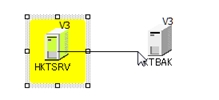
-
The Alternative Server Settings dialog box appears.
You can also configure the replication function on this screen.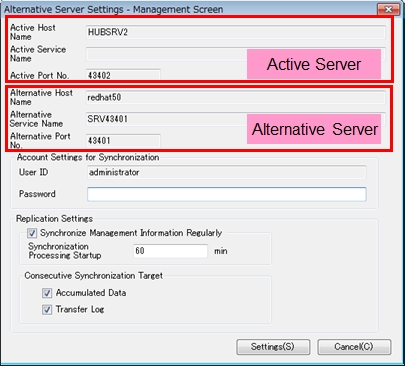
<Table> Fields of Alternative Server Settings Dialog Box
*1: This field is mandatory if you select the Synchronize Management Information Regularly check box.
-
Specify each field and click the [Set].
An alternative connection line is set as a blue dashed line with a blue arrow (
 ) that points from the active server (the server at Tokyo headquarters) to the alternative server (the alternative server at headquarters). An icon in orange that represents the alternative server appears.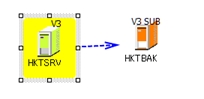
Copy of Management Information
When you select the alternative server on the Structure Diagram and click [Alternative Server Settings] [Immediate Copy] on the [System Configuration] menu, the management information of the active server is copied to the alternative server. If you clear the Synchronize Management Information Regularly check box on the Alternative Server Settings dialog box, synchronization is not executed even immediately after the registration of the alternative server. It is recommended that you execute the immediate copy function manually.
| [Remarks] | The following types of data are not copied: |
| - | System Environment Settings |
| - | Conversion definition for HULFT-DataMagic |
| - | External character tables |
Copy of Accumulated Data and Transfer Log
HULFT-HUB system synchronizes the Transfer Log and accumulated data between the active server and the alternative server to prepare for server switching that is executed if a failure occurs. The Transfer Log and the accumulated data are automatically consecutively copied from the active server to the alternative server, according to the setting of the Consecutive Synchronization Target that you specified with the function for configuring an alternative server for HULFT-HUB Server.
The copy targets are the accumulated data, the accumulation record, and the Transfer Log of HULFT-HUB Server.
Check and Modification of Settings
When you want to check or modify the settings after you register an alternative server, use the System Environment Settings screen.
-
Double-click the alternative server whose settings you want to check on the Structure Diagram.
The System Environment Settings of the selected server appear.
-
Click the Alternative Server Settings.
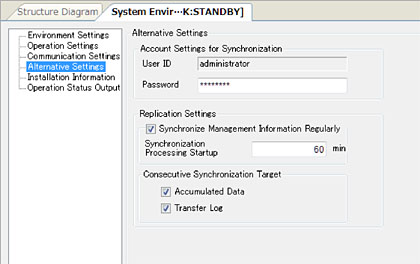
-
Refer to the following table to check and modify the settings:
<Table> Alternative Server Settings Panel
*1: This field is mandatory if you select the Synchronize Management Information Regularly check box.
- Click
 on the toolbar to save the modified settings.