Additional functions of HULFT-HUB
Job flow function
|
+ |
|
The job flow function was added to HULFT-HUB Server. Using this job flow function, you can execute a set of registered tasks automatically.
Different types of job flows exist and they are started by specific types of events. The following lists the types of job flow startup:
- Startup by Scheduler
-
The job flow will start when a specified time is reached.
- Wait for Accumulation
-
The job flow will start when specified files are accumulated on HULFT-HUB Server.
- Wait for Files
-
The job flow will start when it has been verified that a specified file exists.
- Wait for Utility
-
The job flow will start when the Event Notification utility (utljfevnt) is executed.
The following figure illustrates the overview of how job flows start.
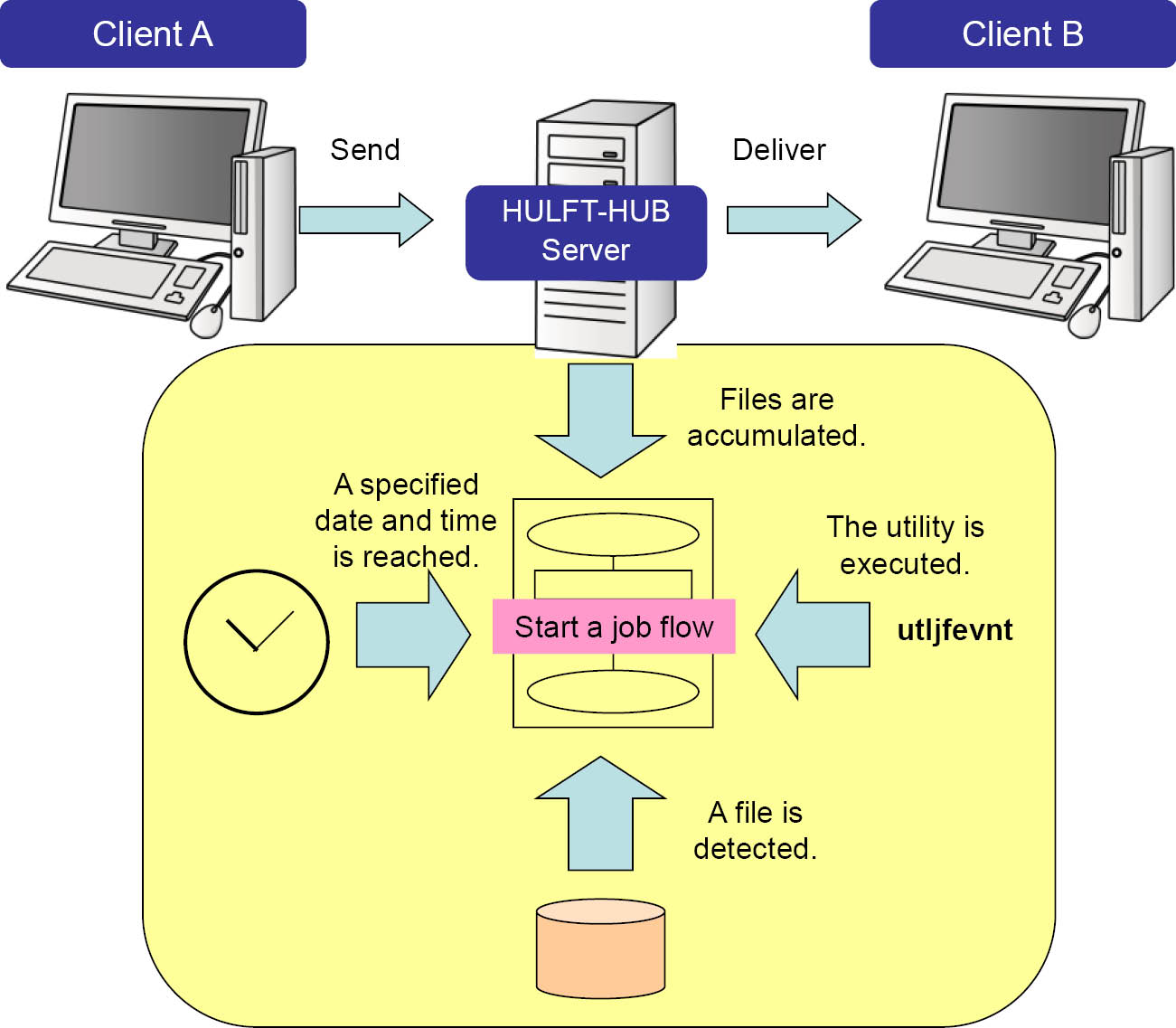
Figure 1.1 Overview of how job flows start
Note that job flows of the types Startup by Scheduler and Wait for Utility can start not only when a specified event occurs but also when you choose 'Execute Now' for a job flow.
Creating job flows
|
+ |
|
A job flow is a series of processing tasks and thus composed of multiple job steps. A job step is a unit of execution within a job flow. Job steps are categorized into the following types: Start, Execution, Trigger, and End. The following table describes icons for job steps.
Table 1.1 Job step icons
|
Job step type |
Icon |
Description |
|
|---|---|---|---|
|
Start Type |
Scheduler |
|
The job flow will start at a specified date and time. |
|
Wait for Accumulation |
|
The job flow will start when the accumulation of specified accumulated files is completed. |
|
|
Wait for Files |
|
The job flow will start when a specified file is created. |
|
|
Wait for Utility |
|
The job flow will start when a utility is executed. |
|
|
Execution Type |
User Job |
|
A specified user job will be executed. |
|
DataMagic |
|
Executes HULFT-DataMagic. |
|
|
Output Accumulated File |
|
Data will be extracted from accumulated files and stored in output files. |
|
|
Replace Accumulated File |
|
Data will be replaced in accumulated files with data from output files. |
|
|
Deliver Accumulated File |
|
The accumulated files will be delivered. |
|
|
Delete Accumulated File |
|
The accumulated files will be deleted. |
|
|
Trigger Type |
Wait for Accumulation |
|
The next job step will be moved to when the accumulation of specified accumulated files is completed. |
|
Wait for Files |
|
The next job step will be moved to when a specified file is created. |
|
|
End Type |
End |
|
The job flow will be terminated. |







A job flow can be created on the Job Flow Creation screen by dragging and dropping icons to place job steps. The figure below shows a job flow that is created by working with job steps icons. Each job step can have branches for different processing results (successful or failed).
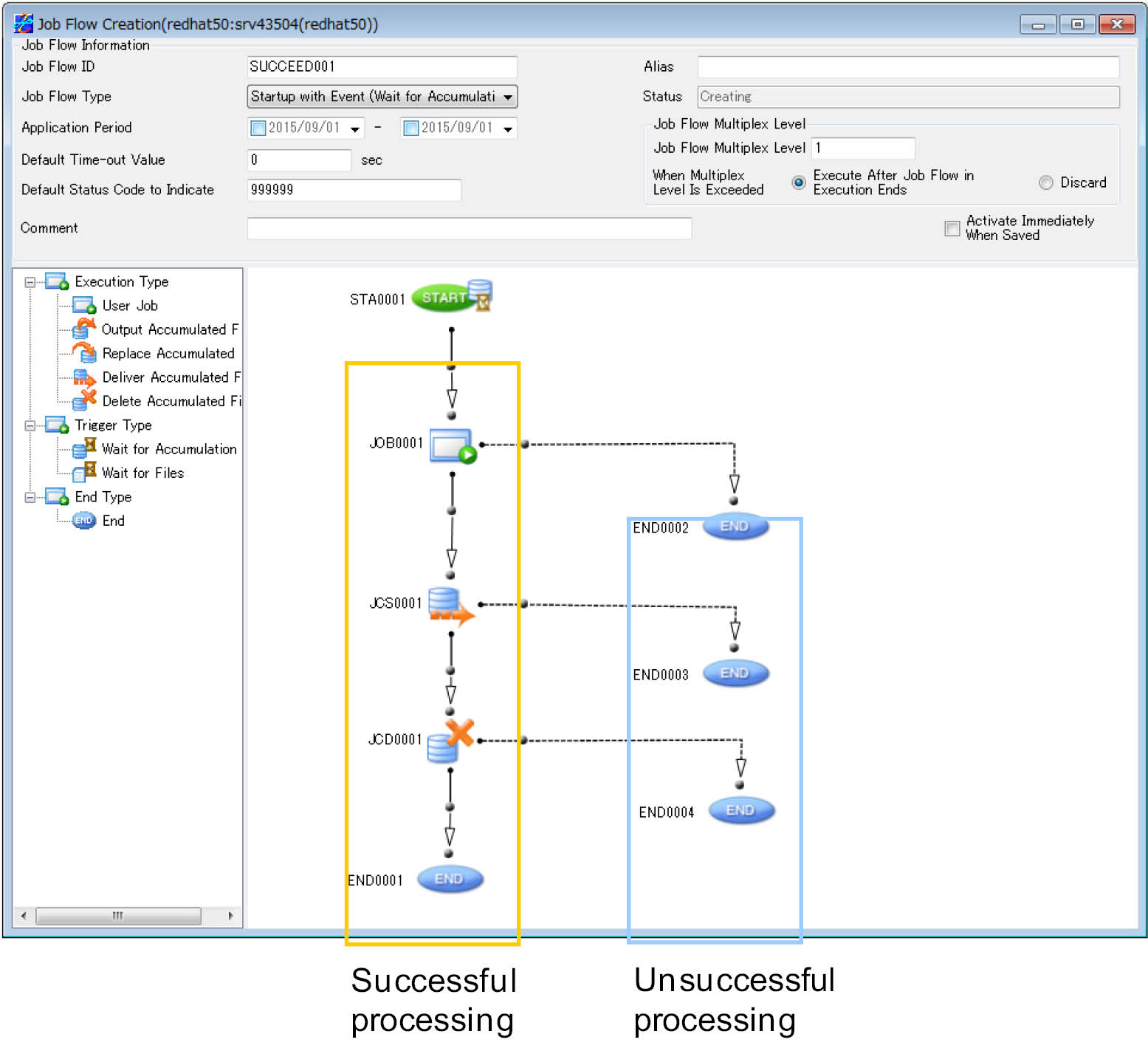
Figure 1.2 Job Flow Creation screen
Job flow status inquiry
|
+ |
|
The status of job flows is represented by status values indicating that the job flow is not yet executed or being executed, or by other values indicating execution results. The status of job flows can be viewed through Watch screens. The following figures show the Watch screens.
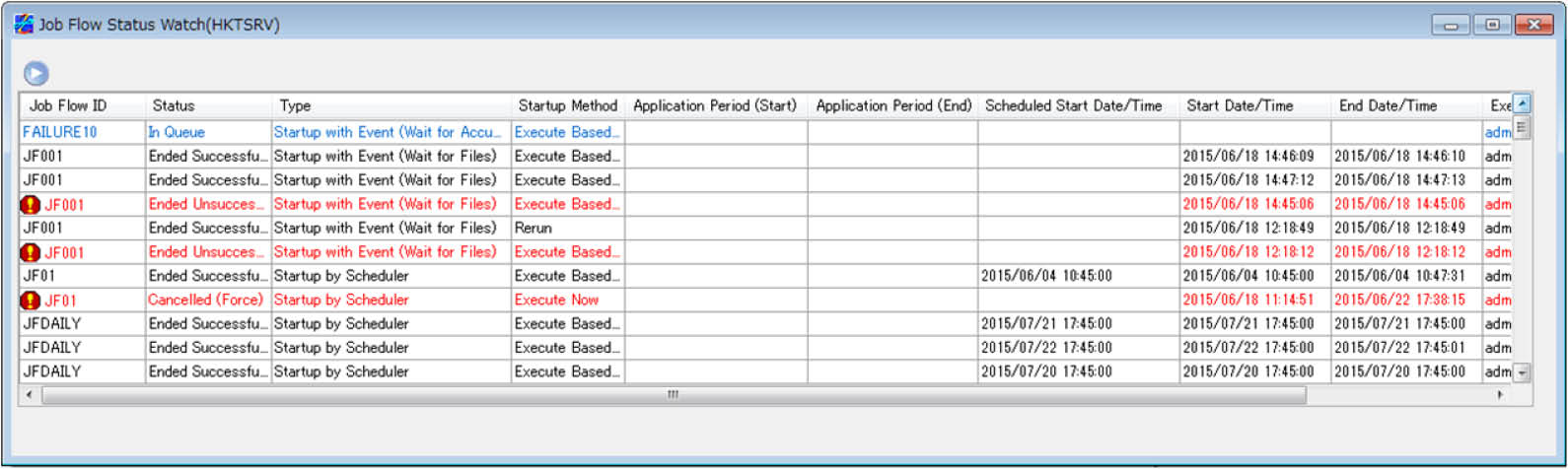
Figure 1.3 Job Flow Watch screen
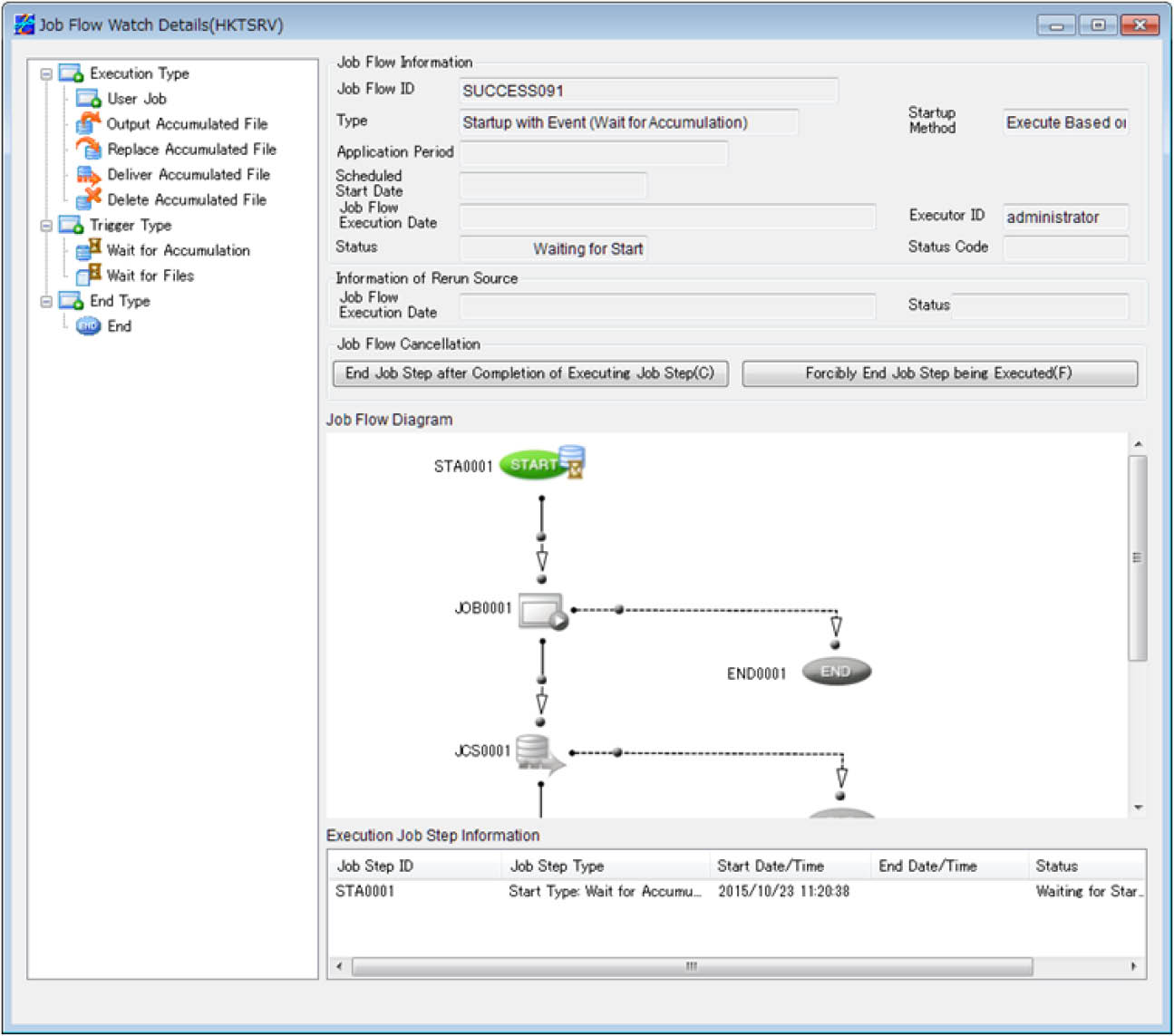
Figure 1.4 Job Flow Watch Details screen
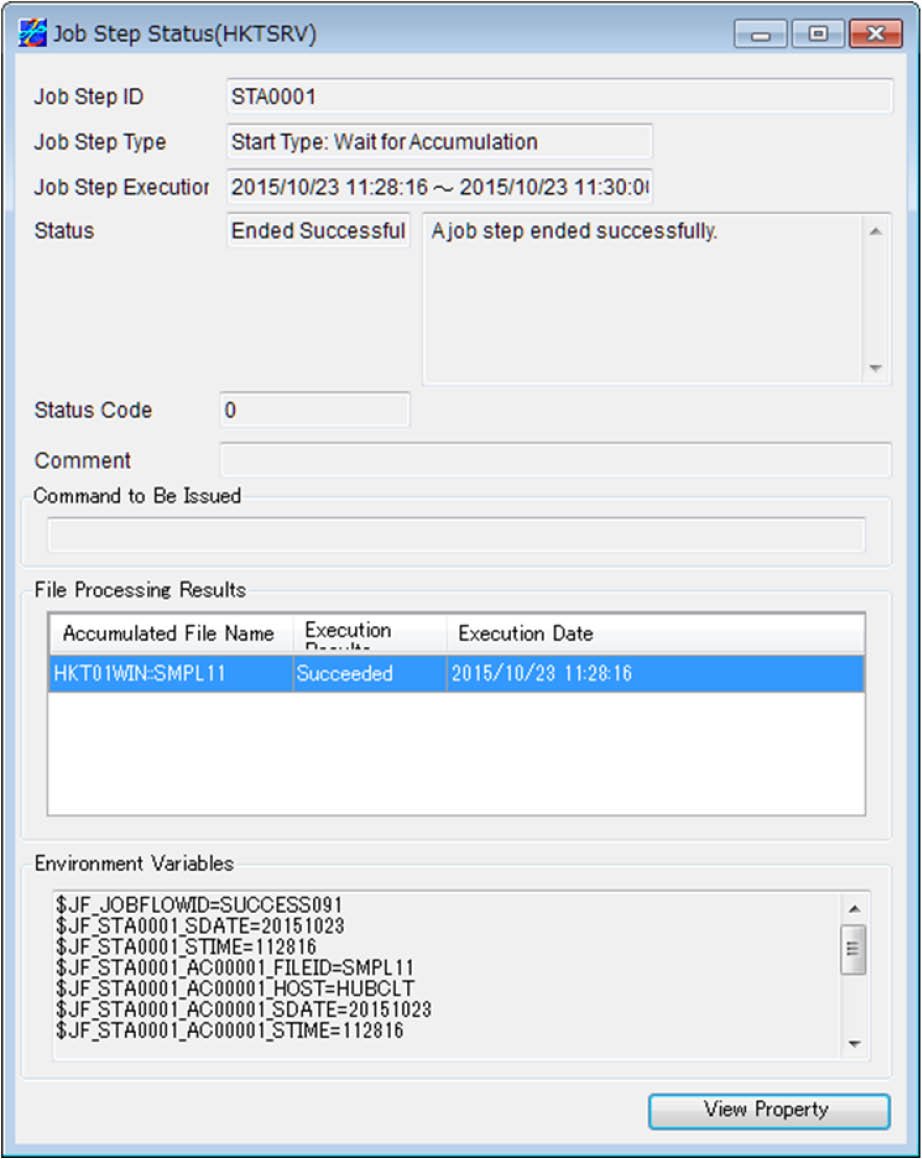
Figure 1.5 Job Step Status screen
Centralized management of Direct Transfer log
|
+ |
|
HULFT-HUB Server now can collect log records for Direct Transfer (which is file transfer from HULFT to HULFT) so that the log can be viewed through the Transfer Status Watch screens in HULFT-HUB Manager.
HULFT-HUB Server collects Direct Transfer log records from the send log of sending side clients and centralizes and stores the log records in the transfer log that is managed by HULFT-HUB Server. HULFT-HUB Manager acquires necessary information from the transfer log managed by HULFT-HUB Server and shows the information in the Transfer Status Watch screens.
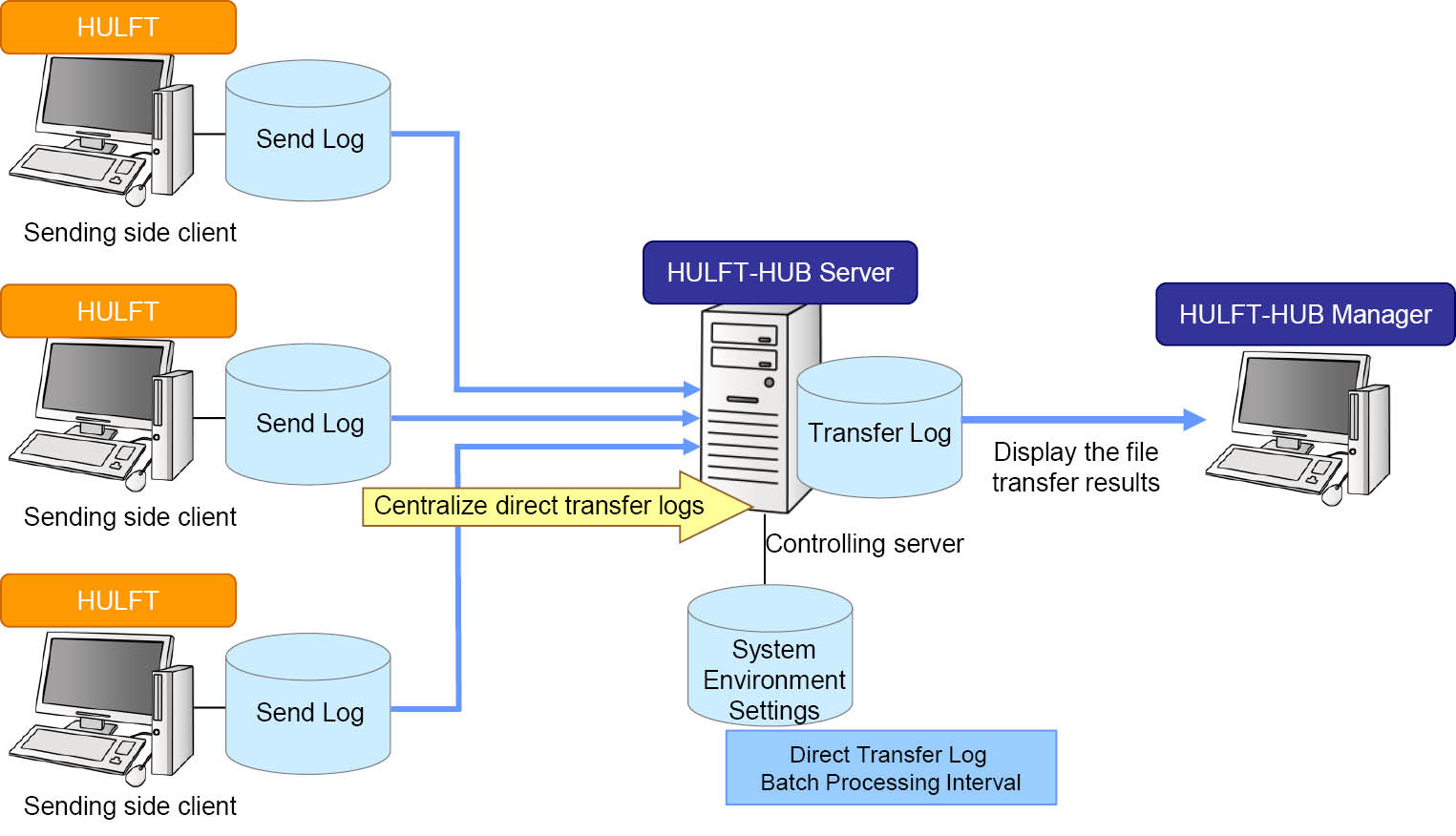
Figure 1.6 Centralized management of Direct Transfer log
There are the following two cases about when HULFT-HUB Server collects Direct Transfer log records:
Collecting Direct Transfer log records at any time
You can use HULFT-HUB Manager to execute the centralized management processing at any time. To execute the centralized management processing, go to the Transfer Status Watch screen, and then click the View menu and Centralized Management of Direct Transfer Log.
Collecting Direct Transfer log records periodically
The centralized management processing can be executed at a user-specified interval (unit: minutes) automatically. To specify the interval, set Direct Transfer Log Batch Processing Interval in the System Environment Settings of HULFT-HUB Server.
Backing up system management information
|
+ |
|
You can now automatically and periodically back up the system management information of clients that are registered with HULFT-HUB Server and HULFT-HUB Server's system management information for relay, multicasting, and accumulation.
The backup processing is automatically executed based on the following System Environment Settings of HULFT-HUB Server: Management Information Backup Interval, Management Information Backup Start Time, and Management Information Backup Generation File Count. The system management information of all registered clients (or controlled clients) is backed up collectively and each backup copy is identified and managed by the backup date.
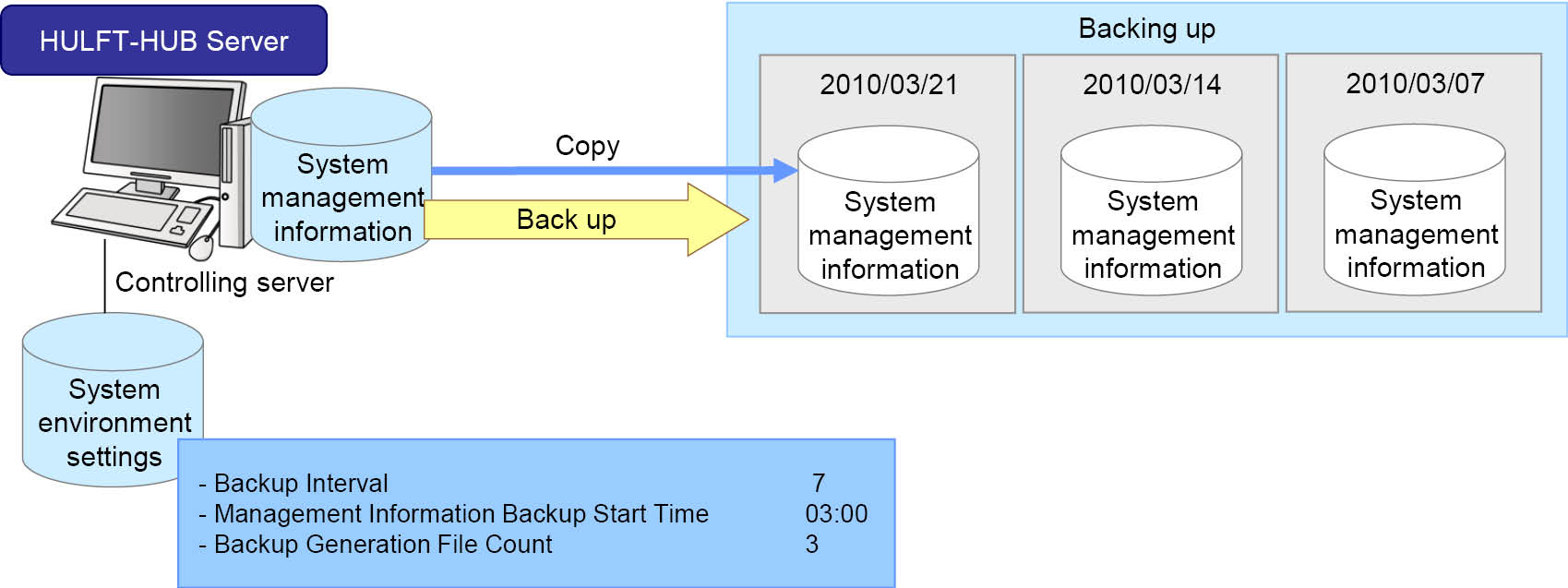
Figure 1.7 Backing up system management information
The backup copies of system management information can be edited and distributed by using the Collecting and Distributing System Management Information function.
Saving transfer log in CSV format
|
+ |
|
Transfer log managed by HULFT-HUB Server now can be saved in CSV format automatically.
CSV files containing transfer log are created by following the System Environment Settings of HULFT-HUB Server (Number of Months to Save Transfer Log as CSV Files and Transfer Log CSV Output Execution Time) and they are stored in the directory that is specified for Transfer Log CSV Save Directory.
Note that you can set Number of Months to Save Transfer Log as CSV Files to delete log files automatically.
Transfer definition usage inquiry function
|
+ |
|
HULFT-HUB Manager now provides the Transfer Definition Usage Inquiry screen that allows you to see the last transfer date for each file ID. This is helpful when you want to identify file IDs that are no longer used.
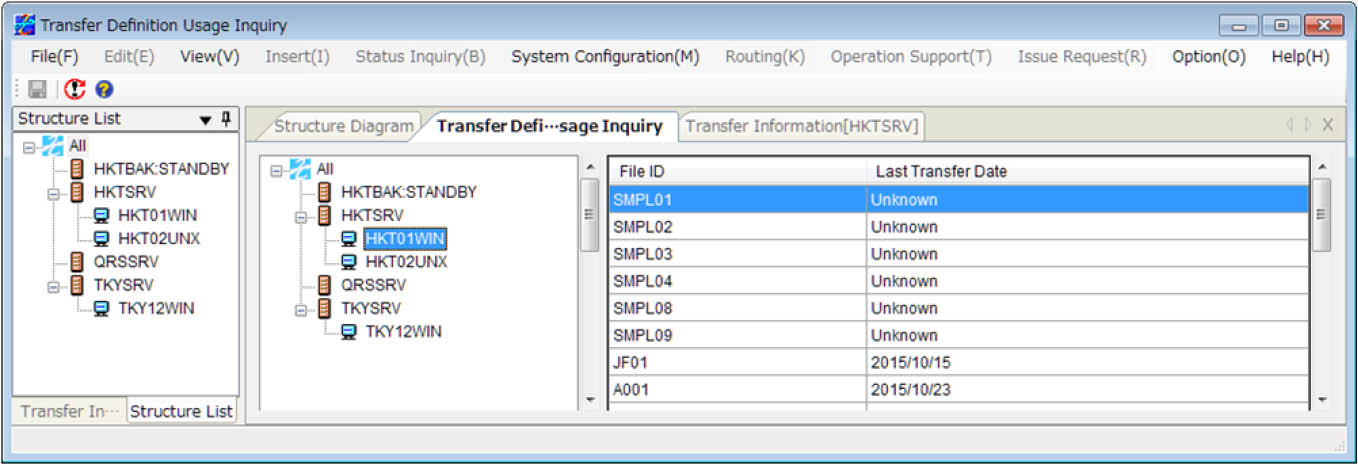
Figure 1.8 Transfer Definition Usage Inquiry screen
Encrypting communication between neighboring servers
|
+ |
|
Communication between neighboring servers now can be encrypted with C4S or AES in addition to being encrypted with HULFT Encryption Scheme.
Auto-delivering accumulated data
|
+ |
|
For clients that run HULFT Ver.6 or later, accumulated data with the 'Delivery Error' status can now be delivered automatically when it is detected that the Receive Activity status of the client changes from 'Not Started' to 'Started' or when the client is reinstated.
Additional utilities
|
|
|
The following new utilities were added.
Table 1.2 Utilities that were added in HULFT-HUB Server Ver.3.0
|
Program name |
Outline of function |
|
|---|---|---|
|
Client List Display utility |
utlhubclientlist |
The installation information of controlled clients will be shown. |
|
Login Status Display utility |
utlhubloginlist |
The HULFT-HUB Manager host names and users that are logged in HULFT-HUB Server will be listed. |
|
Send File utility (*1) |
utlhubreqsend |
Requests for Send File will be issued. |
|
Transfer Log List Display utility |
utlhubloglist |
The details of transfer log will be listed. |
|
Event Notification utility (*1) |
utljfevnt |
Job flows that are waiting for the utility will be started. |
|
Management Information Backup utility |
utlhubbackup |
Management information will be backed up into generation files. |
|
Management Information Backup Deletion utility |
utlhubbackuprm |
The backup copies of management information will be deleted at a specified date. |
|
Service Register/Delete utility (*2) |
utlhubservice |
A service will be registered or deleted. |
|
*1 |
: |
Available only for HULFT-HUB Server for UNIX/Linux-ENT |
|
*2 |
: |
Available only when the operating system of the server is Windows |
Support for HULFT7 for Windows-EX
|
+ |
|
HULFT-HUB Server and HULFT-HUB Manager now support the following management information added or changed in HULFT7 for Windows-EX:
-
File trigger information
-
System Environment Settings: Service Process Port No. (srvcprocport), Scheduler Port No. (schport), Path to Inter-HULFT Common Environment (hulsharepath), and Local File Lock Mode (localfile_lockmode)
-
File names in the send management information and the receive management information that were improved to support networked files
Updating and synchronizing management information
|
|
|
The following utilities were added to update or synchronize management information.
Table 1.3 Utilities to update or synchronize management information
|
Program name |
Outline of function |
|
|---|---|---|
|
Management Information Parameter Generation utility |
utlhubigen |
Parameter files will be created in text format from HULFT management information managed by HULFT-HUB Server. |
|
Management Information Batch Registration utility |
utlhubiupdt |
Parameter files will be loaded to update HULFT management information on HULFT-HUB Server. |
|
Management Information Synchronization utility |
utlhubsync |
Management information will be acquired from clients to update HULFT management information managed by HULFT-HUB Server. |
Additional utilities for job flows
|
|
|
The following utilities were added to perform operations with job flow management information and job flow logs.
Table 1.4 Utilities for job flows
|
Program name |
Outline of function |
|
|---|---|---|
|
Job Flow Status Change and View utility |
utljfchgsts |
The status of job flow management information will be set to active or inactive. Alternatively, the status of job flow management information will be shown. |
|
utljflogrm |
Job flow log records will be deleted in batch for a specified period. |
|
Support for HULFT7 for UNIX/Linux-EX
|
+ |
|
HULFT-HUB Server and HULFT-HUB Manager now support the following management information added or changed in HULFT7 for UNIX/Linux-EX:
-
File trigger information
-
System Environment Settings: Command Acknowledge Port No. (sddport), Path to Inter-HULFT Common Environment (hulsharepath), Local File Lock Mode (localfile_lockmode), and Send Daemon Communication Method (sddrequestmethod)
-
File names in the send management information and the receive management information that were improved to support networked files
Additional utilities for job flow management information
|
|
|
The following utilities were added to update job flow management information.
Table 1.5 Utilities for job flow management information
|
Program name |
Outline of function |
|
|---|---|---|
|
Job Flow Management Information Parameter Generation utility |
utljfigen |
Parameter files will be created in text format from job flow management information managed by HULFT-HUB Server. |
|
Job Flow Management Information Batch Registration utility |
utljfiupdt |
Parameter files will be loaded to update job flow management information on HULFT-HUB Server. |
Additional utilities for displaying status
|
|
|
The following new utilities were added.
Table 1.6 Utilities that were added in HULFT-HUB Server Ver.3.2
|
Program name |
Outline of function |
|
|---|---|---|
|
Displaying Replication Status utility |
utlhubrepsts |
The last date and time when each information set is synchronized from the active server to the alternative server by using the replication function will be shown. This allows you to check the latest status of synchronization before you use the alternative server as an active server. |
|
Displaying Accumulation Status List utility |
utlhubacclist |
The accumulation status will be listed. |
Replication function
|
+ |
|
The replication function is now provided to replicate all management information and HULFT-HUB accumulated data to another environment. This helps in recovering HULFT-HUB Server environments and client environments and reprocessing data when any of the environments is lost.
When a disaster occurs, the three actions listed below need to be taken. By doing these actions, you are able to not only recover a failed HULFT-HUB Server instance but also keep data until client environments are recovered. Additionally, after clients are recovered, you can restart to transfer data to the clients by keeping the arrival order.
Verifying the situation of the failure
To verify the situation of the failure, use activity monitoring and other functions.
Recovering the processing environments
To recover the processing environments, use management information that is cached on HULFT-HUB Server.
Keeping unprocessed data
Unprocessed (or undelivered) data can be kept by replicating accumulated data.
To use the replication function, you must consider the following points:
Expected ranges of damage
The following ranges of damage are expected:
-
Active client environments, excluding HULFT-HUB Server
-
All active environments, including HULFT-HUB Server
Information that can be restored with the replication function
The replication function can restore the following information automatically:
-
All management information, including clients' management information
-
Accumulated data that was replicated
Information that cannot be restored with the replication function
The information listed below cannot be restored with the replication function. You must replicate this information to an alternative server by using other means.
-
System Environment Settings
-
Conversion definitions for HULFT-DataMagic
-
External character table
Playback functions on the Transfer Status Watch Details screen
|
|
|
|
The Transfer Status Watch Details screen provides the Back, Next, and Final Results buttons that allow you to see error statuses, transmission rates, transfer time, and others at a specified point of time.
The following versions of HULFT-HUB Server are supported:
-
HULFT-HUB Server for UNIX Ver.2.0.0 or later
-
HULFT-HUB Server for Linux Ver.2.0.0 or later
-
HULFT-HUB Server for UNIX-ENT Ver.3.0.0 or later
-
HULFT-HUB Server for Linux-ENT Ver.3.0.0 or later
Support for HULFT Ver.7.3
|
+ |
|
HULFT-HUB Server and HULFT-HUB Manager now support the following additions and changes in HULFT Ver.7.3:
IBM Kana Extension added to the options for available EBCDIC code sets
IBM Kana Extension, which is one EBCDIC code set, was now added to the options for available code sets. You can select IBM Kana Extension from the options of the EBCDIC Code Set in the following system management information:
-
Send management information
-
Receive management information
Support for lowercase alphabetic characters in system management information of HULFT7 for i5OS
This improvement allows you to use lowercase alphabetic characters for comments in various management information sets and field names in format information.
Field name changes in the system management information of HULFT7 for i5OS
The following field names in the System Environment Settings were changed.
Table 1.7 Changed field names
|
Before change |
After change |
|---|---|
|
Retry Interval on Locked Receive File |
Wait Time on Locked Receive File |
|
Retry Interval on Locked System File |
Wait Time on Locked System File |
Selecting a transfer result notification to be sent to the sending side when accumulation is completed
|
+ |
|
Previously, when accumulation on the server was complete, the sending-side client was sent notification of 'Transfer Complete' regardless of the result of the transfer to the receiving-side client.
In Ver.3.3.0 or later, you can select whether to send notification of 'Transfer Complete' as done previously, or to send notification of 'Transfer Complete' or 'Transfer Error' depending on the result of the transfer to the receiving client.
This function can be configured by using the following fields:
-
Transfer Result Notification to Sending Side When Sending Is Complete in the accumulation environment settings of the server
-
Transfer Result Notification to Sending Side When Sending Is Complete in the accumulation settings of the transfer information
Selecting the host name format used for transfer via HUB
|
+ |
|
You can now select the format of host name used for transfer via HUB from the following options: host-name_receive-port-no. and host-name (without the receive port No.).
This function can be configured by using Notification Host Name for Transfer via HUB in the System Environment Settings of the server.
Newly added utilities
|
|
|
The following new utilities were added.
Table 1.8 Utilities that were added in HULFT-HUB Server Ver.3.3.0
|
Program name |
Outline of function |
|
|---|---|---|
|
Outputting Registered Client Log List utility |
utlhubclientloglist |
Various logs of registered clients will be acquired and listed. |
|
Resend File utility (*1) |
utlhubreqsend |
Requests for Resend File will be issued. |
|
Client Registration utility |
utlhubclientreg |
Clients will be registered. |
|
Client Delete utility |
utlhubclientrm |
Clients will be deleted. |
|
Delivery Cancellation Instruction utility (*1) |
utlhubcan |
The delivery processing will be canceled. |
|
*1 |
: |
Available only for HULFT-HUB Server for UNIX/Linux-ENT |
Support for HULFT8
|
+ |
|
HULFT-HUB Server and HULFT-HUB Manager now support HULFT8 for UNIX/Linux and HULFT8 for Windows.
Clients that run HULFT8 can be registered.
HULFT-HUB Ver.3.4 or later is required when registering clients of HULFT8 for UNIX/Linux or HULFT8 for Windows as controlled clients.
The system management information of HULFT8 can be viewed and updated.
To support HULFT8 for UNIX/Linux and HULFT8 for Windows, the ID and path fields in management information were changed, such as by extending the length of fields, changing field names, adding or deleting fields, and changing the default values.
HULFT8 communication methods can be used for transfer
In HULFT8, the communication methods are extended to support new functions. HULFT-HUB Server Ver.3.4 can relay and accumulate data that is transferred with HULFT8 communication methods.
Job flows do not support the communication methods.
Job flows cannot link with accumulated data that is transferred with HULFT8 communication methods.
Notification host name specified for each client
|
+ |
|
Each registered client can specify a host name to be sent as a remote host of file transfer.
This is useful when you exchange files with other companies' clients. You can make just the HULFT-HUB Server host name public to the remote host and prevent the host name of your internal client from being made public to the remote host.
To specify a host name to be notified to a registered client, set Notification Host Name in the registered client information.
The Accumulated Data Deletion utility (A new utility)
|
|
|
The following new utility was added.
Table 1.9 Utility that was added in HULFT-HUB Server Ver.3.5
|
Program name |
Outline of function |
|
|---|---|---|
|
Accumulated Data Deletion utility |
utlhubaccrm |
Accumulated data will be deleted. |
Adding a server outside of control
|
+ |
|
When you registered a server that was not managed by your HUB system(such as a server for a customer), you were required to change the user ID and the password to define the server as a server to which users could not log in. As a result, sometimes unnecessary messages such as connection errors were output to trace logs.
For Ver. 3.6 and later, you can explicitly register a server that is not managed by your HUB system as a 'server outside of control'. No unnecessary messages are output because no log-in process is required for a server outside of control.
Additionally, for security, you can hide the host name of the host client sending information in the HUB system when you transfer a file to a server outside of control.
Support for HULFT Ver. 8.1.0
|
+ |
|
HULFT-HUB Server and HULFT-HUB Manager now support the following products:
-
HULFT8 for zOS Ver. 8.1.0
-
HULFT8 for UNIX/Linux Ver. 8.1.0
-
HULFT8 for Windows Ver. 8.1.0
-
HULFT8 for IBMi Ver. 8.1.0
Clients that run HULFT Ver. 8.1.0 can be registered as controlled clients.
The clients above can be registered as controlled clients.
Support for transferring files that include HULFT Ver. 8.1.0
Transfer definitions, relays, and accumulations are supported for file transfers that include the clients above on the sending side or the receiving side.
Support for English
|
+ |
|
You can select either Japanese or English as the language to be displayed on the screen and the language used for file output.
This setting influences the following for HULFT-HUB Server and HULFT-HUB Manager:
HULFT-HUB Server
-
Messages output to trace logs
-
Content output by utilities to screens and files
HULFT-HUB Manager
-
Fields and options displayed on the screen
-
Pop-up messages
-
Headers for CSV output
Addition of functionality to update the product key
|
|
|
'Product Key Update' was added as an installation type.
In HULFT-HUB Server for UNIX/Linux, you can update the product information without changing any modules when you perform the following operations:
-
A migration from a trial version to a product version
-
A migration from L grade to ENT grade
-
An addition or a modification of the HULFT-HUB Server Cipher Option
-
An update of a product key after the host name is changed
In HULFT-HUB Server for Windows, you can update the product information without changing any modules when you perform the following operations:
-
A migration from a trial version to a product version
-
An update of a product key after the host name is changed
Support for UTF-8 and Shift-JIS system locales in Solaris
|
|
|
UTF-8 and Shift-JIS were added to the encodings that can be used with the installer when HULFT-HUB Server for UNIX is used in Solaris.
For details about how to specify the encodings for the installer, see the HULFT-HUB Server Installation Manual.
Support for HULFT Ver. 8.2.0
|
+ |
|
HULFT-HUB Server and HULFT-HUB Manager now support the following products:
-
HULFT8 for zOS Ver. 8.2.0
-
HULFT8 for MSP Ver. 8.2.0
-
HULFT8 for XSP Ver. 8.2.0
Clients that run HULFT Ver. 8.2.0 can be registered as controlled clients.
The clients above can be registered as controlled clients.
Support for transferring files that include HULFT Ver. 8.2.0
Transfer definitions, relays, and accumulations are supported for file transfers that include the clients above on the sending side or the receiving side.
Addition of the Transfer Status List Display utility
|
|
|
A utility was added that displays file transfer statuses for HULFT-HUB Server in a list display utility.
|
Program name |
Outline of function |
|
|---|---|---|
|
Transfer Status List Display utility |
utlhubdisp |
File transfer statuses in HULFT-HUB Server are displayed in a list. |
Addition of the Job Flow Log List Display utility
|
|
|
A utility was added that displays job flow logs in a list.
|
Program name |
Outline of function |
|
|---|---|---|
|
Job Flow Log List Display utility |
utljfloglist |
Job flow logs are displayed in a list. |
Support for HULFT Ver.8.4.0
|
+ |
|
Each of HULFT-HUB Server and HULFT-HUB Manager now supports the following products:
-
HULFT8 for zOS Ver.8.4.0
-
HULFT8 for MSP Ver.8.4.0
-
HULFT8 for XSP Ver.8.4.0
-
HULFT8 for IBMi Ver.8.4.0
-
HULFT8 for UNIX/Linux Ver.8.4.0
-
HULFT8 for Windows Ver.8.4.0
Clients that run HULFT Ver.8.4.0 can be registered as controlled clients.
The clients above can be registered as controlled clients.
A client can be registered as a controlled client if Forced Strong Key Mode is "Disabled" in the client's System Environment Settings.
If Forced Strong Key Mode is "Enabled", the connection with the client is not supported.
Support for file transfers that include HULFT Ver.8.4.0
The transfer definition, relay, and accumulation of file transfers that include the above client on the sending side or the receiving side are now supported.
However, some functions are restricted. For details, see Functional restrictions for HULFT Ver.8.4.
Support for Forced Strong Key Mode
|
+ |
|
HULFT-HUB Ver.3.9.0 supports clients for which Forced Strong Key Mode is "Enabled".
Clients for which Forced Strong Key Mode is "Enabled" can be registered
Clients for which Forced Strong Key Mode is "Enabled" in HULFT Ver.8.4 or later can now be registered.
Both clients for which Forced Strong Key Mode is "Enabled" and "Disabled" can be registered, because HULFT-HUB itself does not have the Forced Strong Key Mode setting.
For a client outside of control (with Relay), you must specify "Enabled" or "Disabled" for Forced Strong Key Mode when you register the client, because HULFT-HUB cannot get the mode settings from the client.
File transfers in Forced Strong Key Mode can be relayed and accumulated
File transfers in Forced Strong Key Mode can now be relayed and accumulated.
The clients on the sending side and receiving side must have the same setting values for Forced Strong Key Mode, as in the case of direct transfers.
-
When you create a transfer definition on the Transfer Information screen
You cannot create a transfer definition if the clients on the sending side and receiving side have different setting values for Forced Strong Key Mode.
-
When you use the Collecting and Distributing System Management Information function or the Management Information Batch Registration utility
You can create a transfer definition even if the clients on the sending side and receiving side have different setting values for Forced Strong Key Mode, but the transfer results in an error.
Addition of functionality to update the Neighboring Server Information
|
|
|
|
The Neighbor Server panel was added to the System Environment Settings screen on the server.
A list of all neighboring servers that are neighboring to the target server is displayed on this panel. By using the panel, you can view or update the information for the neighboring servers.
The fields that can be modified on the Neighbor Server panel are as follows:
|
Field name |
Availability of modification |
|
|---|---|---|
|
Controlled server |
Server outside of control |
|
|
Alias |
Not available |
Available |
|
Activity Monitoring (*1) |
Available |
Available |
|
Transfer source host name used when transferring via HUB |
- (*2) |
Available |
|
*1 |
: |
This field appears when you open the System Environment Settings screen in HULFT-HUB Server Ver.3.9.0 or later. |
|
*2 |
: |
This field is only used for transfers via a server outside of control. |
Network Connection Filter Settings in HULFT-HUB Manager
|
+ |
|
HULFT-HUB Server can now filter connections from HULFT-HUB Manager based on network addresses.
You can register network addresses that are allowed or not allowed to connect by using the new Connect Filter Settings panel added to the System Environment Settings screen in HULFT-HUB Manager, or using the Management Information Batch Registration utility (utlhubiupdt) in HULFT-HUB Server.
Addition of utilities related to the Neighboring Server
|
|
|
The following utilities related to the Neighboring Server are now available.
|
Program name |
Outline of function |
|
|---|---|---|
|
Neighboring Server Registration utility |
utlhubserverreg |
Registers the Neighboring Server to HULFT-HUB Server. |
|
Neighboring Server Deletion utility |
utlhubserverrm |
Deletes the Neighboring Server from HULFT-HUB Server. |
|
Neighboring Server List Display utility |
utlhubserverlist |
Displays the information of the Neighboring Server registered in HULFT-HUB Server in a list. |
Support for HULFT10 Ver.10.2
|
+ |
|
HULFT-HUB Server and HULFT-HUB Manager now support the following products:
-
HULFT10 for zOS Ver.10.2.0
-
HULFT10 for IBMi Ver.10.2.0
-
HULFT10 for AIX Ver.10.2.0
-
HULFT10 for Linux Ver.10.2.0
-
HULFT10 for Windows Ver.10.2.0
Clients that run HULFT Ver.10.2.0 can be registered as controlled clients.
The clients above can be registered as controlled clients.
A client can be registered as a controlled client if Forced Strong Key Mode is "Disabled" in the client's System Environment Settings.
If Forced Strong Key Mode is "Enabled", the connection with the client is not supported.
Support for transferring files that include HULFT Ver.10.2.0
Transfer definitions, relays, and accumulations are supported for file transfers that include the clients above on the sending side or the receiving side.
Zstandard compression
|
+ |
|
A new compression type that supports the compression algorithm called 'Zstandard' or 'ZSTD' has been added in HULFT-HUB.
Zstandard compression is available when sending clients, receiving clients, and all the instances of HULFT-HUB Server between them support Zstandard.
DEFLATE compression in HULFT10 for zOS now supported
|
+ |
|
As the compression algorithm called 'DEFLATE' is now supported in HULFT10 for zOS, we have added support for DEFLATE compression in HULFT-HUB.
zOS compresses data using the DEFLATE compressed data format and zEnterprise Data Compression (zEDC).
Therefore, compared to traditional software based compression services, the CPU cost is reduced and the likelihood of reducing the elapsed time is increased.