1. Before Use
This document describes how to install and setup the new version of DataSpider Servista 5.0.0.
Refer "DataSpider Servista Upgrade Guide" for the upgrade from the existing version.
1.1. Precautions
1.1.1. Copyright Notice
-
The copyright of this software is owned by Saison Technology Co.,Ltd. or its licensors.
-
Unauthorized copy, reprinting of this software and this manual is prohibited.
-
While preparing this manual every effort has been taken to ensure its correctness but in case of any mistakes, mismatch, and suggestions please contact us.
-
Please use this software by user’s responsibility. As a result, with regard to any trouble and the lawsuit, etc. occurs by any chance, damage or loss caused directly or indirectly, our company doesn’t at all assume any responsibilities. This is for your information beforehand.
-
The contents described in this manual and software specifications are subject to change for betterment, without prior notification.
-
The software licensing agreement is necessary for the use of this software, which includes trade secrets and proprietary information critical to Saison Technology Co.,Ltd. or its licensors, and it is protected by the Copyright Law of the Japanese national administration. The unauthorized use of Saison Technology Co.,Ltd. or the licenser’s software and this manual is subject to compensation and criminal proceedings.
1.1.2. Trademarks
-
DataSpider, the DataSpider logo, DataSpider Servista and the names of their associated products or services are trademarks or registered trademarks of Saison Technology Co.,Ltd.
-
The names of other companies, products and services are trademarks or registered trademarks of their respective companies.
-
The duplication or diversion of information, such as trademarks, shown on the pages of this document is strictly prohibited.
1.2. About the mark of this document
The rules of the notations in this document are as follows.
-
Menu name, tab name, property item name, value, and button name displayed on screen are enclosed with [] and in bold letters. Moreover, the one without title of screens and other function names are enclosed with "" and distinguished from the former.
-
"$DATASPIDER_HOME" shows the directory where DataSpider Servista is installed.
In default, it is "C:\Program Files\DataSpiderServista" for Windows version and "<HOME>/DataSpiderServista" for UNIX/Linux version. -
x86 version means 32bit OS.
x64 version means 64bit OS of 64bit Processor (Intel 64/AMD64). -
Name enclosed with < > is variable value.
Example: $DATASPIDER_HOME/server/logs/<Date directory> -
URLs of the Web sites shown in this document are as of June 2025, and are subject to change without notice due to reasons of the Web site.
-
"Studio" means "DataSpider Studio".
-
The descriptions of the Windows and UNIX/Linux versions of DataSpiderServer have been standardized.
Please replace descriptions of operating system dependent items (such as path delimiter characters) as necessary. -
The numbers beginning with "DSS-" are unique IDs for controlling each corresponding problem.
1.3. About the Icons Used in This Guide
This Guide uses the following icons in its explanation.
| Icon | Description |
|---|---|
|
Indicates that there are hints about operations or configurations. |
|
Indicates that there are warnings about operations or configurations. |
|
Indicates that there are detailed descriptions in other resources. |
2. About end of sales and support
When you install DataSpider Servista, refer to https://www.hulft.com/support/dss-lifecycle (Japanese only) to check the end dates of sales and support for the supported platforms, databases for repository DB, and adapters.
3. About DataSpider Servista
DataSpider Servista is a data linkage middleware that allows you to create processes for transferring data between different kinds of systems or applications easily with a GUI base, which are normally done by developing programs or by manually inputting or transferring the data.
This middleware expresses the linkages with various data sources as batches of transactions, and describes the entire operation graphically by tying these batches with flows. You can publish a flow of a series of processes as a service and run it from tools such as Trigger.
DataSpider Servista provides not only data linkage functions but also development assisting functions for users or groups, and management functions such as log output and various triggers.
3.1. Composition of DataSpider Servista
DataSpider Servista consists of the following application.
| Name | Description |
|---|---|
DataSpiderServer |
Service execution environment. |
ScriptRunner |
Application interface for the external invocation of service. |
CLI Console |
Application for operating and managing services, which is used by command line. |
The following applications can be used on web browser after DataSpiderServer is installed.
| Name | Description |
|---|---|
DataSpider Studio |
GUI based IDE for designing, developing and operating the services. |
Browser Help |
Referable help by using browser. |
4. In Regards to Issuing Product License
To use this software, you need to perform the following procedures.
-
Install DataSpider Servista to the machine.
-
When installation of DataSpider Servista is completed, get the activation key displayed on [Activation Key] screen. Enter the activation key and get the product license from myHULFT.
-
After obtaining the product license, apply the license file of product license as follows.
-
Stop all the following applications.
-
DataSpiderServer
-
DataSpider Studio
-
ScriptRunner
-
CLI Console
-
-
Replace the licence file in $DATASPIDER_HOME/server/lic directory.
-
Launch DataSpiderServer and DataSpider Studio.
-
 For more details of [Activation Key] screen, refer to "Activation Key".
 Do not edit or delete $DATASPIDER_HOME/server/lic/hulhap.dat file.
In the following cases, please contact the vendor of DataSpider if reissuing of the product license is required.
-
If you are reinstalling DataSpider Servista to a different machine
-
If you are changing the host name of the machine which DataSpider Servista is installed
5. OS supporting DataSpider Servista
5.1. Server and Client for Execution
Following OS of both Japanese and English version are supported. For more details, refer to "Language in Support Platform".
-
Windows
-
Microsoft Windows Server 2016 Essentials/Standard/Datacenter (x64 version) (*1)
-
Microsoft Windows Server 2019 Essentials/Standard/Datacenter (x64 version) (*1)
-
Microsoft Windows Server 2022 Essentials/Standard/Datacenter (x64 version) (*1)
-
Microsoft Windows Server 2025 Essentials/Standard/Datacenter (x64 version) (*1)
(*1) Supports Server Core and Server with Desktop Experience.
-
-
UNIX/Linux
-
Red Hat Enterprise Linux Server 7.x (x64 version)
-
Red Hat Enterprise Linux Server 8.x (x64 version)
-
Red Hat Enterprise Linux Server 9.x (x64 version)
-
Oracle Linux 8.x (x64 version) (*2)
-
Oracle Linux 9.x (x64 version) (*2)
-
Amazon Linux 2 (x64 version)
-
Amazon Linux 2023 (x64 version)
(*2) For kernel, "Unbreakable Enterprise Kernel" is supported.
-
5.2. Client for Development
 Refer to "DataSpider Studio" page of help for the supported OS of DataSpider Studio.
5.3. Language in Support Platform
The language in support platform varies by existence of language setting of DataSpider Servista. Set the language with platform which is subject to support.
platform which is subject to support |
||||
OS of Japanese |
OS of English |
The state is "possible to show Japanese" |
||
Language in DataSpider Servista |
Japanese |
Yes |
No |
Yes |
English |
Yes |
Yes |
Yes |
|
In above table, "Yes" means supported, "No" means not supported.
"possible to show Japanese" means environment to which language packs (Multilingual User Interface Pack) is applied and user interface is changed into Japanese for Windows. For Linux, it means environment in which OS can show Japanese and language setting of DataSpider Servista User is Japanese.
When "English" is set for DataSpider Servista language, to use Japanese at configurable / inputtable fields on DataSpider Servista, the DataSpider Servista operating OS should be "OS of Japanese version" or "The state is" possible to show Japanese" in OS of English version".
5.3.1. About Windows language packs (Multilingual User Interface Pack)
Environment with Japanese user interface is supported to use DataSpider Servista in Japanese in an environment for which Windows language pack (Multilingual User Interface Pack) is applied.
" Environment with Japanese user interface " indicates the environment with the following settings. (In the case of Windows Server 2022)
-
In "Control Panel" – "Clock and Region" – "Change date, time, or number formats" of Windows
-
Select "Japanese(Japan)" in "Format" of "Formats" tab
-
Select "Japanese (Japan) " in "Administrative" – "Current language for non-Unicode programs"
-
-
In "Settings" – "Time & Language" of Windows
-
Select "Japan" in "Region" – "Country or region"
-
Select "Japanese (Japan) " in "Language" – "Windows display language"
-
To register DataSpiderServer in Windows services, the user setting that starts the service should be in Japanese.
5.4. Specification Limits / Precautions
5.4.1. Specification Limits / Precautions for language settings
In DataSpider Servista 5.0.0, language can be set in server and client respectively. In that case, following specification limits and precautions exist when "English" is set for server language and when different languages are selected between the server and the client.
-
When "English" is set for server language
-
Help pages of following adapters are not able to open. (DSS-23034)
-
ListCreator
-
-
Following help pages do not exist. (DSS-23067)
-
Reverse lookup reference, SAP adapter tutorial
-
-
-
When different languages are set between server and client
-
When the language is "English" in server and "Japanese" in client
-
Part of XML log is output in Japanese. (DSS-22573)
-
Part of error message might be output in English. (DSS-22811、DSS-22515)
-
The specification is output in English. (DSS-22930)
-
-
When the language is "Japanese" in server and "English" in client
-
Part of XML log is output in English. (DSS-22573)
-
Part of error message might be output in Japanese. (DSS-22811、DSS-22515)
-
The specification is output in Japanese. (DSS-22930)
-
-
5.4.2. Restriction for timezone in platform
Timezone in server and client are different, the timezone in client is required to be synchronized with the timezone in server.
(Usually, timezone is gotten from operating OS, but for the server and Client CLI Console, if user.timezone of $DATASPIDER_HOME/<server|client>/conf/system.properties is set, the setting is prior.)
The server timezone can be checked by the following procedure.
-
Select [DataSpiderServer Settings] in Control Panel of DataSpider Studio.
-
Select [General] tab and confirm the value of "user.timezone".
Setting way of timezone for DataSpider Studio is as follows.
-
Stop each application in DataSpider Servista.
-
Set timezone setting of Studio operating OS to the same setting as the timezone of DataSpiderServer operating OS.
-
Launch DataSpiderServer and DataSpider Studio.
Setting way of timezone for Client CLI Console is as follows.
-
Stop each application in DataSpider Servista.
-
Open system.properties in text editor under $DATASPIDER_HOME/client/conf.
-
Delete "#" in "#user.timezone=Asia/Tokyo" and specify timezone of DataSpiderServer operating OS after "=" and save it.
-
Launch DataSpiderServer.
For more details of user.timezone properties, refer to page "Property reference" in help of DataSpider Servista.
5.4.3. Precautions for environment variable settings
To use an adapter that requires an environment variable setting, the setting needs to be configured to the appropriate location prior to launching DataSpiderServer. You can check the environment variables that are reflected in DataSpiderServer by using the following procedure.
-
Select [DataSpiderServer Settings] in Control Panel of DataSpider Studio.
-
Select the [General] tab and confirm that the required environment variable has been set.
5.5. Supported virtualization system
If you use DataSpider Servista in a virtual environment, all of the following conditions must be satisfied.
-
OS where DataSpider Servista is running is included in "Supported Platforms" in this document.
-
OS where DataSpider Servista is running supports virtual environment.
-
The virtual environment is host-based type or hypervisor-based type.
If all of the above conditions are satisfied, it is supported.
However, if the problem that depends on the specific virtual environment occurs, not only DataSpider Servista but also the virtual environment may need to be changed.
6. System requirements
The minimum system requirements for installing DataSpider Servista are described below. The optimal configuration varies depending on the scale and specifics of your operations, the number of concurrent processing instances, the execution frequency, the size of the data to be handled, and so on. Determine an appropriate configuration in accordance with the requirements and specifications of the service to be developed.
6.1. Server
The values shown below are the system requirements for installing only this application.
-
Windows x64 version/Linux x64 version
-
Processor: Processor that meets 64bit(x64) system requirement that OS recommends
-
Memory: Free space of 4GB or more
-
Storage: Free space of 2GB or more
-
6.2. Client for development
The values shown below are the system requirements for installing only this application.
-
Windows x64 version
-
Processor: Processor that meets 64bit(x64) system requirement that OS recommends
-
Memory: Free space of 512MB or more
-
Storage: Free space of 1GB or more
-
Display: 1280x960 pixels or more
-
6.3. Client for Execution
The values shown below are the system requirements for installing only this application.
-
Windows x64 version/Linux x64 version
-
Processor: Processor that meets 64bit(x64) system requirement that OS recommends
-
Memory: Free space of 256MB or more
-
Storage: Free space of 500MB or more
-
7. About Java Runtime Environment
Since Java Runtime Environment (JRE) is bundled in each installer of DataSpider Servista 5.0.0, no need to install JRE.
And, JRE version bundled in each installer is as given below.
-
Windows version, Linux version
-
21.0.6
-
To operate JRE on each platform, the patch to the operating system might be necessary. Refer to operating system for details.
8. Repository DB settings
8.1. What is a Repository DB?
A Repository DB is a system which manages services, user information, and various setting data in the repository area configured in a RDB (relational data base). Until a Repository DB is set up, you cannot use the user management system or the file access control functions.
However, DataSpider Servista can be installed even if a Repository DB has not been set up. Depending on your development requirements, determine whether you should set up a Repository DB or not.
8.1.1. Repository DB settings
Repository DB is set up during installation. You can modify the settings through the Control Panel.
Refer to this document for the settings during installation, and refer to the [Repository DB Management] page of Help for the settings after installation.
Repository DB specification restrictions and precautions
Set up one Repository DB per DataSpiderServer. More than one DataSpiderServer cannot be connected to the same Repository DB.
The database instances should be used only for Repository DB and not for any other system.
The database instances specified for Repository DB should have an encoding system allowing multibyte characters. For example, a database instance encoded with US-ASCII cannot be used as a Repository DB.
8.1.2. Creating a Repository DB
Repository DB create a dedicated table in which the repository area is configured, and save data into it. This table is created during startup of DataSpiderServer. If a dedicated table already exists, a new table is not created and the existing table is used.
8.1.3. Operation with / without a Repository DB
Operation with or without a Repository DB is as follows.
-
If using a Repository DB (If a repository exists)
-
You can create multiple user groups and control their access privileges.
-
You can hold Meta information of various files in the repository.
-
You can save various settings in the repository.
-
-
If not using a Repository DB (If a Repository DB does not exist)
-
You can use only one type of user group.
-
The Meta information of various files and various settings are held in the file system of the OS.
-
8.2. Databases supported as Repository DB
DataSpider Servista supports the following databases as Repository DB.
-
Db2 for Linux, UNIX, and Windows
-
Supported versions: V11.5 / V11.1
-
-
MySQL
-
Supported versions: 8.4 / 8.0
-
-
Oracle Database
-
Supported versions: 19c
-
-
Oracle Base Database Service
-
Supported versions: Oracle Database 23ai / 19c
-
-
PostgreSQL
-
Supported versions: 17 / 16 / 15 / 14
-
-
Microsoft SQL Server
-
Supported versions: 2022 / 2019 / 2017 / 2016
-
-
Amazon RDS for MySQL
-
Supported versions: 8.0
-
-
Amazon RDS for Oracle
-
Supported versions: 19c
-
-
Amazon RDS for PostgreSQL
-
Supported versions: 16 / 15 / 14 / 13
-
-
Amazon RDS for SQL Server
-
Supported versions: 2022 / 2019 / 2017 / 2016
-
-
Amazon Aurora MySQL
-
Supported versions: 8.0
-
-
Amazon Aurora PostgreSQL
-
Supported versions: 16
-
-
Azure SQL Database
When you use a Repository DB, ensure that one of the above databases is running before installing DataSpider Servista.
8.3. Setting up each database
8.3.1. When using Db2 for Linux, UNIX, and Windows
To use Db2 for Linux, UNIX, and Windows as a Repository DB, the following information is needed.
-
Host name or IP address of Db2 for Linux, UNIX, and Windows
-
Port number used for providing services (Default port is "50000")
-
Name of the database
-
Path of the supported JDBC driver
Supported JDBC drivers
-
V11.5
-
Required library: db2jcc4.jar
-
Version of the driver: IBM Data Server Driver for JDBC and SQLJ (for V12.1)
-
-
V11.1
-
Required library: db2jcc4.jar
-
Version of the driver: IBM Data Server Driver for JDBC and SQLJ (for V12.1)
-
User settings
You should add a new user in the database and set up a DBA role for the user. Settings of the user name and the password defined here are used when setting up the Repository DB. Before installing DataSpider Servista, ensure that you can access it externally using these setting values.
8.3.2. When using MySQL
To use MySQL as a Repository DB, the following information is needed
-
Host name or IP address of MySQL
-
Port number used for providing services (Default port is "3306")
-
Name of the database
-
Path of the supported JDBC drive
Supported JDBC driver
-
8.4
-
Required library: mysql-connector-j-9.0.<version>.jar
-
Version of the driver: MySQL Connector/J 9.0.<version>
-
-
8.0
-
Required library: mysql-connector-java-8.0.<version>.jar
-
Version of the driver: MySQL Connector/J 8.0.<version>
-
<version> indicates the latest version.
User settings
You should add a new user in the database and set up a DBA role for the user. Settings of the user name and the password defined here are used when setting up the Repository DB. Before installing DataSpider Servista, ensure that you can access it externally using these setting values.
Specification restrictions / Precautions
-
When you use MySQL, configure by the following procedure without setting during installation.
-
Setting procedure
-
Select "Do not use repository" in the installer and perform the installation.
-
Launch DataSpiderServer and DataSpider Studio.
-
Set from [Connection Wizard] in [Repository DB Management]-[General] tab in the Control Panel.
For details, refer to "Repository DB Management" in DataSpider Servista Help.
-
-
-
"1" should be configured as default [lower_case_table_names] of the database.
-
"utf8" should be configured as the [default-character-server] for the database.
-
You must set the transaction isolation level of database as "READ-COMMITTED".
-
When DataSpider Servista communicates large data with the repository database (*), you must set a large number to "max_allowed_packed" of the database.
*The following shows examples.-
Creation of a project with many icons
-
Uploading large files
-
8.3.3. When using Oracle Database
To use Oracle Database as a Repository DB, the following information is needed.
-
Host name or IP address of Oracle Database
-
Port number used for providing services (Default port is "1521")
-
Service name or System identifier (SID)
-
Path of the supported JDBC driver
Supported JDBC drivers
-
19c
-
Required library: ojdbc10.jar
-
Version of the driver: Oracle JDBC Driver 19
-
User settings
You should add a new user in the database and set up a DBA role for the user. Settings of the user name and the password defined here are used when setting up the Repository DB. Before installing DataSpider Servista, ensure that you can access it externally using these setting values.
Specification restrictions / Precautions
-
When the version is 19c, "AL32UTF8" should be configured as the [Database character set] for the database.
8.3.4. When using Oracle Base Database Service
To use Oracle Base Database Service as a Repository DB, the following information is needed.
-
Host name or IP address of Oracle Base Database Service
-
Port number used for providing services (Default port is "1521")
-
Service name
-
Path of the supported JDBC driver
Supported JDBC drivers
-
Oracle Base Database Service(Oracle Database 23ai)
-
Required library: ojdbc17.jar
-
Version of the driver: Oracle JDBC Driver 23
-
-
Oracle Base Database Service(Oracle Database 19c)
-
Required library: ojdbc10.jar
-
Version of the driver: Oracle JDBC Driver 19
-
User settings
You should add a new user in the database and set up a DBA role for the user. Settings of the user name and the password defined here are used when setting up the Repository DB. Before installing DataSpider Servista, ensure that you can access it externally using these setting values.
Specification restrictions / Precautions
-
"AL32UTF8" should be configured as the [Database character set] for the database.
8.3.5. When using PostgreSQL
To use PostgreSQL as a Repository DB, the following information is needed.
-
Host name or IP address of PostgreSQL
-
Port number used for providing services (Default port is "5432")
-
Name of the database
-
Path of the supported JDBC driver
Supported JDBC drivers
-
17
-
Required library: postgresql-42.<version>.jar
-
Version of the driver: PostgreSQL JDBC 4.2 (<version>)
-
-
16
-
Required library: postgresql-42.<version>.jar
-
Version of the driver: PostgreSQL JDBC 4.2 (<version>)
-
-
15
-
Required library: postgresql-42.<version>.jar
-
Version of the driver: PostgreSQL JDBC 4.2 (<version>)
-
-
14
-
Required library: postgresql-42.<version>.jar
-
Version of the driver: PostgreSQL JDBC 4.2 (<version>)
-
<version> indicates the latest version.
User settings
You should add a new user in the database and set up a DBA role for the user. Settings of the user name and the password defined here are used when setting up the Repository DB. Before installing DataSpider Servista, ensure that you can access it externally using these setting values.
8.3.6. When using Microsoft SQL Server
To use Microsoft SQL Server as a Repository DB, the following information is needed.
-
Host name or IP address of SQL Server
-
Port number used for providing services (Default port is "1433")
-
Name of the database
-
Path of the supported JDBC driver
Supported JDBC drivers
-
2022
-
Required library: mssql-jdbc-12.8.<version>.jre11.jar
-
Version of the driver: Microsoft JDBC Driver 12.8 for SQL Server
-
-
2019
-
Required library: mssql-jdbc-12.8.<version>.jre11.jar
-
Version of the driver: Microsoft JDBC Driver 12.8 for SQL Server
-
-
2017
-
Required library: mssql-jdbc-12.8.<version>.jre11.jar
-
Version of the driver: Microsoft JDBC Driver 12.8 for SQL Server
-
-
2016
-
Required library: mssql-jdbc-12.8.<version>.jre11.jar
-
Version of the driver: Microsoft JDBC Driver 12.8 for SQL Server
-
User settings
You should add a new user in the database and set the db_owner role for the user. Settings of the user name and the password defined here are used during setting up the Repository DB. Before installing DataSpider Servista, ensure that you can access it externally using these setting values.
Specification restrictions/Precautions
-
The collating sequence in the database should be configured to be not casesensitive.
-
Connecting using Windows Integrated Authentication is impossible.
-
By default, DataSpiderServer performs SSL communication with SQL Server. To use SSL communication, you will need to import the certificates placed on SQL Server to the keystore that is referenced by DataSpiderServer.
For details on how to import a certificate to key store, refer to "Import of certificate" page of DataSpider Servista help.
If you do not use SSL communication, add the following connection parameter to [URL] in the [General] tab.-
encrypt=false
-
8.3.7. When using Amazon RDS for MySQL
To use Amazon RDS for MySQL as a Repository DB, the following information is needed.
-
Host name of Amazon RDS for MySQL
-
Port number used for providing services (Default port is "3306")
-
Name of the database
-
Path of the supported JDBC driver
Supported JDBC drivers
-
8.0
-
Required library: mysql-connector-java-8.0.<version>.jar
-
Version of the driver: MySQL Connector/J 8.0.<version>
-
<version> indicates the latest version.
User settings
You should add a new user in the database and set up a DBA role for the user. Settings of the user name and the password defined here are used when setting up the Repository DB. Before installing DataSpider Servista, ensure that you can access it externally using these setting values.
Specification restrictions / Precautions
-
When you use Amazon RDS for MySQL, configure by the following procedure without setting during installation.
-
Setting procedure
-
Select "Do not use repository" in the installer and perform the installation.
-
Launch DataSpiderServer and DataSpider Studio.
-
Set from [Connection Wizard] in [Repository DB Management]-[General] tab in the Control Panel.
For details, refer to "Repository DB Management" in DataSpider Servista Help.
-
-
-
"1" should be configured as default [lower_case_table_names] of the database.
-
"utf8" should be configured as the [default-character-server] for the database.
8.3.8. When using Amazon RDS for Oracle
To use Amazon RDS for Oracle as a Repository DB, the following information is needed.
-
Host name of Amazon RDS for Oracle
-
Port number used for providing services (Default port is "1521")
-
Service name or System identifier (SID)
-
Path of the supported JDBC driver
Supported JDBC drivers
-
19c
-
Required library: ojdbc10.jar
-
Version of the driver: Oracle JDBC Driver 19
-
User settings
You should add a new user in the database and set up a DBA role for the user. Settings of the user name and the password defined here are used during setting up the Repository DB. Before installing DataSpider Servista, ensure that you can access it externally using these setting values.
Specification restrictions / Precautions
-
When the version is 19c, "AL32UTF8" should be configured as the [Character set name] for the database.
8.3.9. When using Amazon RDS for PostgreSQL
To use Amazon RDS for PostgreSQL as a Repository DB, the following information is needed.
-
Host name of Amazon RDS for PostgreSQL
-
Port number used for providing services (Default port is "5432")
-
Name of the database
-
Path of the supported JDBC driver
Supported JDBC drivers
-
16
-
Required library: postgresql-42.<version>.jar
-
Version of the driver: PostgreSQL JDBC 4.2 (<version>)
-
-
15
-
Required library: postgresql-42.<version>.jar
-
Version of the driver: PostgreSQL JDBC 4.2 (<version>)
-
-
14
-
Required library: postgresql-42.<version>.jar
-
Version of the driver: PostgreSQL JDBC4.2 (<version>)
-
-
13
-
Required library: postgresql-42.<version>.jar
-
Version of the driver: PostgreSQL JDBC 4.2 (<version>)
-
<version> indicates the latest version.
User settings
You should add a new user in the database and set up a DBA role for the user. Settings of the user name and the password defined here are used when setting up the Repository DB. Before installing DataSpider Servista, ensure that you can access it externally using these setting values.
8.3.10. When using Amazon RDS for SQL Server
To use Amazon RDS for SQL Server as a Repository DB, the following information is needed.
-
Host name of Amazon RDS for SQL Server
-
Port number used for providing services (Default port is "1433")
-
Name of the database
-
Path of the supported JDBC driver
Supported JDBC drivers
-
2022
-
Required library: mssql-jdbc-12.8.<version>.jre11.jar
-
Version of the driver: Microsoft JDBC Driver 12.8 for SQL Server
-
-
2019
-
Required library: mssql-jdbc-12.8.<version>.jre11.jar
-
Version of the driver: Microsoft JDBC Driver 12.8 for SQL Server
-
-
2017
-
Required library: mssql-jdbc-12.8.<version>.jre11.jar
-
Version of the driver: Microsoft JDBC Driver 12.8 for SQL Server
-
-
2016
-
Required library: mssql-jdbc-12.8.<version>.jre11.jar
-
Version of the driver: Microsoft JDBC Driver 12.8 for SQL Server
-
User settings
You should add a new user in the database and set up a db_owner role for the user. Settings of the user name and the password defined here are used when setting up the Repository DB. Before installing DataSpider Servista, ensure that you can access it externally using these setting values.
Specification restrictions / Precautions
-
The collating sequence in the database should be configured to be not casesensitive.
-
Connecting using Windows Integrated Authentication is impossible.
-
By default, DataSpiderServer performs SSL communication with SQL Server. To use SSL communication, you will need to import the certificates placed on SQL Server to the keystore that is referenced by DataSpiderServer.
Download the certificate of the region where the DB instance exists from Using SSL to Encrypt a Connection to a DB Instance
For details on how to import a certificate to key store, refer to "Import of certificate" page of DataSpider Servista help.
If you do not use SSL communication, add the following connection parameter to [URL] in the [General] tab.-
encrypt=false
-
8.3.11. When using Amazon Aurora MySQL
To use Amazon Aurora MySQL as a Repository DB, the following information is needed.
-
Host name of Amazon Aurora MySQL
-
Port number used for providing services (Default port is "3306")
-
Name of the database
-
Path of the supported JDBC driver
Supported JDBC drivers
-
8.0
-
Required library: mysql-connector-j-9.0.<version>.jar
-
Version of the driver: MySQL Connector/J 9.0.<version>
-
<version> indicates the latest version.
User settings
You should add a new user in the database and set up a DBA role for the user. Settings of the user name and the password defined here are used when setting up the Repository DB. Before installing DataSpider Servista, ensure that you can access it externally using these setting values.
Specification restrictions / Precautions
-
When you use Amazon Aurora MySQL, configure by the following procedure without setting during installation.
-
Setting procedure
-
Select "Do not use repository" in the installer and perform the installation.
-
Launch DataSpiderServer and DataSpider Studio.
-
Set from [Connection Wizard] in [Repository DB Management]-[General] tab in the Control Panel.
For details, refer to "Repository DB Management" in DataSpider Servista Help.
-
-
-
"1" should be configured as default [lower_case_table_names] of the database.
-
"utf8" should be configured as the [default-character-server] for the database.
8.3.12. When using Amazon Aurora PostgreSQL
To use Amazon Aurora PostgreSQL as a Repository DB, the following information is needed.
-
Host name of Amazon Aurora PostgreSQL
-
Port number used for providing services (Default port is "5432")
-
Name of the database
-
Path of the supported JDBC driver
Supported JDBC drivers
-
16
-
Required library: postgresql-42.<version>.jar
-
Version of the driver: PostgreSQL JDBC 4.2 (<version>)
-
<version> indicates the latest version.
User settings
You should add a new user in the database and set up a DBA role for the user. Settings of the user name and the password defined here are used when setting up the Repository DB. Before installing DataSpider Servista, ensure that you can access it externally using these setting values.
8.3.13. When using Azure SQL Database
To use Azure SQL Database as a Repository DB, the following information is needed.
-
Host name of Azure SQL Database
-
Port number used for providing services (Default port is "1433")
-
Name of the database
-
Path of the supported JDBC driver
Supported JDBC driver
-
Azure SQL Database
-
Required library: mssql-jdbc-12.8.<version>.jre11.jar
-
Version of the driver: Microsoft JDBC Driver 12.8 for SQL Server
-
User settings
You should add a new user in the database and set up a db_owner role for the user. Settings of the user name and the password defined here are used when setting up the Repository DB. Before installing DataSpider Servista, ensure that you can access it externally using these setting values.
Specification restrictions / Precautions
-
The collating sequence in the database should be configured to be not casesensitive.
9. Specifications and Limitations at Installation
9.1. General
-
You cannot install multiple DataSpider Servista of different versions on the same platform.
-
You cannot install multiple DataSpider Servista of the same version on the same platform.
However, exclude the following cases.-
It is possible to install a server and a client of the same version independently (select [Client only] or [Server only] on the [Select Component] screen). However, the limitations are given below.
-
The uninstaller should be run by selecting $DATASPIDER_HOME/Uninstall/Uninstall.exe.
-
When you uninstall them, be sure to uninstall all servers and clients installed on the same platform
-
-
-
Language of DataSpiderServer is set when installing. It is not able to change after installation. (DSS-22577)
-
For Windows version, install them as an administrator user.
-
When installed as the user without administrator rights, it is not registered as the application in Windows [Add or Remove Programs]. (DSS-6271)
-
After installing, when the general user starts the DataSpider, assign the general user rights for all the directories under the installation directory. (DSS-7217)
-
9.2. Installer
-
For all installer screens, input field cannot be scrolled sideways. (DSS-896)
9.3. Select Component
-
When you select [Client only] or [Server only] on the [Select Component] screen and install them, the value may not be reflected in the URL of [DataSpider Studio], [Help Document] menu of Windows start menu. (DSS-11359)
Configure the proper URL through the properties on the [DataSpider Studio], [Help Document] menu of Windows start menu.
9.4. Select Repository DB
-
On "Select JDBC driver" screen of installer, if you press [Choose] button and Specify long path, [Restore Default] button and [Choose] button might disappear. (DSS-1539)
-
On "Select JDBC driver" screen of installer, if JDBC driver path contains "#" or "%", DataSpiderServer is unable to load the driver at starting. (DSS-4635)
Don’t use "#" and "%" for JDBC driver path.
9.5. Register Windows Service
-
If DataSpiderServer is registered as Windows service by the user account of following conditions, the service of DataSpiderServer is not displayed in Windows service list. (DSS-1356)
-
The user is not belonging to Administrators group.
-
The user doesn’t have full control permission of C: drive.
-
-
When registering DataSpiderServer in Windows Service name, multi byte characters are not allowed in the Windows Service name of the DataSpiderServer. (DSS-11335)
9.6. Installation Directory Settings
-
Following characters are not available for install directory. (DSS-22963、DSS-12834、DSS-9044, DSS-8718)
-
multi byte
-
equals sign
-
percent sign
-
single byte space (only for UNIX/Linux version)
-
-
In UNIX/Linux version, after installing as root user, the user and group belonging to $DATASPIDER_HOME/jre directory are displayed as "500". (DSS-7952)
9.7. Installation Complete
-
Folder name (DataSpider Servista installation directory) cannot be changed after installation.(DSS-7463)
10. Notes concerning Windows
If you install DataSpider Servista on Windows OS, read the following notes.
10.1. Notes when Installing DataSpider Servista
-
The following issues may occur.
-
DataSpiderServer: When starting as unauthorized user, if you don’t Launch DataSpiderServer by "Run as administrator", DataSpiderServer might not be restarted from DataSpider Studio and command prompt.
-
Above-mentioned "Unauthorized user" refers to users other than built-in Administrator account when UAC is valid and when UAC is invalid, it refers to the general user.
11. Installation of DataSpider Servista
This chapter explains the installation procedure of DataSpider Servista. The installer file that supports each platform is used for installation.
11.1. Installation
Run the installer file that supports each platform, and start the installer.
The following table shows the file name of each installer and the supported Platforms.
-
Windows
File name Supported Platforms DSS500_WIN_X64.exe
Windows x64 version
-
UNIX/Linux
File name Supported Platforms Installation method DSS500_LNX_X64.bin
UNIX/Linux x64 version
CUI method
The installer contains both the server and the client. The installation target is selected during the installation process.
11.1.1. Select Language
Select a language by which operate the product.
DataSpiderServer and Server CLI Console will start by the language you select here. You cannot change the language after completing the installation.
Client (DataSpider Studio, Client CLI Console) execute first boot in selected language. The language can be changed after.
11.1.2. Introduction
In the introduction screen, read through the displayed content, and then press [Next] button.
11.1.3. Select Component
Select the component to install. Select the option, then press [Next] button.
-
[Server and Client]: Both server and client are installed.
-
[Server only]: Only server is installed.
-
[Client only]: Only client is installed.
The following table shows the installation target components for server and client.
Installed |
Server |
Client |
|
Clients for development |
Clients for execution |
||
DataSpider Studio |
No |
Yes |
No |
Help Document |
Yes |
Yes |
Yes |
DataSpiderServer |
Yes |
No |
No |
ScriptRunner |
Yes |
No |
No |
Server CLI Console |
Yes |
No |
No |
Client ScriptRunner |
No |
Yes |
Yes |
Client CLI Console |
No |
Yes |
Yes |
Yes: It is installed.
No: It is not installed.
*: It depends on the settings on the [Select Client Environment] screen.
The server and the client are supported by different platforms.
For more details, refer to "OS supporting DataSpider Servista".
To install a server and a client on the same platform, select [Server and Client]. On the same platform, when you independently install a server and a client of the same version, and if you uninstall one of them, all Windows menus will be deleted.
11.1.4. Select Client Environment
Select the client environment type to install. Select the option, then press [Next] button.
-
Development
-
Execution
It is displayed when you select [Server and Client] or [Client only] on the [Select Component] screen.
For details on the applications to be installed, refer to the section "Select Component".
11.1.5. Administrator Password Settings
Enter the password of administrator (root user), then press [Next] button.
This setting is available only when you select [Server and Client] or [Server only] on the [Select Component] screen.
After installation, you can change administrator password from [User Accounts] of Control Panel of DataSpider Studio.
11.1.6. Select Repository Database
This setting is available only when you select [Server and Client] or [Server only] on the [Select Component] screen.
Select whether to use Repository DB or not. Select the option, then press [Next] button.
-
[Use repository]: It builds a DataSpider file system on the database.
-
[Do not use repository]: It builds a DataSpider file system on the file system of the OS where DataSpiderServer is running.
If you select [Do not use repository], it is not necessary to make the settings described in the next "Select Database Product" and after the section. Refer to "Register Windows Service" for details.
If you use one of the following database as a repository DB, you cannot configure by using the installer. Select [Do not use repository] and configure the settings after installation.
-
MySQL
-
Oracle Base Database Service
-
Amazon RDS for MySQL
-
Amazon Aurora MySQL
For more details, refer to the following.
11.1.7. Select Database Product
[Select Database Product] screen is not available when you select [Do not use repository] at [Select Repository Database] screen.
Select a database product to use as repository DB. Select the option, then press [Next] button.
Available database products are as follows.
-
[Db2]: Selects when Db2 for Linux, UNIX, and Windows is used in repository DB.
-
[MySQL]: When you use MySQL, Amazon RDS for MySQL or Amazon Aurora MySQL, do not select [MySQL], but select [Do not use repository] after getting back to [Select Repository Database] screen.
For more details, refer to "Specification restrictions / Precautions" in "When using MySQL", "When using Amazon RDS for MySQL" and "When using Amazon Aurora MySQL". -
[Oracle]: Selects when Oracle Database or Amazon RDS for Oracle is used in repository DB.
-
[PostgreSQL]: Selects when PostgreSQL, Amazon RDS for PostgreSQL or Amazon Aurora PostgreSQL is used in repository DB.
-
[SQL Server]: Selects when Microsoft SQL Server, Amazon RDS for SQL Server or Azure SQL Database is used in repository DB.
For more details, refer to "Specification restrictions / Precautions" in "When using Microsoft SQL Server", "When using Amazon RDS for SQL Server" and "When using Azure SQL Database".
After selecting database product, by the following procedure, select a JDBC driver and set database connection information.
-
Specify the file path of JDBC driver, then press [Next] button.
-
Enter the connection information of database, then press [Next] button.
For more details about the supported versions of each database and JDBC driver, refer to the following table.
11.1.8. Register Windows Service
For Windows version, select whether to register DataSpider Servista as the Windows service, then press [Next] button.
In the installer for UNIX/Linux version, this screen is not displayed.
It is displayed when you select [Server and Client] or [Server only] on the [Select Component] screen.
After checking [Register the server as Windows Service], if you omit the service name, it is not registered as the Windows Service.
Precautions when you register a DataSpiderServer with a repository DB on a Windows service
If both the DataSpiderServer with a repository DB and the repository DB are started from a Windows service, repository DB may not yet be started when DataSpiderServer is started.
In such case, you should set the appropriate times and cycles of Test Connect Count in [Repository DB Management] - [Reconnect Settings] tab in control panel of DataSpider Studio.
11.1.9. Connection Information Settings
Enter the host name and the IP address of the OS where DataSpiderServer is running and the port number of DataSpiderServer, then press [Next] button.
If [Host name/IP address] is omitted, "localhost" will be set.
If [Port number] is omitted, "7700" will be set.
In the UNIX/Linux version, administrative rights are necessary for the numerical value "1023" or less. Specify the number other than "0" to "1023" for starting DataSpiderServer as a general user.
11.1.10. Installation Directory Settings
Set the installation directory of DataSpider Servista, then press [Next] button.
If DataSpider Servista already exists in the destination directory specified in destination folder, a warning dialog appears. Do not overwrite the existing DataSpider Servista.
11.1.11. Heap Size Settings
Specify the heap size of DataSpiderServer, then press [Next] button.
This screen is displayed when you select [Server and Client] or [Server only] on the [Select Component] screen.
The unit of megabytes is specified as "m" or "M", and gigabytes is specified as "g" or "G".
If you omit this setting, the following value is set.
| Install target platform | [Initial(bytes)] | [Maximum(bytes)] |
|---|---|---|
Windows x64/ Linux x64 version |
4G |
4G |
11.1.12. Summary of Installation
Summary of installation is displayed. Confirm a displayed content of settings. Press [Install] button for GUI method, or press [Enter] button for CUI method, and then installation begins.
11.1.13. Activation Key
When installation of DataSpider Servista is completed, activation key will be displayed.
Activation key is required to issue the product license. Make a note of the activation key as per the following procedure and retrieve the product license by specifying the activation key from myHULFT.
-
Press “Ctrl+A” to select all activation key displayed on the screen, then press “Ctrl+C” to copy on the clip board.
-
Paste the copied activation key on text editor (Notepad, etc.) and save it.
Activation key will also be stored in the following file, so check if you forgot to note it down.
-
$DATASPIDER_HOME/server/lic/hulhap.dat
Do not edit or delete hulhap.dat file.
11.1.14. Installation Complete
When installation executed successfully, "Installation Complete" screen is displayed. Press [Done] button for GUI method, or press [Enter] button for CUI method to end installer.
Setting data for DataSpiderServer and the Repository DB are written into the below location.
-
$DATASPIDER_HOME/server/conf/dsserver.xml
When there are mistakes in the settings of the repository DB or you want to change the connected repository DB, you can modify the settings through [Repository DB Management] in the DataSpider Studio’s Control Panel.
11.2. Work after Installation
This chapter explains the procedure necessary to perform after installation.
11.2.1. License file settings
Copy the license file to the license file storage directory manually.
-
License file storage directory
$DATASPIDER_HOME/server/licNotes on the license file -
License file name should be "license.lic" or "LICENSE.LIC".
-
Only one license file can be placed in the license file storage directory. If it is required to overwrite the license file such as the case of purchasing additional adapter, perform the following procedure.
-
Save the existing license file to another directory.
-
Store the new license file to the license file storage directory.
-
11.2.2. Setting the font file for Linux
For the UNIX/Linux version, the following libraries need to be installed on your OS:
-
fontconfig
-
freetype
In addition, place the font files for the used language in the $DATASPIDER_HOME/jre/lib/fonts/fallback directory, if those font files are not yet installed on your OS.
11.2.3. About Windows start menu
In Windows version, start menus created at installation differ according to the settings in the [Select Component] screen and the [Select Client Environment] screen during installation.
The settings of the screen during installation and created start menus are as follows.
[Select Component] screen |
[Server and Client] |
[Server only] |
[Client only] |
||
[Select client environment] screen |
[Development] |
[Execution] |
* |
[Development] |
[Execution] |
Client CLI Console |
Yes |
Yes |
No |
Yes |
Yes |
DataSpider Studio |
Yes |
No |
No |
Yes |
No |
DataSpiderServer |
Yes |
Yes |
Yes |
No |
No |
Help Document |
Yes |
Yes |
Yes |
Yes |
Yes |
Server CLI Console |
Yes |
Yes |
Yes |
No |
No |
Shutdown |
Yes |
Yes |
Yes |
No |
No |
Uninstall |
Yes |
Yes |
Yes |
Yes |
Yes |
Yes: Start menu item is created
No: Start menu item is not created
*: If [Server only] is selected on the [Select Component] screen, the [Select Client Environment] screen is not displayed.
11.2.4. Settings for enabling TLS 1.0 or TLS 1.1
To improve security, starting from DataSpider Servista 4.4, encrypted communication using TLS 1.0 or TLS 1.1 becomes disabled by default.
If you need to use TLS 1.0 or TLS 1.1 for a communication destination, enable the required TLS version by removing its entry from the properties in the following target file.
-
Target file
-
$DATASPIDER_HOME/jre/conf/security/java.security
-
-
Property key
-
jdk.tls.disabledAlgorithms
-
-
Value description
-
TLSv1: If this value exists, TLS 1.0 is disabled. To enable TLS 1.0, remove the value.
-
TLSv1.1: If this value exists, TLS 1.1 is disabled. To enable TLS 1.1, remove the value.
-
12. Pre-setting of Adapters
For using each adapter, pre-setting might be necessary such as installation of the library etc.
For more details, refer to the following descriptions or DataSpider Servista Help.
12.1. Access Adapter
Library installation is not necessary in Access adapter.
12.2. Db2 Adapter
12.2.1. Db2 V11.5 adapter
- Required library
-
-
db2jcc4.jar
-
- Supported driver version
-
-
IBM Data Server Driver for JDBC and SQLJ (for V12.1)
-
- How to get library
-
Download JDBC driver from IBM Downloads site.
- Installation procedure
-
-
Stop DataSpider Servista and various client applications.
-
Copy the required libraries under $DATASPIDER_HOME/server/plugin/data_processing/modules/db2_115_adapter directory.
-
Launch DataSpiderServer and DataSpider Studio.
-
12.2.2. Db2 V11.1 adapter
- Required library
-
-
db2jcc4.jar
-
- Supported driver version
-
-
IBM Data Server Driver for JDBC and SQLJ (for V12.1)
-
- How to get library
-
Download JDBC driver from IBM Downloads site.
- Installation procedure
-
-
Stop DataSpider Servista and various client applications.
-
Copy the required libraries under $DATASPIDER_HOME/server/plugin/data_processing/modules/db2_111_adapter directory.
-
Launch DataSpiderServer and DataSpider Studio.
-
12.2.3. Db2 for i 7.5 / 7.4 adapter
- Required library
-
-
jt400.jar
-
- How to get library
-
-
In default settings, it is placed under /QIBM/ProdData/HTTP/Public/jt400/lib directory.
-
- Installation procedure
-
-
Stop DataSpider Servista and various client applications.
-
Copy required library group under the directory $DATASPIDER_HOME/server/plugin/data_processing/modules/db2udb_iseries<version>_adapter.
<version> indicates the version of Db2 for iSeries. For example, it will be "75" for 7.5. -
Launch DataSpiderServer and DataSpider Studio.
-
12.3. MySQL Adapter
<version> shows the latest version.
12.3.1. MySQL 8.4 adapter
- Required library
-
-
mysql-connector-j-9.0.<version>.jar
-
- Supported driver version
-
-
MySQL Connector/J 9.0.<version>
-
- How to get library
-
Download JDBC driver from MySQL Connector/J Downloads site.
- Installation procedure
-
-
Stop DataSpider Servista and various client applications.
-
Copy the required libraries under $DATASPIDER_HOME/server/plugin/data_processing/modules/mysql84_adapter directory.
-
Launch DataSpiderServer and DataSpider Studio.
-
12.3.2. MySQL 8.0 adapter
- Required library
-
-
mysql-connector-java-8.0.<version>.jar
-
- Supported driver version
-
-
MySQL Connector/J 8.0.<version>
-
- How to get library
-
Download JDBC driver from MySQL Connector/J Downloads site.
- Installation procedure
-
-
Stop DataSpider Servista and various client applications.
-
Copy the required libraries under $DATASPIDER_HOME/server/plugin/data_processing/modules/mysql80_adapter directory.
-
Launch DataSpiderServer and DataSpider Studio.
-
12.4. Oracle Adapter
12.4.1. Oracle 23ai Adapter
- Required library
-
-
ojdbc17.jar
-
orai18n.jar
-
- Supported driver version
-
-
Oracle JDBC Driver 23
-
- How to get library
-
Download JDBC driver for version 23ai from Oracle Software Downloads site.
- Installation procedure
-
-
Stop DataSpider Servista and various client applications.
-
Copy the required libraries under $DATASPIDER_HOME/server/plugin/data_processing/modules/oracle23c_adapter directory and $DATASPIDER_HOME/server/plugin/data_processing/modules/xa_oracle23c_adapter directory.
-
Launch DataSpiderServer and DataSpider Studio.
-
12.4.2. Oracle 19c Adapter
- Required library
-
-
ojdbc10.jar
-
orai18n.jar
-
- Supported driver version
-
-
Oracle JDBC Driver 19
-
- How to get library
-
Download JDBC driver for version 19c from Oracle Software Downloads site.
- Installation procedure
-
-
Stop DataSpider Servista and various client applications.
-
Copy the required libraries under $DATASPIDER_HOME/server/plugin/data_processing/modules/oracle19c_adapter directory and $DATASPIDER_HOME/server/plugin/data_processing/modules/xa_oracle19c_adapter directory.
-
Launch DataSpiderServer and DataSpider Studio.
-
12.5. PostgreSQL Adapter
In PostgreSQL adapter, it is not necessary to install library.
12.6. SQL Server Adapter
12.6.1. SQL Server 2022 Adapter
- Required library
-
-
mssql-jdbc-12.8.<version>.jre11.jar
-
mssql-jdbc_auth-12.8.<version>.x64.dll (when using Windows authentication)
-
- Supported driver version
-
-
Microsoft JDBC Driver 12.8 for SQL Server
-
- How to get library
-
Download Microsoft JDBC Driver 12.8 for SQL Server from Microsoft SQL Docs.
- Installation procedure
-
-
Stop DataSpider Servista and various client applications.
-
Copy mssql-jdbc-12.8.<version>.jre11.jar directly under the directory $DATASPIDER_HOME/server/plugin/data_processing/modules/sqlserver2022_adapter.
-
When you use Windows authentication, copy mssql-jdbc_auth-12.8.<version>.x64.dll to a directory included in Windows system paths of the computer where the JDBC driver is installed.
-
Launch DataSpiderServer and DataSpider Studio.
-
12.6.2. SQL Server 2019 Adapter
- Required library
-
-
mssql-jdbc-12.8.<version>.jre11.jar
-
mssql-jdbc_auth-12.8.<version>.x64.dll (when using Windows authentication)
-
- Supported driver version
-
-
Microsoft JDBC Driver 12.8 for SQL Server
-
- How to get library
-
Download Microsoft JDBC Driver 12.8 for SQL Server from Microsoft SQL Docs.
- Installation procedure
-
-
Stop DataSpider Servista and various client applications.
-
Copy mssql-jdbc-12.8.<version>.jre11.jar directly under the directory $DATASPIDER_HOME/server/plugin/data_processing/modules/sqlserver2019_adapter.
-
When you use Windows authentication, copy mssql-jdbc_auth-12.8.<version>.x64.dll to a directory included in Windows system paths of the computer where the JDBC driver is installed.
-
Launch DataSpiderServer and DataSpider Studio.
-
12.6.3. SQL Server 2017 Adapter
- Required library
-
-
mssql-jdbc-12.8.<version>.jre11.jar
-
mssql-jdbc_auth-12.8.<version>.x64.dll (when using Windows authentication)
-
- Supported driver version
-
-
Microsoft JDBC Driver 12.8 for SQL Server
-
- How to get library
-
Download Microsoft JDBC Driver 12.8 for SQL Server from Microsoft SQL Docs.
- Installation procedure
-
-
Stop DataSpider Servista and various client applications.
-
Copy mssql-jdbc-12.8.<version>.jre11.jar directly under the directory $DATASPIDER_HOME/server/plugin/data_processing/modules/sqlserver2017_adapter.
-
When you use Windows authentication, copy mssql-jdbc_auth-12.8.<version>.x64.dll to a directory included in Windows system paths of the computer where the JDBC driver is installed.
-
Launch DataSpiderServer and DataSpider Studio.
-
12.6.4. SQL Server 2016 Adapter
- Required library
-
-
mssql-jdbc-12.8.<version>.jre11.jar
-
mssql-jdbc_auth-12.8.<version>.x64.dll (when using Windows authentication)
-
- Supported driver version
-
-
Microsoft JDBC Driver 12.8 for SQL Server
-
- How to get library
-
Download Microsoft JDBC Driver 12.8 for SQL Server from Microsoft SQL Docs.
- Installation procedure
-
-
Stop DataSpider Servista and various client applications.
-
Copy mssql-jdbc-12.8.<version>.jre11.jar to $DATASPIDER_HOME/server/plugin/data_processing/modules/sqlserver2016_adapter directory.
-
When you use Windows authentication, copy mssql-jdbc_auth-12.8.<version>.x64.dll to a directory included in Windows system paths of the computer where the JDBC driver is installed.
-
Launch DataSpiderServer and DataSpider Studio.
-
12.7. JDBC Adapter
- Required library
-
-
Inquire DBMS vendor connected with JDBC adapter.
-
- How to get library
-
-
Inquire DBMS vendor connected with JDBC adapter.
-
- Installation procedure
-
-
Stop DataSpider Servista and various client applications.
-
Copy required library group under the directory $DATASPIDER_HOME/server/plugin/data_processing/modules/jdbc_adapter
-
Launch DataSpiderServer and DataSpider Studio.
-
12.8. Dr.Sum Adapter
In 11.12. Dr.Sum Adapter, it is not necessary to install library.
12.9. Dynamics 365 for Customer Engagement Adapter
In Dynamics 365 for Customer Engagement Adapter, it is not necessary to install library.
12.10. HCL Domino Adapter
You cannot use multiple versions of HCL Domino adapter at the same time.
12.10.1. HCL Domino 14.0 Adapter
- Required libraries
-
-
NCSO.jar
-
Notes.jar
-
- To get a library
-
If HCL Domino 14.0 is installed with default settings in Windows environment, the corresponding library is located under the directories below.
-
<Installation directory of Domino>/Data/domino/java/NCSO.jar
-
<Installation directory of Domino>/ndext/Notes.jar
-
- Installation procedure
-
-
Stop DataSpider Servista and various client applications.
-
Copy the required library group under the directory $DATASPIDER_HOME/server/plugin/data_processing/share/lib.
-
Launch DataSpiderServer and DataSpider Studio.
-
12.10.2. HCL Domino 12.0 Adapter
- Required libraries
-
-
NCSO.jar
-
Notes.jar
-
- To get a library
-
If HCL Domino 12.0 is installed with default settings in Windows environment, the corresponding library is located under the directories below.
-
<Installation directory of Domino>/Data/domino/java/NCSO.jar
-
<Installation directory of Domino>/jvm/lib/ext/Notes.jar
-
- Installation procedure
-
-
Stop DataSpider Servista and various client applications.
-
Copy the required library group under the directory $DATASPIDER_HOME/server/plugin/data_processing/share/lib.
-
Launch DataSpiderServer and DataSpider Studio.
-
12.10.3. HCL Domino 11.0 Adapter
- Required libraries
-
-
NCSO.jar
-
Notes.jar
-
- To get a library
-
If HCL Domino 11.0 is installed with default settings in Windows environment, the corresponding library is located under the directories below.
-
<Installation directory of Domino>/data/domino/java/NCSO.jar
-
<Installation directory of Domino>/jvm/lib/ext/Notes.jar
-
- Installation procedure
-
-
Stop DataSpider Servista and various client applications.
-
Copy the required library group under the directory $DATASPIDER_HOME/server/plugin/data_processing/share/lib.
-
Launch DataSpiderServer and DataSpider Studio.
-
12.11. HCL Notes Adapter
12.11.1. HCL Notes 12.0 Adapter
- Required software
-
To use HCL Notes adapter, DataSpider Proxy for Notes must be installed on a system running the x86 version of the Notes client.
For installation of DataSpider Proxy for Notes, refer to the "DataSpider Proxy for Notes User’s Guide".
12.11.2. HCL Notes 11.0 Adapter
- Required software
-
To use HCL Notes adapter, DataSpider Proxy for Notes must be installed on a system running the x86 version of the Notes client.
For installation of DataSpider Proxy for Notes, refer to the "DataSpider Proxy for Notes User’s Guide".
12.12. SAP Adapter
- Required software
-
- For Windows
-
-
sapjco3.1.<version>>.jar
-
sapjco3.1.<version>>.dll
-
- For Linux
-
-
sapjco3.1.<version>>.jar
-
libsapjco3.1.<version>>.so
-
- How to get library
-
Download the libraries from the SAP download site
Use latest version of SAP Java Connector 3.1.
When using SAP Java Connector 3.1, it’s necessary to install a special library. Refer to the SAP download site. - Installation procedure
-
- For Windows
-
-
Stop DataSpiderServer and various client applications.
-
Copy sapjco3.jar to the $DATASPIDER_HOME/server/system/common/lib directory.
-
Copy sapjco3.dll to the $DATASPIDER_HOME/server/bin directory.
-
Launch DataSpiderServer and DataSpider Studio.
-
- For Linux
-
-
Stop DataSpiderServer and various client applications.
-
Copy sapjco3.jar to the $DATASPIDER_HOME/server/system/common/lib directory.
-
Copy libsapjco3.so to the $DATASPIDER_HOME/server/system/common/lib directory.
-
Launch DataSpiderServer and DataSpider Studio.
-
- Configure SAP system gateway port
-
The SAP system gateway port setting is required to perform outbound process.
The following settings are added in C:\Windows\system32\drivers\etc\services file.sapgwXX 33XX/tcp # SAP System Gateway Port
XX represents two-digit number. Configure it to match with the SAP system gateway settings.
Example for setting SAP system gateway port.sapgw00 3300/tcp # SAP System Gateway Port
12.13. SAP BC Adapter
In SAP BC adapter, it is not necessary to install library.
12.14. SAP Table Query Adapter
In SAP Table Query adapter, it is not necessary to install library.
12.15. Tableau Adapter
In Tableau adapter, it is not necessary to install library.
12.16. Universal Connect/X Adapter
In Universal Connect/X adapter, it is not necessary to install library.
12.17. Report Director Enterprise Adapter
In Report Director Enterprise adapter, it is not necessary to install library.
12.18. List Creator Adapter
12.18.1. List Creator V11.1 Adapter
To output the form using List Creator adapter, settings must be configured in the property file of DataSpiderServer "DataSpiderServer.lax". Configure the settings with the below procedure.
- Setting procedure
-
-
Stop DataSpider Servista and various client applications.
-
Open $DATASPIDER_HOME/server/bin/DataSpiderServer.lax in text editor.
-
Add the library path of the following List Creator with the delimiter ";" and without a line feed in the key "lax.class.path".
Use "/" for file delimiter.<ListCreator installation directory >/classes/fjoajif.jar <ListCreatorinstallation directory>/classes/fjoaweb.jar <ListCreatorinstallation directory>/remoteprint/requester/lib/ardus.jar <ListCreatorinstallation directory>/remoteprint/requester/lib/ardusobj.jar <ListCreatorinstallation directory>/remoteprint/requester/lib/ArdusRepository.jar <ListCreatorinstallation directory>/remoteprint/requester/lib/jomcli.jar <ListCreatorinstallation directory>/remoteprint/requester/lib/jomrequester.jar
-
Save changes of DataSpiderServer.lax.
-
Launch DataSpiderServer and DataSpider Studio.
-
- Settings during remote connection
-
To output the form from the form output server, the following product needs to be installed on OS that DataSpiderServer operates.
-
Interstage List Creator Connector
Also, environment settings must be done so that the connector link function of the above connector is used in DataSpiderServer operating OS.
For more details on the environment settings of connector link function, refer to "Environment settings/Edit form" in the Interstage List Creator Manual. -
12.18.2. List Creator V9.1 Adapter
To output the form using List Creator adapter, settings must be configured in the property file of DataSpiderServer "DataSpiderServer.lax". Configure the settings with the below procedure.
- Setting procedure
-
-
Stop DataSpider Servista and various client applications.
-
Open $DATASPIDER_HOME/server/bin/DataSpiderServer.lax in text editor.
-
Add the library path of the following List Creator with the delimiter ";" and without a line feed in the key "lax.class.path".
Use "/" for file delimiter.<ListCreator installation directory >/classes/fjoajif.jar <ListCreatorinstallation directory>/classes/fjoaweb.jar <ListCreatorinstallation directory>/remoteprint/requester/lib/ardus.jar <ListCreatorinstallation directory>/remoteprint/requester/lib/ardusobj.jar <ListCreatorinstallation directory>/remoteprint/requester/lib/ArdusRepository.jar <ListCreatorinstallation directory>/remoteprint/requester/lib/jomcli.jar <ListCreatorinstallation directory>/remoteprint/requester/lib/jomrequester.jar
-
Save changes of DataSpiderServer.lax.
-
Launch DataSpiderServer and DataSpider Studio.
-
- Settings during remote connection
-
To output the form from the form output server, the following product needs to be installed on OS that DataSpiderServer operates.
-
Interstage List Creator Connector
Also, environment settings must be done so that the connector link function of the above connector is used in DataSpiderServer operating OS.
For more details on the environment settings of connector link function, refer to "Environment settings/Edit form" in the Interstage List Creator Manual. -
12.19. FTP Adapter
In FTP adapter, it is not necessary to install library.
12.20. JMS Adapter
It is necessary to install the class library provided by each JMS provider in $DATASPIDER_HOME/server/plugin/data_processing/modules/jms_adapter.
Location directory of the class library provided by each JMS provider varies depending on each JMS provider.
12.21. Rest Adapter
In REST adapter, it is not necessary to install library.
12.22. Web Adapter
In Web adapter, it is not necessary to install library.
12.23. Web Services Adapter
In Web Services adapter, it is not necessary to install library.
12.24. Mail adapter
In Mail adapter, it is not necessary to install library.
12.25. Active Directory Adapter
In Active Directory adapter, it is not necessary to install library.
12.26. Amazon Web Services Adapter
12.26.1. Amazon Aurora for MySQL 8.0 Adapter
- Required library
-
-
mysql-connector-j-8.1.<version>.jar
-
- Supported driver version
-
-
MySQL Connector/J 8.1.<version>
-
- How to get library
-
Download JDBC driver from MySQL Connector/J Downloads site.
- Installation procedure
-
-
Stop DataSpider Servista and various client applications.
-
Copy the required libraries under $DATASPIDER_HOME/server/plugin/data_processing/modules/amazon_aurora_mysql80_adapter directory.
-
Launch DataSpiderServer and DataSpider Studio.
-
12.26.2. Amazon Aurora for PostgreSQL Adapter
Amazon Aurora for PostgreSQL adapter, it is not necessary to install library.
12.26.3. Amazon DynamoDB Adapter
In Amazon DynamoDB adapter, it is not necessary to install library.
12.26.4. Amazon EC2 Adapter
In Amazon EC2 adapter, it is not necessary to install library.
12.26.5. Amazon RDS for MySQL 8.0 Adapter
- Required library
-
-
mysql-connector-java-8.0.<version>.jar
-
- Supported driver version
-
-
MySQL Connector/J 8.0.<version>
-
- How to get library
-
Download JDBC driver from MySQL Connector/J Downloads site.
- Installation procedure
-
-
Stop DataSpider Servista and various client applications.
-
Copy the required libraries under $DATASPIDER_HOME/server/plugin/data_processing/modules/amazon_rds80_adapter directory.
-
Launch DataSpiderServer and DataSpider Studio.
-
12.26.6. Amazon RDS for Oracle 19c Adapter
- Required library
-
-
ojdbc10.jar
-
orai18n.jar
-
- Supported driver version
-
-
Oracle JDBC Driver 19
-
- How to get library
-
Download JDBC driver for version 19c from Oracle Software Downloads site.
- Installation procedure
-
-
Stop DataSpider Servista and various client applications.
-
Copy the required libraries under $DATASPIDER_HOME/server/plugin/data_processing/modules/amazon_rds_oracle19c_adapter directory.
-
Launch DataSpiderServer and DataSpider Studio.
-
12.26.7. Amazon RDS for PostgreSQL Adapter
In Amazon RDS for PostgreSQL adapter, it is not necessary to install library.
12.26.8. Amazon RDS for SQL Server 2022 Adapter
- Required library
-
-
mssql-jdbc-12.8.<version>.jre11.jar
-
- Supported driver version
-
-
Microsoft JDBC Driver 12.8 for SQL Server
-
- How to get library
-
Download Microsoft JDBC Driver 12.8 for SQL Server from Microsoft SQL Docs.
- Installation procedure
-
-
Stop DataSpider Servista and various client applications.
-
Copy mssql-jdbc-12.8.<version>.jre11.jar directly under the directory $DATASPIDER_HOME/server/plugin/data_processing/modules/amazon_rds_sqlserver2022_adapter.
-
Launch DataSpiderServer and DataSpider Studio.
-
12.26.9. Amazon RDS for SQL Server 2019 Adapter
- Required library
-
-
mssql-jdbc-12.8.<version>.jre11.jar
-
- Supported driver version
-
-
Microsoft JDBC Driver 12.8 for SQL Server
-
- How to get library
-
Download Microsoft JDBC Driver 12.8 for SQL Server from Microsoft SQL Docs.
- Installation procedure
-
-
Stop DataSpider Servista and various client applications.
-
Copy mssql-jdbc-12.8.<version>.jre11.jar directly under the directory $DATASPIDER_HOME/server/plugin/data_processing/modules/amazon_rds_sqlserver2019_adapter.
-
Launch DataSpiderServer and DataSpider Studio.
-
12.26.10. Amazon RDS for SQL Server 2017 Adapter
- Required library
-
-
mssql-jdbc-12.8.<version>.jre11.jar
-
- Supported driver version
-
-
Microsoft JDBC Driver 12.8 for SQL Server
-
- How to get library
-
Download Microsoft JDBC Driver 12.8 for SQL Server from Microsoft SQL Docs.
- Installation procedure
-
-
Stop DataSpider Servista and various client applications.
-
Copy mssql-jdbc-12.8.<version>.jre11.jar directly under the directory $DATASPIDER_HOME/server/plugin/data_processing/modules/amazon_rds_sqlserver2017_adapter.
-
Launch DataSpiderServer and DataSpider Studio.
-
12.26.11. Amazon RDS for SQL Server 2016 Adapter
- Required library
-
-
mssql-jdbc-12.8.<version>.jre11.jar
-
- Supported driver version
-
-
Microsoft JDBC Driver 12.8 for SQL Server
-
- How to get library
-
Download Microsoft JDBC Driver 12.8 for SQL Server from Microsoft SQL Docs.
- Installation procedure
-
-
Stop DataSpider Servista and various client applications.
-
Copy mssql-jdbc-12.8.<version>.jre11.jar directly under the directory $DATASPIDER_HOME/server/plugin/data_processing/modules/amazon_rds_sqlserver2016_adapter.
-
Launch DataSpiderServer and DataSpider Studio.
-
12.26.12. Amazon Redshift Adapter
- Required library
-
-
redshift-jdbc42-2.<version>.jar
-
- Supported driver version
-
-
Amazon Redshift JDBC Driver 2.<version> (JDBC 4.2-compatible driver)
-
- To get a library
-
Download JDBC driver from Amazon Redshift JDBC Driver Downloads site.
- Installation procedure
-
-
Stop DataSpiderServer and various client applications.
-
Copy the required libraries under $DATASPIDER_HOME/server/plugin/data_processing/modules/amazon_redshift802_adapter directory.
-
Launch DataSpiderServer and DataSpider Studio.
-
12.26.13. Amazon S3 Adapter
In Amazon S3 adapter, it is not necessary to install library.
12.26.14. Amazon SQS Adapter
In Amazon SQS adapter, it is not necessary to install library.
12.27. Microsoft Azure Adapter
12.27.1. Azure SQL Database Adapter
- Required library
-
-
mssql-jdbc-12.8.<version>.jre11.jar
-
- Supported driver version
-
-
Microsoft JDBC Driver 12.8 for SQL Server
-
- How to get library
-
Download Microsoft JDBC Driver 12.8 for SQL Server from Microsoft SQL Docs.
- Installation procedure
-
-
Stop DataSpiderServer and various client applications.
-
Copy mssql-jdbc-12.8.<version>.jre11.jar to $DATASPIDER_HOME/server/plugin/data_processing/modules/sqlazure_adapter directory.
-
Launch DataSpiderServer and DataSpider Studio.
-
12.27.2. Azure BLOB Storage Adapter
In Azure BLOB Storage adapter, it is not necessary to install library.
12.27.3. Azure Cosmos DB Adapter
In Azure Cosmos DB adapter, it is not necessary to install library.
12.27.4. Azure Queue Storage Adapter
In Azure Queue Storage adapter, it is not necessary to install library.
12.28. Google Workspace Adapter
12.28.1. Gmail Adapter
In Gmail adapter, it is not necessary to install library.
12.28.2. Google Drive Adapter
In Google drive adapter, it is not necessary to install library.
12.28.3. Google Sheets Adapter
In Google Sheets adapter, it is not necessary to install library.
12.29. Google Cloud Platform Adapter
12.29.1. Google BigQuery Adapter
In Google BigQuery adapter, it is not necessary to install library.
12.29.2. Google Cloud Storage Adapter
In Google Cloud Storage adapter, it is not necessary to install library.
12.30. kintone Adapter
In kintone adapter, it is not necessary to install library.
12.31. Box Adapter
In Box adapter, it is not necessary to install library.
12.32. Snowflake Adapter
In Snowflake adapter, it is not necessary to install library.
12.33. Hadoop HDFS Adapter
In Hadoop HDFS adapter, it is not necessary to install library.
12.34. HULFT Adapter
In HULFT adapter, it is not necessary to install library.
13. Launch and Stop of DataSpiderServer
13.1. Launch DataSpiderServer
After installation of DataSpiderServer, you can Launch DataSpiderServer by following procedure.
-
Confirm Repository DB service is operating. (When Repository DB is enabled).
-
In UNIX/Linux version, when the environment variable CLASSPATH is set, delete it.
-
Launch DataSpiderServer.
-
Windows Version
-
In "DataSpider Servista <version> Select "DataSpiderServer" from "Windows start menu".
-
(If DataSpiderServer is installed as Windows service) Start Windows service.
-
Run $DATASPIDER_HOME/server/bin/DataSpiderServer.exe.
-
-
UNIX/Linux Version
-
Run $DATASPIDER_HOME/server/bin/DataSpiderServer
-
It may take a few minutes to start the DataSpiderServer for the first time because the Server makes the index of the help. -
-
When DataSpiderServer starts successfully, following messages are output to server.log and DataSpiderServer console.
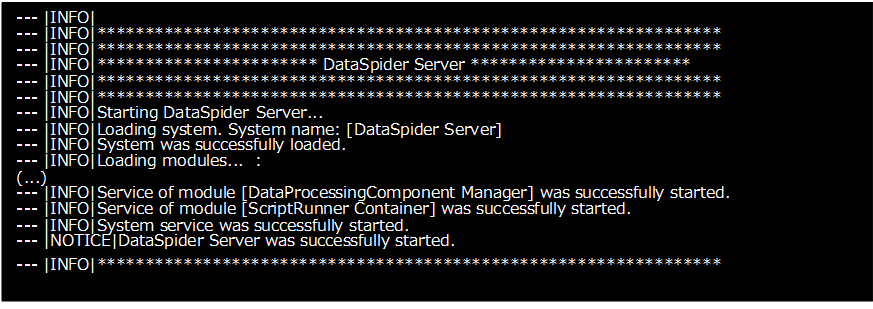
13.2. ReLaunch DataSpiderServer
To reLaunch DataSpiderServer, execute either of following procedures.
-
Common to Windows Version & UNIX/Linux Version
-
Press [Reboot DataSpiderServer] button in [Others] tab of [DataSpiderServer Settings], Control Panel, DataSpider Studio.
-
-
Windows Version
-
In command prompt, move to $DATASPIDER_HOME/server/bin and run "shutdown -r".
-
(When registered as Windows service) Restart Windows service.
-
-
UNIX/Linux Version
-
In console, move to "$ DATASPIDER_HOME / server / bin" and run the command "shutdown -r".
-
13.3. Stop DataSpiderServer
To stop DataSpiderServer, execute either of following procedures.
-
Windows Version
-
In "DataSpider Servista <version>" Select "Shutdown" from the start menu.
-
Press [Shutdown] button in [Others] tab of [DataSpiderServer Settings], Control Panel, DataSpider Studio.
-
(When registered as Windows service) Stop Windows service.
-
-
UNIX/Linux Version
-
Run $DATASPIDER_HOME/server/bin/Shutdown
-
14. Launch and Exit DataSpider Studio
This chapter explains how to launch and exit DataSpider Studio.
14.1. Execution environment of DataSpider
To use DataSpider Studio, the following execution environments are needed. Before launching DataSpider Studio for the first time, install the following.
-
Microsoft .NET Framework 4.8 / 4.8.1
-
Download .NET Framework from Microsoft Download Center.
-
-
StudioLauncher
-
StudioLauncher can be downloaded from the following URL.
"http://<the host name of the machine on which DataSpiderServer is running or IP address>:<the port number of DataSpiderServer>/WebStudio/StudioLauncherSetup.exe"
-
14.2. Launch DataSpider Studio
Launch DataSpider Studio by either of the following ways.
-
Access the website of DataSpider Studio from the browser.
-
Access the following URL.
"http://<the host name of the machine on which DataSpiderServer is running or IP address>:<the port number of DataSpiderServer>/WebStudio/" -
Press [Launch Studio] button.
-
-
Launch from Windows Start menu
-
Select "DataSpider Studio" from Windows Start menu.
-
Press [Launch Studio] button.
-
14.2.1. Login
When launching DataSpider Studio succeeds, displays login dialog.
Enter user name and password, then press [Login] button. When you succeed to log in, then displays start screen of DataSpider Studio.
Language which is used in DataSpider Studio is selected from [Language].
When the user with administrator rights tries to log in while users cannot log in because the maximum number of licenses is exceeded, "Exceeds the maximum number of clients connected" dialog displays. Make the user logging in to the clients for development log out, or close the session from the displayed session list, after that, log in again.
14.3. Exit DataSpider Studio
Exit DataSpider Studio by either of the following ways.
-
Press [x] button in DataSpider Studio.
-
In confirmation dialog, press [OK] button.
15. Start DataSpider Servista Help
You can refer help by a web browser.
Method of starting DataSpider Servista help is as follows.
DataSpiderServer must be started first.
-
Launch DataSpiderServer.
-
Start the browser Help with one of the following methods.
-
Common to Windows Version & UNIX/Linux Version
-
In Web Browser
Access to "http://<The host name or the IP address of the OS where DataSpiderServer is running>:<The port number of DataSpiderServer>/dataspider/doc/help/index.html".
-
-
Windows Version
-
Select "DataSpider Servista <version>" - "Help Document" from Windows Start menu.
-
-
16. Service Development
The basic knowledge related to the concept are function, script creating procedures, development and application necessary for developing the services in DataSpider Servista is described in the below document.
-
Concepts, functions, terms and simple scripting procedure.
-
In the page "Basic knowledge of the service" of DataSpider Servista Help.
-
-
Practical concepts and functions of service development.
-
In the page "Development of Service" of DataSpider Servista Help.
-
-
Various concepts and tools of service operation.
-
In the page "Service Operations" of DataSpider Servista Help.
-
And, tutorial has been prepared for the user assumed to develop the services. If you are using DataSpider Servista for the first time, read the below.
-
"DataSpider Servista tutorial guide"
17. Specifications and Limitations at Uninstallation
17.1. General
-
In Windows version, short cut menu might remain in Windows start menu after uninstall. (DSS-2691)
Delete manually.
-
Uninstall might not be successfully executed, and file might remain. Delete manually. (DSS-14791)
18. Uninstall DataSpider Servista
Use uninstaller when you uninstall DataSpider Servista. For details, refer to "Uninstallation procedure of DataSpider Servista".
When you uninstall DataSpider Studio, you must uninstall DataSpider Servista Studio Launcher. For details, refer to "Uninstallation procedure of DataSpider Servista Studio Launcher".
Before uninstallation, ensure that the various applications of DataSpider Servista have been stopped.
Before uninstalling, if you plan to use exported or downloaded global resources or projects in another DataSpider Servista, be sure to back up the setting values crypto key file.
For details on the setting values crypto key file, refer to DataSpider Servista Help.
18.1. Uninstallation procedure of DataSpider Servista
-
Start uninstaller in following way.
-
In Windows version, start uninstaller by either of the following ways.
-
In "DataSpider Servista <version>" Select "Uninstall" from Windows Start menu.
-
Run $DATASPIDER_HOME/Uninstall/Uninstall.exe.
-
-
In UNIX/Linux version, start uninstaller by the following way.
-
Run $DATASPIDER_HOME/Uninstall/Uninstall
-
-
-
On "Introduction" screen, press [Uninstall] button for GUI method or press [Enter] button for CUI method.
-
If some directories could not be deleted, they are displayed on the screen. After completing uninstallation, confirm the directories and files under $DATASPIDER_HOME and delete them manually.
In Gui method, press [Done] button on "Uninstall Complete" screen to end uninstaller.
In the environment Repository DB, if you do not use the Repository DB after uninstalling, also delete the database instance for the Repository DB.
18.2. Uninstallation procedure of DataSpider Servista Studio Launcher
-
From "Programs and Features" of Windows, select [DataSpider Servista Studio Launcher].
-
Press [Uninstall].
-
Uninstall according to the displayed dialog.
-
Confirm the contents of the following directories and deletes them manually.
-
%LocalAppData%/Saison Technology/DataSpider Servista
%LocalAppData/% is the environment variable of Windows system.
-
19. Troubleshooting
19.1. Junk character in installer
-
Phenomenon
Junk characters are displayed when the installer is started in the Japanese environment of Red Hat Enterprise Linux. (It is displayed as "□") -
Possible causes
The installer may not correctly refer to the font file of the OS. -
Counter-measure
Start the installer after creating the symbolic link for the font file of the OS.-
/usr/share/fonts/ja/TrueType/kochi-gothic-subst.ttf
-
/usr/share/fonts/ja/TrueType/kochi-mincho-subst.ttf
-
-
Creation procedure
-
Create a symbolic link as /usr/share/fonts/ja/TrueType/kochi-gothic-subst.ttf. Execute the command in console as follows.
# ln -s /usr/share/fonts/ja/TrueType/kochi-gothic-subst.ttf
/usr/share/fonts/ja/TrueType/kochi-gothic.ttf -
Create a symbolic link as /usr/share/fonts/ja/TrueType/kochi-mincho-subst.ttf. Execute the command in console as follows.
# ln -s /usr/share/fonts/ja/TrueType/kochi-mincho-subst.ttf
/usr/share/fonts/ja/TrueType/kochi-mincho.ttf
-
19.2. Installing or uninstalling DataSpider Servista by using CUI installer fails
-
Event
When you try to install or uninstall DataSpider Servista by using CUI installer, after selecting the language, displays the following error and the operation fails.-
"Installer User Interface Mode Not Supported"
-
-
Possible causes
The possible cause of this error is existing both of the following packages, by the operation such as installing JDK1.7.0.-
xorg-x11-fonts-Type1
-
stix-fonts
-
-
Counter-measure
Delete one of, or both of the following packages, after that, install or uninstall DataSpider Servista again.-
xorg-x11-fonts-Type1
-
stix-fonts
-
19.3. DataSpiderServer cannot be started
19.3.1. The "License file could not be found" error occurs and DataSpiderServer cannot be started
-
Event
At startup of DataSpiderServer, "com.appresso.ds.common.license.LicenseException: License file cannot be found" error is output in server.log and DataSpiderServer fails to start. -
Possible causes
Following causes are possible.-
The license file is not in $DATASPIDER_HOME/server/lic.
-
The license file in $DATASPIDER_HOME/server/lic is not correct.
-
The name of the file in $DATASPIDER_HOME/server/lic is not "license.lic".
-
-
Counter-measure
Place the correct license file in $DATASPIDER_HOME/server/lic and Launch DataSpiderServer.
19.3.2. When restarting DataSpiderServer, "LifecycleException: Protocol handler initialization failed" error occurs and it fails to restart
-
Event
At reboot of DataSpiderServer, "LifecycleException: Protocol handler initialization failed: java.net.BindException: Address already in use: JVM_Bind:<port number of DataSpiderServer>" error occurs and DataSpiderServer fails to reboot. -
Possible causes
DataSpiderServer process may not have stopped correctly. -
Counter-measure
-
Windows version
-
Run $DATASPIDER_HOME/server/bin/Shutdown.exe first, and then Launch DataSpiderServer.
-
-
UNIX/Linux version
-
Run $DATASPIDER_HOME/server/bin/Shutdown first, and then Launch DataSpiderServer.
-
-
19.3.3. The "java.lang.NullPointerException" error occurs and DataSpiderServer cannot be started
-
Event
At startup of DataSpiderServer in a UNIX/Linux environment, no logs are output to server.log, the "java.lang.NullPointerException" error is output to server.error.log, and DataSpiderServer fails to start. -
Possible causes
The locale of the OS on which DataSpiderServer is running may be set to "C.UTF-8". If the locale is "C.UTF-8", DataSpiderServer cannot refer to one of the required system properties when starting up. -
Counter-measure
Add "user.country=US" to $DATASPIDER_HOME/server/conf/locale.properties, and then start DataSpiderServer.
DataSpider Servista
5.0.0 Install Guide
The 1st edition: February 9 2026
Saison Technology Co.,Ltd.